Playback starts YouTube’s embedded player (privacy-enhanced mode).
How to Format a Hard Drive in Windows XP
ChannelHOWTECHDescription from the creator
This tutorial will show you how to easily format a hard disk in Windows XP.
Don't forget to check out our site howtech.tv/ for more free how-to videos!
youtube.com/ithowtovids - our feed
facebook.com/howtechtv - join us on facebook
plus.google.com/103440382717658277879 - our group in Google+
In this tutorial you are going to learn how to format a hard drive in Windows XP which is actually a relatively simple process.
Step # 1 -- Locating the Disk to Format
First of all you are going to need to have a partitioned hard disk. Click on "Start" and then "My Computer". Locate the hard disk that you want to format, in this case it is the "F" drive. It is not possible to format your primary drive (probably labeled C) in Windows XP, as it contains Windows itself.
Step # 2 -- Getting Ready to Format
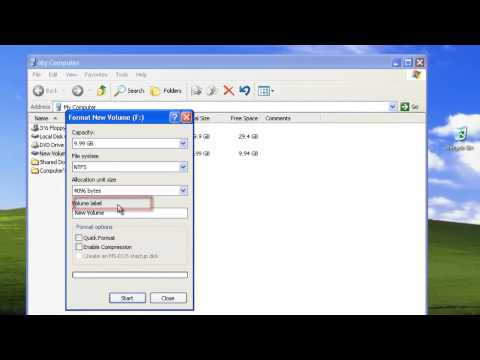
Right click on the drive and in the menu that appears click "Format". A window which has the formatting options will appear. Make sure that you have the right drive selected, choose a file system (which is probably best left as it is), create a new label for the drive if you wish and then click "Start".
Step # 3 -- Completing for Formatting
A dialog box will appear confirming that you want to format the disk. Remember this will wipe all of the data from the disk, so do not click "OK" if there is any information on the drive that you want to keep. Once you have clicked "OK" to confirm the format a green progress bar will appear in the bottom of the formatting window and after a while a dialog box will appear informing you that the format was completed, click "OK" and that is how to format a hard drive in Windows XP.
Don't forget to check out our site howtech.tv/ for more free how-to videos!
youtube.com/ithowtovids - our feed
facebook.com/howtechtv - join us on facebook
plus.google.com/103440382717658277879 - our group in Google+
In this tutorial you are going to learn how to format a hard drive in Windows XP which is actually a relatively simple process.
Step # 1 -- Locating the Disk to Format
First of all you are going to need to have a partitioned hard disk. Click on "Start" and then "My Computer". Locate the hard disk that you want to format, in this case it is the "F" drive. It is not possible to format your primary drive (probably labeled C) in Windows XP, as it contains Windows itself.
Step # 2 -- Getting Ready to Format
Right click on the drive and in the menu that appears click "Format". A window which has the formatting options will appear. Make sure that you have the right drive selected, choose a file system (which is probably best left as it is), create a new label for the drive if you wish and then click "Start".
Step # 3 -- Completing for Formatting
A dialog box will appear confirming that you want to format the disk. Remember this will wipe all of the data from the disk, so do not click "OK" if there is any information on the drive that you want to keep. Once you have clicked "OK" to confirm the format a green progress bar will appear in the bottom of the formatting window and after a while a dialog box will appear informing you that the format was completed, click "OK" and that is how to format a hard drive in Windows XP.
About this tutorial
HOWTECH published this 1:15 video tutorial on November 12, 2013. It has been watched 74,009 times on YouTube.
- Channel
- HOWTECH
- Category
- Howto & Style
- Duration
- 1:15
- Published
- November 12, 2013
- Views
- 74,009
- Likes
- 159
Share
This tutorial in other languages
- FRComment formater un disque dur sous Windows XP
- ESCómo dar formato a un disco duro en Windows XP
- PTComo formatar um disco rígido no Windows XP
- ITCome formattare un disco rigido in Windows XP
- DEWie man eine Festplatte in Windows XP Format
- NLHoe maak je een harde schijf in Windows XP formatteren
- RUКак отформатировать жесткий диск в Windows XP
- PLJak sformatować dysk twardy w systemie Windows XP
- JAWindows XPでハードドライブをフォーマットする方法
- ARكيفية تهيئة القرص الصلب في نظام التشغيل Windows XP
- HIWindows XP में एक हार्ड ड्राइव प्रारूप बनाने के तरीके
- IDCara Format Hard Drive di Windows XP