Playback starts YouTube’s embedded player (privacy-enhanced mode).
How to Hide or Unhide Files and Folders with Command Prompt on Windows 10?
ChannelTechMeSpotDescription from the creator
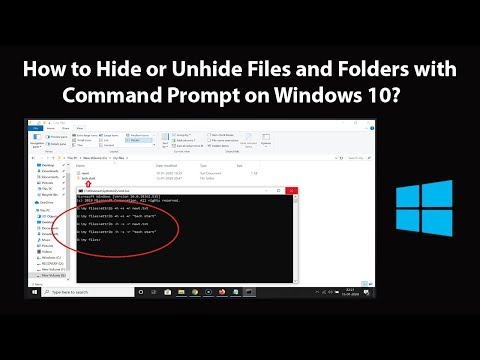
How to Hide or Unhide Files and Folders with Command Prompt on Windows 10?
To hide:
Step 1: Go to the folder or directory where you have your files that you want to hide.
Step 2: Click on the address bar, delete the path. After that, type 'cmd' without quotes, and then hit enter key on the keyboard. You will see command prompt is now opened in that folder.
Step 3: To hide, type the command below, and then hit enter key on the keyboard.
attrib +h +s +r name_of_the_file_with_extension
i) attrib means attributes.
ii) + means we are adding an attribute.
iii) h means hidden, s means system file, r means read only.
Note: If there is any space between your file or folder name, provide the name in quotes.
To Unhide:
Step 1: Follow till steps 2 from above.
Step 2: To Unhide, type the command below, and then hit enter key on the keyboard.
attrib -h -s -r name_of_the_file_with_extension
i) - Means we are removing an attribute.
ii) For explanation of other terms used in command, check hide method above.
If you want to only show the hidden files and folder, follow below steps.
Step 1: Open File explorer, and then click on 'View' tab.
Step 2: Click on 'options,' and then click on 'Change Folder and search options.'
Step 3: Click on 'view' tab.
Step 4: Click on 'show hidden files, folder, and drives.'
Step 5: Scroll down, and then Uncheck 'Hide protected operating system files(recommended).'
Step 6: Click on 'yes' button at the warning. After that, click on 'Apply' button, and then 'ok' button.
It's done.
Thanks for watching, please like and subscribe
==============================================
YouTube Subscribe: goo.gl/4lCCN8
Patreon: patreon.com/TechMeSpot
Facebook: facebook.com/techmespot
Twitter: twitter.com/techmespot
Website: techmespot.com
#howto #HideFiles #UnhideFiles
To hide:
Step 1: Go to the folder or directory where you have your files that you want to hide.
Step 2: Click on the address bar, delete the path. After that, type 'cmd' without quotes, and then hit enter key on the keyboard. You will see command prompt is now opened in that folder.
Step 3: To hide, type the command below, and then hit enter key on the keyboard.
attrib +h +s +r name_of_the_file_with_extension
i) attrib means attributes.
ii) + means we are adding an attribute.
iii) h means hidden, s means system file, r means read only.
Note: If there is any space between your file or folder name, provide the name in quotes.
To Unhide:
Step 1: Follow till steps 2 from above.
Step 2: To Unhide, type the command below, and then hit enter key on the keyboard.
attrib -h -s -r name_of_the_file_with_extension
i) - Means we are removing an attribute.
ii) For explanation of other terms used in command, check hide method above.
If you want to only show the hidden files and folder, follow below steps.
Step 1: Open File explorer, and then click on 'View' tab.
Step 2: Click on 'options,' and then click on 'Change Folder and search options.'
Step 3: Click on 'view' tab.
Step 4: Click on 'show hidden files, folder, and drives.'
Step 5: Scroll down, and then Uncheck 'Hide protected operating system files(recommended).'
Step 6: Click on 'yes' button at the warning. After that, click on 'Apply' button, and then 'ok' button.
It's done.
Thanks for watching, please like and subscribe
==============================================
YouTube Subscribe: goo.gl/4lCCN8
Patreon: patreon.com/TechMeSpot
Facebook: facebook.com/techmespot
Twitter: twitter.com/techmespot
Website: techmespot.com
#howto #HideFiles #UnhideFiles
About this tutorial
TechMeSpot published this 6:44 video tutorial on February 13, 2020. It has been watched 115,927 times on YouTube.
- Channel
- TechMeSpot
- Category
- Howto & Style
- Duration
- 6:44
- Published
- February 13, 2020
- Views
- 115,927
- Likes
- 1,250
Tags
Share
This tutorial in other languages
- FRComment masquer ou afficher les fichiers et dossiers avec invite de commande sous Windows 10?
- ESCómo ocultar o mostrar archivos y carpetas con símbolo de sistema en Windows 10?
- PTComo ocultar ou arquivos Unhide e pastas com Prompt de comando no Windows 10?
- ITCome nascondere o scoprire file e cartelle con prompt dei comandi in Windows 10?
- DEWie zu verbergen oder Einblenden von Dateien und Ordner mit Eingabeaufforderung unter Windows 10?
- NLHoe te verbergen of zichtbaar maken van bestanden en mappen met Command Prompt in Windows 10?
- RUКак скрыть или Unhide файлы и папки с поддержкой командной строки в Windows 10?
- PLJak ukryć lub przywrócić pliki i foldery z wiersza polecenia w systemie Windows 10?
- JAどのコマンドで隠すまたは再表示ファイルおよびフォルダへのWindows 10上のプロンプト?
- ARكيفية إخفاء أو إظهار الملفات والمجلدات مع موجه الأوامر على ويندوز 10؟
- HIकैसे छिपाने के लिए या सामने लाएँ फ़ाइलें और कमान के साथ फ़ोल्डर शीघ्र Windows 10 पर?
- IDCara Menyembunyikan atau Unhide File dan Folder dengan Command Prompt pada Windows 10?