Playback starts YouTube’s embedded player (privacy-enhanced mode).
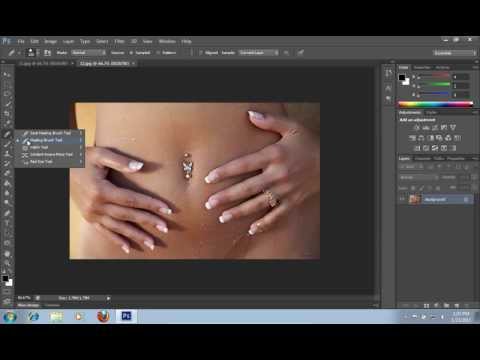
How to Make Fake Piercings in Photoshop CS6
ChannelPhotoshop Design and Photo editing Tutorials from HowTechDescription from the creator
Learn how to make a fake piercings in Adobe Photoshop.
Don't forget to check out our site howtech.tv/ for more free how-to videos!
youtube.com/ithowtovids - our feed
facebook.com/howtechtv - join us on facebook
plus.google.com/103440382717658277879 - our group in Google+
In this video tutorial we will show you how to photoshop fake piercings.
Launch the Adobe Photoshop. Go to the "File" menu, press "Open" and choose the photos you want to edit. Select the "Healing Brush Tool" from the toolbar.
Press "Alt" key, hold it and click on the image area where the piercing is. Then, press and holding the left mouse drag the selected area to another photo. On the other photo press "Create new layer".
Then click the mouse button on the area where you want to place the piercing. Zoom in by pressing "Ctrl and +" keys. Select the "Eraser Tool" from the toolbar.
Adjust the size of the brush and just erase unnecessary area near piercing. Go to the "Edit" menu, press "Free Transform" and choose the photos you want to edit.
Adjust the piercing position. Then go to the "Layer" menu and press "Flatten Image".
Don't forget to check out our site howtech.tv/ for more free how-to videos!
youtube.com/ithowtovids - our feed
facebook.com/howtechtv - join us on facebook
plus.google.com/103440382717658277879 - our group in Google+
In this video tutorial we will show you how to photoshop fake piercings.
Launch the Adobe Photoshop. Go to the "File" menu, press "Open" and choose the photos you want to edit. Select the "Healing Brush Tool" from the toolbar.
Press "Alt" key, hold it and click on the image area where the piercing is. Then, press and holding the left mouse drag the selected area to another photo. On the other photo press "Create new layer".
Then click the mouse button on the area where you want to place the piercing. Zoom in by pressing "Ctrl and +" keys. Select the "Eraser Tool" from the toolbar.
Adjust the size of the brush and just erase unnecessary area near piercing. Go to the "Edit" menu, press "Free Transform" and choose the photos you want to edit.
Adjust the piercing position. Then go to the "Layer" menu and press "Flatten Image".
About this tutorial
Photoshop Design and Photo editing Tutorials from HowTech published this 1:30 video tutorial on November 5, 2013. It has been watched 19,556 times on YouTube.
- Category
- Howto & Style
- Duration
- 1:30
- Published
- November 5, 2013
- Views
- 19,556
- Likes
- 69
Share
This tutorial in other languages
- FRComment faire Piercings faux dans Photoshop CS6
- ESCómo hacer perforaciones falsas en Photoshop CS6
- PTComo fazer Piercings falsificadas no Photoshop CS6
- ITCome fare fake piercings in Photoshop CS6
- DEWie man Fake Piercings in Photoshop CS6
- NLHoe kan ik Fake Piercings in Photoshop CS6 Maak
- RUКак сделать Поддельные пирсинг в Photoshop CS6
- PLJak zrobić Fałszywe piercing w Photoshop CS6
- JAPhotoshopのCS6でのフェイクピアスを作る方法
- ARكيفية جعل الثقب وهمية في فوتوشوب CS6
- HIकैसे फ़ोटोशॉप CS6 में नकली छेदना बनाने के लिए
- IDCara Membuat tindik palsu di Photoshop CS6