Playback starts YouTube’s embedded player (privacy-enhanced mode).
How to Make a Transparent PNG
ChannelPhotoshop Design and Photo editing Tutorials from HowTechDescription from the creator
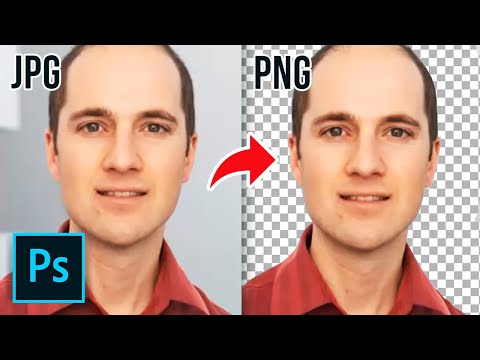
In this tutorial you are going to learn how to make a png image with transparency.
In this tutorial you are going to learn how to make a transparent png.
Step # 1 -- Opening the Image
Start Photoshop and load the image that you want to give some transparency to. Here you can see we have a standard jpg image. In the layers panel right click on "Background" and click "Layer From Background", click "OK" in the dialog box that appears.
Step # 2 -- Creating Some Transparency
Now we will delete some of the image so that nothing is left, not even a background - in Photoshop transparency is indicated by a checked pattern. Click on the "Magic Wand Tool" in the menu on the left. Use this to select the part of the image that you want to remove, here we are removing the background to this portrait photograph. Hold down "Shift" and click to select multiple areas. When you have selected everything you want press the "Delete" key. Press "Control" and "D" on the keyboard.
Step # 3 -- Saving the File
Now we need to save this file as a png with transparency enabled. Click "File" and then "Save for Web & Devices". On the right make sure that the "Transparency" box is checked and then click "Save". Name the photo, choose a location, and click "Save" again.
Step # 4 -- Testing the Transparency
To make sure that the transparency has worked, click "File" then "Open" and locate the png file we just created and open it. Press "Control" and "A" then "Control" and "C" and navigate to another image. Press "Control" and "V" and you will see that there is no background where we previously deleted it and that is how to make a transparent png.
In this tutorial you are going to learn how to make a transparent png.
Step # 1 -- Opening the Image
Start Photoshop and load the image that you want to give some transparency to. Here you can see we have a standard jpg image. In the layers panel right click on "Background" and click "Layer From Background", click "OK" in the dialog box that appears.
Step # 2 -- Creating Some Transparency
Now we will delete some of the image so that nothing is left, not even a background - in Photoshop transparency is indicated by a checked pattern. Click on the "Magic Wand Tool" in the menu on the left. Use this to select the part of the image that you want to remove, here we are removing the background to this portrait photograph. Hold down "Shift" and click to select multiple areas. When you have selected everything you want press the "Delete" key. Press "Control" and "D" on the keyboard.
Step # 3 -- Saving the File
Now we need to save this file as a png with transparency enabled. Click "File" and then "Save for Web & Devices". On the right make sure that the "Transparency" box is checked and then click "Save". Name the photo, choose a location, and click "Save" again.
Step # 4 -- Testing the Transparency
To make sure that the transparency has worked, click "File" then "Open" and locate the png file we just created and open it. Press "Control" and "A" then "Control" and "C" and navigate to another image. Press "Control" and "V" and you will see that there is no background where we previously deleted it and that is how to make a transparent png.
About this tutorial
Photoshop Design and Photo editing Tutorials from HowTech published this 1:37 video tutorial on October 30, 2013. It has been watched 1,094,736 times on YouTube.
- Category
- Howto & Style
- Duration
- 1:37
- Published
- October 30, 2013
- Views
- 1,094,736
- Likes
- 5,163
Share
This tutorial in other languages
- FRComment faire un PNG transparent
- ESCómo hacer un PNG transparente
- PTComo fazer um PNG transparente
- ITCome fare un PNG trasparente
- DEWie man eine transparente PNG
- NLHoe maak je een transparante PNG maken
- RUКак сделать прозрачный PNG
- PLJak zrobić przezroczysty PNG
- JA透明PNGを作る方法
- ARكيف اصنع PNG شفاف
- HIकोई पारदर्शी PNG बनाने के लिए कैसे
- IDCara Membuat PNG Transparan