Playback starts YouTube’s embedded player (privacy-enhanced mode).
How to Remove Text from Image in Photoshop
ChannelPhotoshop Design and Photo editing Tutorials from HowTechDescription from the creator
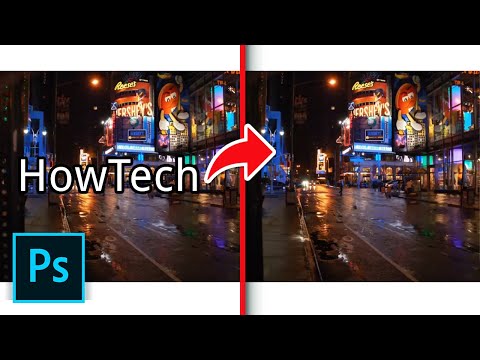
This tutorial is going to show you how to remove text from an image in Photoshop.
In this tutorial you are going to learn how to remove text from image in Photoshop.
Step # 1 -- Deleting a Text Layer
Before we get into more complicated ways of removing text in Photoshop, you should make sure you can't remove it very easily. Check the layers panel and see if the text has a separate layer, here you can see that it does and if you simply click on this and press "Delete" on the keyboard the text will disappear, problem solved. However, if the text and layer have been merged things become a bit more complicated.
Step # 2 -- Merging the Text onto the Background
To make things harder lets press "Control" and "Z" to bring back that text and then merge it with the background image by clicking "Layers" then "Flatten Image". Now that text has become merged with the background and any part of the image that was behind the text has been lost. Fortunately, one of the coolest tools in Photoshop can be used to fix this situation -- the "Content Aware" tool.
Step # 3 -- Selecting the Text
Select the "Magic Wand Tool" from the toolbar on the left and click in the first letter of the text, it will become selected. Now, hold down the "Shift" key and repeat this process for all of the other letters. Once you have done that click "Select" in the main menu, navigate to "Modify" and click expand. Enter 3 pixels and then click "OK".
Step # 4 -- Using Content Aware Fill
Now, press "Shift" and "Backspace" on the keyboard and in the "Fill" window that appears select "Content-Aware" from the drop down box and click "OK". Photoshop will work some magic for a moment and then the text will disappear from the screen, only the selection will be left. Press "Control" and "D" and the selection will disappear and unless someone looks very closely it will be impossible to tell there was ever text there and that is how to remove text from image in Photoshop.
In this tutorial you are going to learn how to remove text from image in Photoshop.
Step # 1 -- Deleting a Text Layer
Before we get into more complicated ways of removing text in Photoshop, you should make sure you can't remove it very easily. Check the layers panel and see if the text has a separate layer, here you can see that it does and if you simply click on this and press "Delete" on the keyboard the text will disappear, problem solved. However, if the text and layer have been merged things become a bit more complicated.
Step # 2 -- Merging the Text onto the Background
To make things harder lets press "Control" and "Z" to bring back that text and then merge it with the background image by clicking "Layers" then "Flatten Image". Now that text has become merged with the background and any part of the image that was behind the text has been lost. Fortunately, one of the coolest tools in Photoshop can be used to fix this situation -- the "Content Aware" tool.
Step # 3 -- Selecting the Text
Select the "Magic Wand Tool" from the toolbar on the left and click in the first letter of the text, it will become selected. Now, hold down the "Shift" key and repeat this process for all of the other letters. Once you have done that click "Select" in the main menu, navigate to "Modify" and click expand. Enter 3 pixels and then click "OK".
Step # 4 -- Using Content Aware Fill
Now, press "Shift" and "Backspace" on the keyboard and in the "Fill" window that appears select "Content-Aware" from the drop down box and click "OK". Photoshop will work some magic for a moment and then the text will disappear from the screen, only the selection will be left. Press "Control" and "D" and the selection will disappear and unless someone looks very closely it will be impossible to tell there was ever text there and that is how to remove text from image in Photoshop.
About this tutorial
Photoshop Design and Photo editing Tutorials from HowTech published this 1:54 video tutorial on November 2, 2013. It has been watched 1,304,296 times on YouTube.
- Category
- Howto & Style
- Duration
- 1:54
- Published
- November 2, 2013
- Views
- 1,304,296
- Likes
- 8,118
Share
This tutorial in other languages
- FRComment supprimer le texte de l'image dans Photoshop
- ESCómo quitar el texto de la imagen en Photoshop
- PTComo remover texto de imagem no Photoshop
- ITCome rimuovere il testo dal immagine in Photoshop
- DEWie Entfernen von Text aus Bild in Photoshop
- NLHoe om tekst te verwijderen uit Beeld in Photoshop
- RUКак удалить текст из изображения в Photoshop
- PLJak usunąć tekst z obrazka w Photoshopie
- JAPhotoshopで画像からテキストを削除する方法
- ARكيفية إزالة النص من صورة في برنامج فوتوشوب
- HIकैसे Photoshop में छवि से पाठ निकालने के लिए
- IDCara Hapus Teks dari Gambar di Photoshop