Playback starts YouTube’s embedded player (privacy-enhanced mode).
How to manage saved passwords in Mozilla Firefox
ChannelkvchostingDescription from the creator
• Firefox can remember your passwords for the sites you visit. You can enable it on your personal computer, but it's not advisable for public computers.
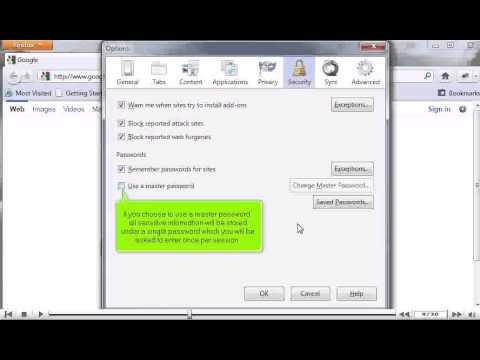
• Open menu by clicking on Orange button. Go to options : Options : Security tab.
• In passwords section, you can check or uncheck the options for remembering password for sites.
• You can choose to use a master password through which all information will be stored on a single password, which you will have to enter once in a session. You will be asked to enter new password and confirm it. Click on OK button, when done.
• Click on Saved passwords button on main window to check any passwords that have been saved.
• When a password is saved, a key kind of icon will be displayed before address in address bar. Click on the key icon to view options.
• There can be two options for remembering passwords. You can choose Not Now option to skip password saving for the session or Never Remember Password for This Site option for permanently skipping password saving request for a particular website.
• Open menu by clicking on Orange button. Go to options : Options : Security tab.
• In passwords section, you can check or uncheck the options for remembering password for sites.
• You can choose to use a master password through which all information will be stored on a single password, which you will have to enter once in a session. You will be asked to enter new password and confirm it. Click on OK button, when done.
• Click on Saved passwords button on main window to check any passwords that have been saved.
• When a password is saved, a key kind of icon will be displayed before address in address bar. Click on the key icon to view options.
• There can be two options for remembering passwords. You can choose Not Now option to skip password saving for the session or Never Remember Password for This Site option for permanently skipping password saving request for a particular website.
About this tutorial
kvchosting published this 2:02 video tutorial on November 1, 2013. It has been watched 45,674 times on YouTube.
- Channel
- kvchosting
- Category
- Howto & Style
- Duration
- 2:02
- Published
- November 1, 2013
- Views
- 45,674
- Likes
- 56
Tags
Share
This tutorial in other languages
- FRComment gérer les mots de passe enregistrés dans Mozilla Firefox
- ES¿Cómo gestionar las contraseñas guardadas en Mozilla Firefox
- PTComo gerenciar senhas salvas no Mozilla Firefox
- ITCome gestire le password salvate in Mozilla Firefox
- DEWie erfolgt die gespeicherten Passwörter in Mozilla Firefox verwalten
- NLHoe kan ik opgeslagen wachtwoorden in Mozilla Firefox beheren
- RUКак управлять сохраненными паролями в Mozilla Firefox
- PLJak zarządzać zapisanych haseł w Firefoksie
- JAMozilla Firefoxの中に保存されたパスワードを管理する方法
- ARكيفية إدارة كلمات المرور المحفوظة في موزيلا فايرفوكس
- HIकैसे मोज़िला फ़ायरफ़ॉक्स में सहेजे गए पासवर्ड का प्रबंधन करने के
- IDBagaimana mengelola password yang disimpan di Mozilla Firefox