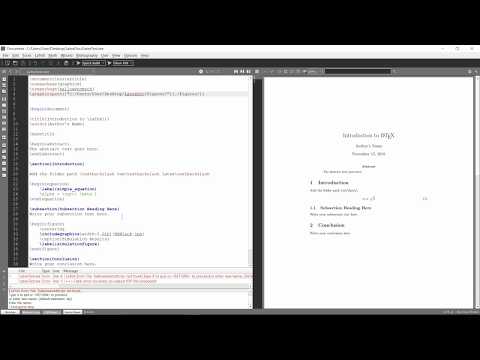
Playback starts YouTube’s embedded player (privacy-enhanced mode).
How to Manually Install Latex Packages with MikTex on Windows 10
Channelhowtwos101Description from the creator
This video will show you how to manually install install Latex packages in MikTex in Windows 10. Most packages (graphicx, float, tocloft, hyperref, etc)
Most of the packages can be downloaded from CTAN: ctan.org/?lang=en
You can search the package on CTAN, or just google the package, such as "float package Latex", then just hit download to get a zipped file of the Latex package.
After it downloads, right click on the package and choose the extract all option.
In the extracted folder check if there is a .sty file, this is generally what the package is looking for. If there is a .sty and no .ins, then you can directly proceed to making the folders and importing them to Latex. If there is a .ins, you will need to run Latex on it first. You can do this by clicking the browser bar at the top, and type in cmd and hit enter. In the command window that pops up, type:
latex packagename.ins
Then hit enter to build the package. Some packages may require additional options in the command prompt, others need no input, or just need you to hit enter again as the one in the video does.
After the package is built, you will need to create a folder to store all the packages. It needs to have the specific format of a base folder with any name, and then a folder inside of it name tex, and then a folder inside that named latex.
After you create this folder, you can drag any packages inside the latex folder. You want the folder that has the .sty inside of it. You can right click on it to choose copy, then paste it into the folder.
The next step is to open the MikTex Settings (Admin) program, which you can find by searching MikTex. In the window that pops up, choose the Roots tab, and then hit add at the bottom. Here, search for the top folder you created (NOT the tex or latex folder), and choose it. Then hit apply at the bottom and a window should pop up and quickly and install all of the packages.
Your Latex installation should now be able to utilize those packages. If you have correctly put your packages in the folder and Latex still does not recognize them, try going back into the MikTex settings and remove and re-add the folder, and apply it again. The packages should now be available.
Check out my facebook at: facebook.com/pages/All-How-2s/198429346974010
or my twitter: twitter.com/AllHow2s
Or my website where I have a lot of other great tutorials (such as how to take a screenshot, or how to get the start button back on Windows 8): allhow2s.com
Most of the packages can be downloaded from CTAN: ctan.org/?lang=en
You can search the package on CTAN, or just google the package, such as "float package Latex", then just hit download to get a zipped file of the Latex package.
After it downloads, right click on the package and choose the extract all option.
In the extracted folder check if there is a .sty file, this is generally what the package is looking for. If there is a .sty and no .ins, then you can directly proceed to making the folders and importing them to Latex. If there is a .ins, you will need to run Latex on it first. You can do this by clicking the browser bar at the top, and type in cmd and hit enter. In the command window that pops up, type:
latex packagename.ins
Then hit enter to build the package. Some packages may require additional options in the command prompt, others need no input, or just need you to hit enter again as the one in the video does.
After the package is built, you will need to create a folder to store all the packages. It needs to have the specific format of a base folder with any name, and then a folder inside of it name tex, and then a folder inside that named latex.
After you create this folder, you can drag any packages inside the latex folder. You want the folder that has the .sty inside of it. You can right click on it to choose copy, then paste it into the folder.
The next step is to open the MikTex Settings (Admin) program, which you can find by searching MikTex. In the window that pops up, choose the Roots tab, and then hit add at the bottom. Here, search for the top folder you created (NOT the tex or latex folder), and choose it. Then hit apply at the bottom and a window should pop up and quickly and install all of the packages.
Your Latex installation should now be able to utilize those packages. If you have correctly put your packages in the folder and Latex still does not recognize them, try going back into the MikTex settings and remove and re-add the folder, and apply it again. The packages should now be available.
Check out my facebook at: facebook.com/pages/All-How-2s/198429346974010
or my twitter: twitter.com/AllHow2s
Or my website where I have a lot of other great tutorials (such as how to take a screenshot, or how to get the start button back on Windows 8): allhow2s.com
About this tutorial
howtwos101 published this 6:47 video tutorial on October 28, 2019. It has been watched 153,155 times on YouTube.
- Channel
- howtwos101
- Category
- Howto & Style
- Duration
- 6:47
- Published
- October 28, 2019
- Views
- 153,155
- Likes
- 998
Tags
Share
This tutorial in other languages
- FRComment faire pour installer manuellement paquets latex avec miktex sur Windows 10
- ESCómo instalar manualmente los paquetes de látex con MikTeX en Windows 10
- PTComo instalar manualmente pacotes de látex com MikTex no Windows 10
- ITCome manuale di installazione dei pacchetti di lattice con MiKTEX su Windows 10
- DEWie manuell Installieren Latex Pakete mit MikTex auf 10 Fenster
- NLHoe handmatig moeten worden geïnstalleerd Latex Pakketten met MikTeX op Windows 10
- RUКак вручную установить латексные пакеты с MikTex на Windows 10
- PLJak ręcznie zainstalować Latex Pakiety z MiKTeX na systemie Windows 10
- JAWindowsの10にMikTexとラテックスパッケージをインストールする方法を手動に
- ARكيفية يدويا تثبيت حزم مطاط مع MikTex على نظام التشغيل Windows 10
- HIकैसे मैन्युअल रूप से करने के लिए स्थापित Windows 10 पर MiKTeX साथ लेटेक्स पैकेज
- IDCara Manual Instal Paket Lateks dengan MikTeX pada Windows 10