Playback starts YouTube’s embedded player (privacy-enhanced mode).
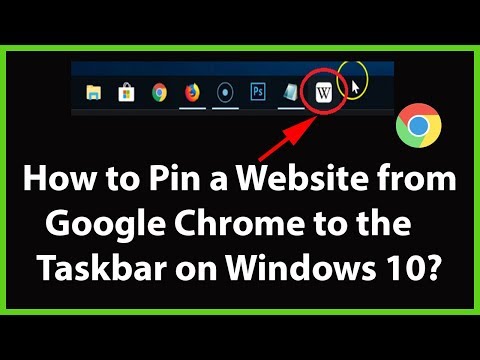
How to Pin a Website from Google Chrome to the Taskbar on Windows 10?
ChannelTechMeSpotDescription from the creator
How to Pin a Website from Google Chrome to the Taskbar on Windows 10?
Step 1: Open Google Chrome, and then Open the website that you want to Pin.
Step 2: Click on 'three dots' at the top right, and then hover your mouse on 'More tools'.
Step 3: Click on 'create shortcut'.
Step 4: Give it a name, and then click on 'create' button. If you like, you can check the option 'open as window'.
Step 5: Now, go to desktop, and then drag the shortcut to the taskbar.
Now, you can open a website from Taskbar.
It's done.
Thanks for watching, please like and subscribe
==============================================
YouTube Subscribe: goo.gl/4lCCN8
Twitter: twitter.com/techmespot
Website: techmespot.com
#howto #pinawebsitefromchrometotaskbar #chrometips
Step 1: Open Google Chrome, and then Open the website that you want to Pin.
Step 2: Click on 'three dots' at the top right, and then hover your mouse on 'More tools'.
Step 3: Click on 'create shortcut'.
Step 4: Give it a name, and then click on 'create' button. If you like, you can check the option 'open as window'.
Step 5: Now, go to desktop, and then drag the shortcut to the taskbar.
Now, you can open a website from Taskbar.
It's done.
Thanks for watching, please like and subscribe
==============================================
YouTube Subscribe: goo.gl/4lCCN8
Twitter: twitter.com/techmespot
Website: techmespot.com
#howto #pinawebsitefromchrometotaskbar #chrometips
About this tutorial
TechMeSpot published this 3:57 video tutorial on October 26, 2019. It has been watched 64,881 times on YouTube.
- Channel
- TechMeSpot
- Category
- Howto & Style
- Duration
- 3:57
- Published
- October 26, 2019
- Views
- 64,881
- Likes
- 728
Tags
Share
This tutorial in other languages
- FRComment épingler un site Web de Google Chrome sur Windows Taskbar le 10?
- ESCómo Pin un sitio web desde Google Chrome a la barra de tareas en Windows 10?
- PTComo Pin um site a partir do Google Chrome para a barra de tarefas no Windows 10?
- ITCome Pin un sito web da parte di Google Chrome per la barra delle applicazioni in Windows 10?
- DEWie man Pin eine Webseite von Google Chrome auf die Taskleiste unter Windows 10?
- NLHoe maak je Pin een website van Google Chrome om de taakbalk in Windows 10?
- RUКак Pin веб-сайта с Google Chrome на панели задач в Windows 10?
- PLJak przypiąć stronę z Google Chrome na pasku zadań w systemie Windows 10?
- JAどのようにピンのWindows 10上のタスクバーにGoogleのChromeからウェブサイトへ?
- ARكيفية دبوس على الموقع الإلكتروني من جوجل كروم على شريط المهام في ويندوز 10؟
- HIकैसे पिन Windows 10 पर टास्क बार में गूगल क्रोम से एक वेबसाइट के लिए?
- IDCara Pin Website dari Google Chrome ke Taskbar pada Windows 10?