Playback starts YouTube’s embedded player (privacy-enhanced mode).
How to Recover Unallocated Partition with Data on It
ChannelMiniTool Software LtdDescription from the creator
How to recover unallocated partition with data on it? Here is a new version of this video:
youtube.com/watch?v=y3a1jlZ1NeA
Now, MiniTool Partition Wizard, a professional and simple partition magic can help to recover lost partitions as well as their data as long as new partition hasn’t been created.
Step-by-step Guide to Fixing Unallocated Hard Drive Space
Step 1: launch MiniTool Partition Wizard to get its main interface.
Step 2: select the disk where partition loss appears and directly choose "Partition Recovery" from the left action panel or from the toolbar.
Step 3: choose a scanning range from "Full Disk", "Unallocated Space", and "Specified Range", and then click on "Next" button.
Step 4: set scanning method to scan the specified range and click
"Next".
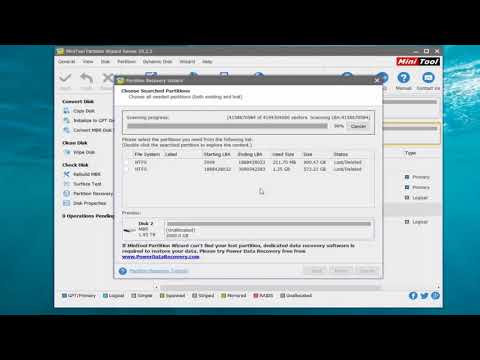
Step 5: check all needed partitions, including existing partitions and deleted/lost partitions, and then click "Finish" button.
Step 6: assign a letter for the recovered partition(s) using "Change Drive Letter" feature if you want to see it in Windows Explorer, and then click "Apply" button on the top to perform partition recovery.
youtube.com/watch?v=y3a1jlZ1NeA
Now, MiniTool Partition Wizard, a professional and simple partition magic can help to recover lost partitions as well as their data as long as new partition hasn’t been created.
Step-by-step Guide to Fixing Unallocated Hard Drive Space
Step 1: launch MiniTool Partition Wizard to get its main interface.
Step 2: select the disk where partition loss appears and directly choose "Partition Recovery" from the left action panel or from the toolbar.
Step 3: choose a scanning range from "Full Disk", "Unallocated Space", and "Specified Range", and then click on "Next" button.
Step 4: set scanning method to scan the specified range and click
"Next".
Step 5: check all needed partitions, including existing partitions and deleted/lost partitions, and then click "Finish" button.
Step 6: assign a letter for the recovered partition(s) using "Change Drive Letter" feature if you want to see it in Windows Explorer, and then click "Apply" button on the top to perform partition recovery.
About this tutorial
MiniTool Software Ltd published this 7:53 video tutorial on November 4, 2017. It has been watched 679,032 times on YouTube.
- Channel
- MiniTool Software Ltd
- Category
- Howto & Style
- Duration
- 7:53
- Published
- November 4, 2017
- Views
- 679,032
- Likes
- 3,028
Tags
Share
This tutorial in other languages
- FRComment faire pour récupérer les partitions non allouées avec les données qu'il contient
- ESCómo recuperar particiones sin asignar con datos sobre ella
- PTComo recuperar partição não alocado com dados sobre ele
- ITCome recuperare partizione non allocato con dati su di esso
- DEWie mit Daten Unallocated Partition wiederherstellen auf Sie
- NLHoe kan ik niet-toegewezen partitie Recover met gegevens over het
- RUКак восстановить нераспределенные разделы с данными на нем
- PLJak odzyskać Obszar niezaalokowany partycji z danymi na temat It
- JAそれは上のデータと未割り当てパーティションを回復する方法
- ARكيفية استرداد التقسيم غير موزعة مع البيانات الموجودة عليها
- HIकैसे यह पर डेटा के साथ Unallocated विभाजन वसूली करने के लिए
- IDCara Recover Partisi tidak dapat dialokasikan dengan Data pada Ini