The creator does not allow this video to be played on other websites. You can watch it directly on YouTube.
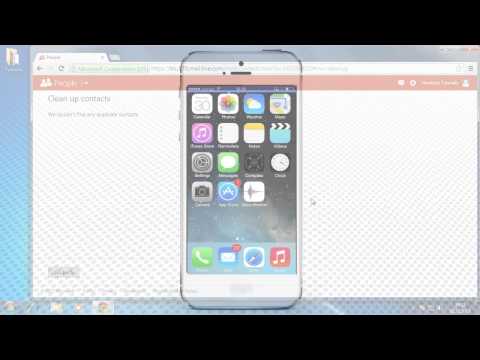
How to Sync Outlook Contacts to iPhone
ChanneliPhone, iPad and Android Tutorials from HowTechDescription from the creator
Read iSecrets.
New magazine about gadgets and mobile technology.
app.appsflyer.com/id946420218?pid=YouTube&c…
In this tutorial you will learn how to sync Outlook contacts to iPhone running on iOS 7.
Greetings, Outlook Mail users! If you have an iPhone running on iOS 7, we have good news for you: the default feature of the newest iPhone operating system allows you to automatically sync your Outlook contacts to iPhone.
All you have to do is add your Outlook Mail account to your iPhone. Here's how to do it.
Don't forget to check out our site howtech.tv/ for more free how-to videos!
youtube.com/ithowtovids - our feed
Facebook.com/howtechtv - join us on Facebook
plus.google.com/103440382717658277879 - our group in Google+
Step 1. Tap the "Settings" app.
Step 2. Scroll down and tap "Mail, Contacts, Calendars". Tap "Add Account" and then choose "Outlook.com".
Step 3. Okay, now fill in your Outlook email address, its password and the description of this new account on your iPhone. Tap "Next".
Step 4. Choose which parts of your Outlook mailbox you want to sync with your iPhone. By default, you will have mail, contacts, calendars and reminders synced to your iPhone. Tap "Save".
Step 5. The magic is about to happen. Your Outlook account is now syncing with your email. All right, in "Mail, Contacts, Calendars" we see the new account added.
Step 6. Let's witness how your new contacts get added to your contact list! Go back to your home screen and tap "Contacts". Right here and right now the Outlook contacts pop up in your Contact List.
Result: Great! Now you know how to sync Outlook contacts to your iPhone!
This was a HowTech tutorial. Like us on Facebook, love us forever or leave us a comment here in the fields below :) Thanks for watching!
New magazine about gadgets and mobile technology.
app.appsflyer.com/id946420218?pid=YouTube&c…
In this tutorial you will learn how to sync Outlook contacts to iPhone running on iOS 7.
Greetings, Outlook Mail users! If you have an iPhone running on iOS 7, we have good news for you: the default feature of the newest iPhone operating system allows you to automatically sync your Outlook contacts to iPhone.
All you have to do is add your Outlook Mail account to your iPhone. Here's how to do it.
Don't forget to check out our site howtech.tv/ for more free how-to videos!
youtube.com/ithowtovids - our feed
Facebook.com/howtechtv - join us on Facebook
plus.google.com/103440382717658277879 - our group in Google+
Step 1. Tap the "Settings" app.
Step 2. Scroll down and tap "Mail, Contacts, Calendars". Tap "Add Account" and then choose "Outlook.com".
Step 3. Okay, now fill in your Outlook email address, its password and the description of this new account on your iPhone. Tap "Next".
Step 4. Choose which parts of your Outlook mailbox you want to sync with your iPhone. By default, you will have mail, contacts, calendars and reminders synced to your iPhone. Tap "Save".
Step 5. The magic is about to happen. Your Outlook account is now syncing with your email. All right, in "Mail, Contacts, Calendars" we see the new account added.
Step 6. Let's witness how your new contacts get added to your contact list! Go back to your home screen and tap "Contacts". Right here and right now the Outlook contacts pop up in your Contact List.
Result: Great! Now you know how to sync Outlook contacts to your iPhone!
This was a HowTech tutorial. Like us on Facebook, love us forever or leave us a comment here in the fields below :) Thanks for watching!
About this tutorial
iPhone, iPad and Android Tutorials from HowTech published this 1:54 video tutorial on November 8, 2014. It has been watched 154,083 times on YouTube.
- Category
- Howto & Style
- Duration
- 1:54
- Published
- November 8, 2014
- Views
- 154,083
- Likes
- 172
Tags
Share
This tutorial in other languages
- FRComment synchroniser les contacts Outlook pour iPhone
- ESCómo sincronizar los contactos de Outlook a iPhone
- PTComo sincronizar contatos do Outlook para iPhone
- ITCome sincronizzare i contatti di Outlook per iPhone
- DEWie erfolgt die Synchronisierung von Outlook-Kontakten auf iPhone
- NLHoe te Sync Outlook-contactpersonen op de iPhone
- RUКак синхронизировать контакты Outlook в iPhone
- PLJak synchronizacji kontaktów programu Outlook do iPhone
- JAどのようにiPhoneに同期Outlookの連絡先へ
- ARكيفية مزامنة جهات اتصال Outlook إلى iPhone
- HIकैसे करने के लिए iPhone करने के लिए सिंक आउटलुक संपर्क
- IDCara Sync Kontak Outlook untuk iPhone