Playback starts YouTube’s embedded player (privacy-enhanced mode).
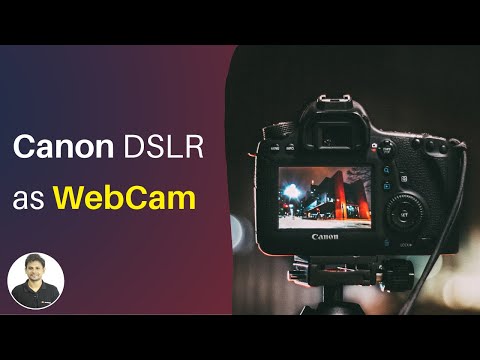
How to Use Your Canon DSLR as a Webcam? (FREE)
ChannelTechEmptyDescription from the creator
Now turn your Canon DSLR Camera as a Webcam using a USB cable. Read more: techempty.org/go/canonwebcam/
No need to get the expensive software or capture cards to make video calls with any of your favourite applications using a DSLR camera. Just install the Canon EOS Webcam Utility on your Windows computer and you are pretty much ready to go. Here are the steps to make your Canon DSLR as a Webcam on Windows 10 with a USB.
Step 1: Download and install the Canon webcam utility from the official website.
To start with, find the list of camera models that support the Canon Webcam utility but if your camera isn't listed there then try with any closer model. Mine is an EOS 70D which is not listed but tried with EOS 77D and it worked.
Once you download the right utility for your Canon DSLR, extract the rar file and just install the tool on your Computer by following the simple on screen instructions. Once the installation is completed, you must restart the computer for the changes to take effect.
Step 2: Connect your camera to the computer
To do this, you need to have a mini usb to USB cable and a supported Canon DSLR camera. Here I’m using the EOS 70D for the demonstration. Just plug the cable to the Camera mini USB port and the other end of the cable to the Computer. Now turn on the camera then change the mode to Movie.
Step 3: Change the settings within the video chat application.
I’m here using Skype as an example. To use Canon DSLR as a webcam, open Skype then go to Menu then choose Settings.
Now go to Audio & Video then choose the source of the camera as EOS Webcam utility. You can even add your desired background by choosing ‘Add Image’.
To use the Canon DSLR as a Webcam with Google Hangouts or any web application, you must allow the utility at the browser settings.
To do that, on Chrome choose this hamburger icon and then select settings. Go to Privacy & Security then choose ‘Site settings’. Now under permissions, choose ‘Camera’ then choose the source as ‘EOS webcam utility’.
That’s it. Now you can use your Canon DSLR as a Webcam with Google Hangouts.
Subscribe to TechEmpty at techempty.org/go/subscribe/
Stay Connected with Sai Praveen
Facebook: facebook.com/imsaipraveen
Instagram: instagram.com/saipraveen
Twitter: twitter.com/techempty
Website: techempty.org
No need to get the expensive software or capture cards to make video calls with any of your favourite applications using a DSLR camera. Just install the Canon EOS Webcam Utility on your Windows computer and you are pretty much ready to go. Here are the steps to make your Canon DSLR as a Webcam on Windows 10 with a USB.
Step 1: Download and install the Canon webcam utility from the official website.
To start with, find the list of camera models that support the Canon Webcam utility but if your camera isn't listed there then try with any closer model. Mine is an EOS 70D which is not listed but tried with EOS 77D and it worked.
Once you download the right utility for your Canon DSLR, extract the rar file and just install the tool on your Computer by following the simple on screen instructions. Once the installation is completed, you must restart the computer for the changes to take effect.
Step 2: Connect your camera to the computer
To do this, you need to have a mini usb to USB cable and a supported Canon DSLR camera. Here I’m using the EOS 70D for the demonstration. Just plug the cable to the Camera mini USB port and the other end of the cable to the Computer. Now turn on the camera then change the mode to Movie.
Step 3: Change the settings within the video chat application.
I’m here using Skype as an example. To use Canon DSLR as a webcam, open Skype then go to Menu then choose Settings.
Now go to Audio & Video then choose the source of the camera as EOS Webcam utility. You can even add your desired background by choosing ‘Add Image’.
To use the Canon DSLR as a Webcam with Google Hangouts or any web application, you must allow the utility at the browser settings.
To do that, on Chrome choose this hamburger icon and then select settings. Go to Privacy & Security then choose ‘Site settings’. Now under permissions, choose ‘Camera’ then choose the source as ‘EOS webcam utility’.
That’s it. Now you can use your Canon DSLR as a Webcam with Google Hangouts.
Subscribe to TechEmpty at techempty.org/go/subscribe/
Stay Connected with Sai Praveen
Facebook: facebook.com/imsaipraveen
Instagram: instagram.com/saipraveen
Twitter: twitter.com/techempty
Website: techempty.org
About this tutorial
TechEmpty published this 3:29 video tutorial on May 7, 2020. It has been watched 38,138 times on YouTube.
- Channel
- TechEmpty
- Category
- Howto & Style
- Duration
- 3:29
- Published
- May 7, 2020
- Views
- 38,138
- Likes
- 476
Tags
Share
This tutorial in other languages
- FRComment utiliser votre reflex numérique Canon comme une webcam? (LIBRE)
- ESCómo utilizar su cámara réflex digital Canon como una cámara web? (GRATIS)
- PTComo usar sua DSLR Canon como uma webcam? (LIVRE)
- ITCome usare il tuo Canon DSLR come una webcam? (GRATUITO)
- DEWie Sie Ihre Canon DSLR als Webcam verwenden? (FREI)
- NLHoe gebruikt u uw Canon DSLR als een webcam? (VRIJ)
- RUКак пользоваться Canon DSLR в качестве веб-камеры? (СВОБОДНО)
- PLJak korzystać z Canon DSLR jako kamera internetowa? (WOLNY)
- JAどのようにウェブカメラとしてあなたのキヤノンのデジタル一眼レフを使用するには? (自由)
- ARكيفية استخدام كانون DSLR الخاص بك كما كاميرا ويب؟ (مجانا)
- HIकैसे एक Webcam के रूप में प्रयोग करने के लिए आपका कैनन DSLR? (नि: शुल्क)
- IDCara Menggunakan DSLR Canon Anda sebagai Webcam? (GRATIS)