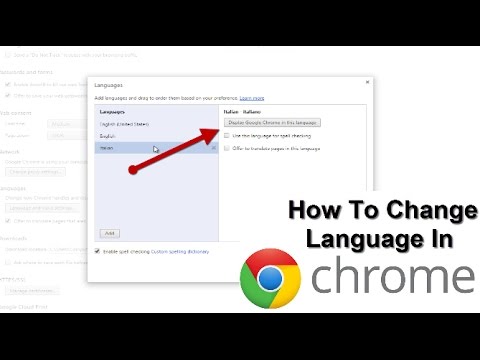
Playback starts YouTube’s embedded player (privacy-enhanced mode).
How To Change Language In Google Chrome | Complete Tutorial
ChannelMDTechVideosDescription from the creator
This tutorial will show you guys how to change the default language within the Google Chrome browser.
Written steps:
1) Click on the the icon with the three vertical dots. You can find it on the top right of your Google Chrome browser bar.
2) Click on the fourth option from the bottom. In English, the button is "Settings." No matter what the default language is, this option will be the fourth from the bottom of the drop-down menu from the wrench button. This button will take you to the settings menu.
3) Click on the last option on the bottom of the page. In English, this button will say, "Show advanced settings..." It'll be written in blue in a smaller font than the rest of the options and you can click on it to expand a list of advanced settings for your Google Chrome browser.
4) Click on the fifth option from the bottom. In English, this button will say "Language and input settings." This rectangular gray button will be under the "Languages" option -- but you can't click on that. This button will take you to a new window that will allow you to change your default language.
5) Click on the option on the bottom of the next screen. This will be the only button -- in English, it will say "Add." Once you click on this button, you'll be shown a list of languages.
6) Choose your default language. Scroll through the options until you find the language you'd like Google Chrome to use. If you don't know what the name of the language is in the language that the web browser is currently using, then find out how to say it by using an online dictionary before you select it.
7) Click "OK."
8) Click "Done."
9) Restart your browser. You should have now changed your default language in Google Chrome.
This tutorial will apply for computers, laptops, desktops, and tablets running the Windows 10, Windows 8/8.1, Windows 7 operating systems. Works for all major computer manufactures (Dell, HP, Acer, Asus, Toshiba, Lenovo, Samsung).
Written steps:
1) Click on the the icon with the three vertical dots. You can find it on the top right of your Google Chrome browser bar.
2) Click on the fourth option from the bottom. In English, the button is "Settings." No matter what the default language is, this option will be the fourth from the bottom of the drop-down menu from the wrench button. This button will take you to the settings menu.
3) Click on the last option on the bottom of the page. In English, this button will say, "Show advanced settings..." It'll be written in blue in a smaller font than the rest of the options and you can click on it to expand a list of advanced settings for your Google Chrome browser.
4) Click on the fifth option from the bottom. In English, this button will say "Language and input settings." This rectangular gray button will be under the "Languages" option -- but you can't click on that. This button will take you to a new window that will allow you to change your default language.
5) Click on the option on the bottom of the next screen. This will be the only button -- in English, it will say "Add." Once you click on this button, you'll be shown a list of languages.
6) Choose your default language. Scroll through the options until you find the language you'd like Google Chrome to use. If you don't know what the name of the language is in the language that the web browser is currently using, then find out how to say it by using an online dictionary before you select it.
7) Click "OK."
8) Click "Done."
9) Restart your browser. You should have now changed your default language in Google Chrome.
This tutorial will apply for computers, laptops, desktops, and tablets running the Windows 10, Windows 8/8.1, Windows 7 operating systems. Works for all major computer manufactures (Dell, HP, Acer, Asus, Toshiba, Lenovo, Samsung).
About this tutorial
MDTechVideos published this 3:21 video tutorial on October 31, 2017. It has been watched 55,552 times on YouTube.
- Channel
- MDTechVideos
- Category
- Science & Technology
- Duration
- 3:21
- Published
- October 31, 2017
- Views
- 55,552
- Likes
- 166
Tags
Share
This tutorial in other languages
- FRComment changer la langue dans Google Chrome | Complete Tutorial
- ESCómo cambiar el idioma En Google Chrome | Tutorial completa
- PTComo alterar o idioma no Google Chrome | Tutorial completo
- ITCome cambiare lingua in Google Chrome | Complete Tutorial
- DEHow To Change Language In Google Chrome | komplett Tutorial
- NLHow To Change Language In Google Chrome | compleet Tutorial
- RUКак изменить язык в Google Chrome | Полный учебник
- PLJak zmienić język w Google Chrome | Kompletna Tutorial
- JAどのように変更された言語でGoogle Chromeの|チュートリアルを完了
- ARكيفية تغيير اللغة في جوجل كروم | كامل دروس
- HIकैसे करने के लिए भाषा बदलें में गूगल क्रोम | संपूर्ण प्रशिक्षण सामग्री
- IDCara Ganti Bahasa Di Google Chrome | lengkap Tutorial