Playback starts YouTube’s embedded player (privacy-enhanced mode).
How To Open BIOS Settings In Windows 7
ChannelMDTechVideosIn brief
You’ll quickly access your BIOS settings in Windows 7 to adjust critical system configurations, including changing the boot order to start from a CD, DVD, or USB. This works for most PCs, laptops, and tablets, regardless of brand—just press the right key at startup.
Questions & answers
Which key do I press to enter BIOS on my Dell/HP/Acer/Asus/Toshiba/Lenovo?
Try F2 (most brands), or F1 for Lenovo or F10 for HP.
Description from the creator
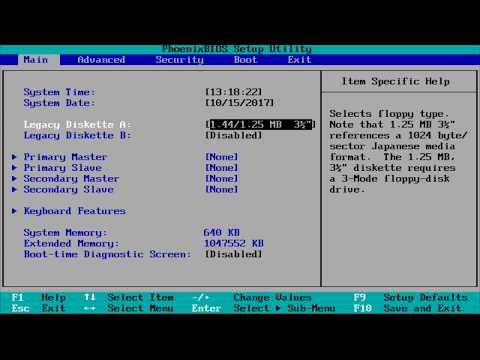
How to open bios settings and setup in Windows 7.Also how to boot computer from CD/DVD/USB by changing the boot order in the bios.
Your computer includes a BIOS Setup utility for changing important computer settings. This document does not define specific default BIOS settings because too many differences exist between computer models. This tutorial follows the most common example, but your system may be different.
Keys to press (possibly some variation, but give these a try first):
Dell: F2
HP:F10
Acer:F2
Asus:F2
Toshiba:F2
Lenovo:F1 (or F2)
This tutorial will apply for computers, laptops, desktops, and tablets running the Windows 10, Windows 8/8.1, Windows 7 operating systems. Works for all major computer manufactures (Dell, HP, Acer, Asus, Toshiba, Lenovo, Samsung).
Your computer includes a BIOS Setup utility for changing important computer settings. This document does not define specific default BIOS settings because too many differences exist between computer models. This tutorial follows the most common example, but your system may be different.
Keys to press (possibly some variation, but give these a try first):
Dell: F2
HP:F10
Acer:F2
Asus:F2
Toshiba:F2
Lenovo:F1 (or F2)
This tutorial will apply for computers, laptops, desktops, and tablets running the Windows 10, Windows 8/8.1, Windows 7 operating systems. Works for all major computer manufactures (Dell, HP, Acer, Asus, Toshiba, Lenovo, Samsung).
About this tutorial
MDTechVideos published this 3:41 video tutorial on October 25, 2017. It has been watched 3,412,900 times on YouTube.
- Channel
- MDTechVideos
- Category
- Science & Technology
- Duration
- 3:41
- Published
- October 25, 2017
- Views
- 3,412,900
- Likes
- 12,035
Tags
Share
This tutorial in other languages
- FRComment ouvrir les paramètres du BIOS dans Windows 7
- ESCómo la configuración del BIOS se abre en Windows 7
- PTComo para abrir as configurações BIOS no Windows 7
- ITCome aprire le impostazioni del BIOS In Windows 7
- DEWie zu öffnen BIOS-Einstellungen in Windows 7
- NLHow To Open BIOS-instellingen in Windows 7
- RUКак открыть настройки BIOS в Windows 7
- PLJak otworzyć Ustawienia BIOS w systemie Windows 7
- JAどのようにするためのオープンBIOS設定でのWindows 7
- ARكيفية إعدادات BIOS فتح في ويندوز 7
- HIकैसे करने के लिए खुला है BIOS सेटिंग्स में विंडोज 7
- IDCara Buka BIOS Settings Pada Windows 7