Playback starts YouTube’s embedded player (privacy-enhanced mode).
How to Change a Printer from Offline to Online
ChannelMDTechVideosIn brief
Fix a printer stuck in offline mode across Windows 7 to 11 by checking connections, rebooting the device, and adjusting settings. These universal steps work for Brother, HP, Epson, or Canon printers—whether wired or networked—without needing brand-specific tools.
Key steps
- Restart the printer by powering it off, then on and waiting 1–2 minutes.
- Confirm the printer is plugged in (local) or check the network link light (green flashing).
- Log in with an administrator account to access printer management settings.
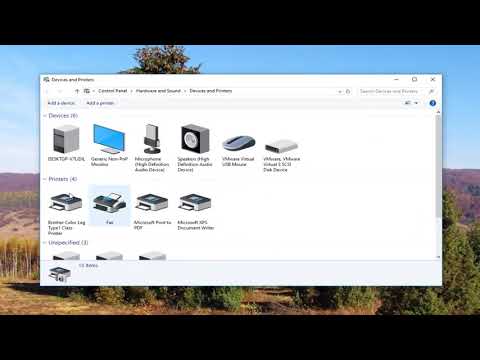
- Right-click the printer and select See what’s printing, then click Printer > Use Printer Online.
- If offline persists, update printer drivers via Windows Update or the manufacturer’s website.
Questions & answers
Does this work for wireless printers?
Yes, but ensure the printer’s Wi-Fi or network connection is active and stable.
Description from the creator
There are many reasons why a printer can go offline; they range from connectivity issues to a powered-down printer. Most of the time, you can bring the printer back online with a few clicks in Windows, but if not, there are additional troubleshooting steps you can take.
1. Reboot your printer by shutting it off and turning it back on again. Give the unit a minute or two to finish booting.
2. Verify that the printer is plugged in to your computer (for local printers) or that it has network connectivity. If the printer is a networked unit, double-check the link light on the back of the printer to make sure it’s flashing green.
3. Log on to your computer using an account that has “Manage Printers” rights to the printer. In most cases, a local administrator account is sufficient.
When your printer is stuck in offline mode, it can be frustrating, especially when you're trying to print an important document. This issue is common with printers from popular brands like Brother, HP, Epson, and Canon, and it often occurs due to network connectivity problems, outdated drivers, or incorrect printer settings. A printer may show as offline due to communication errors between your computer and the device or after a system update that causes temporary conflicts. Understanding the reasons behind this issue is essential for restoring your printer to online status efficiently.
This tutorial walks you through simple and effective methods to switch your printer from offline to online, regardless of the brand. Whether you're troubleshooting a Brother, HP, Epson, or Canon printer, the steps are universal and can help resolve common connectivity and configuration problems. Following the guide can restore proper communication between your device and printer, allowing you to print without interruptions. By applying these troubleshooting techniques, you can ensure that your printer remains online and ready to use whenever you need it.
This tutorial will apply for computers, laptops, desktops, and tablets running the Windows 11, Windows 10, Windows 8/8.1, Windows 7 operating systems. Works for all major computer manufactures (Dell, HP, Acer, Asus, Toshiba, Lenovo, Samsung).
About this tutorial
MDTechVideos published this 2:29 video tutorial on October 26, 2017. It has been watched 3,152,884 times on YouTube.
- Channel
- MDTechVideos
- Category
- Science & Technology
- Duration
- 2:29
- Published
- October 26, 2017
- Views
- 3,152,884
- Likes
- 8,649
Tags
Share
Further reading
-
Change a printer’s status from “offline” to “online”
support.microsoft.com
Your printer might appear offline if it can't communicate with your PC. Here are some things to try to get your printer back online. Check to make sure the printer is turned on and connected to the same Wi-Fi network as…
-
How To Change Printer Status From Offline To Online In Windows 10
windowsradar.com
How to Change Printer Status To Online Windows 10 1. Make Printer online by using Settings. You can try to change printer status to online in Windows 10 in a few ways. First, you can try to resolve the issue by using th…
-
How to change Printer status from Offline to Online in Windows 10
thewindowsclub.com
Printer is Offline? Change a Printer status to online. There is an advantage of turning a printer offline. Nobody can misuse it, and if you have kids at home who keep printing casually, you can ...
This tutorial in other languages
- FRComment changer une imprimante de hors ligne à ligne
- ESCómo cambiar una impresora de offline a online
- PTComo alterar uma impressora a partir de offline para online
- ITCome modificare una stampante da offline a online
- DEWie man einen Drucker von Offline nach Online ändern
- NLHoe kan ik een printer van Offline Wissel naar Online
- RUКак изменить принтер из автономного в Интернет
- PLJak zmienić drukarki z trybu offline do online
- JAオフラインからオンラインにプリンタを変更する方法
- ARكيفية تغيير الطابعة من دون اتصال على الانترنت
- HIकैसे ऑनलाइन करने के लिए ऑफ़लाइन से कोई प्रिंटर को बदलें
- IDCara Mengubah Printer dari Offline Online