Playback starts YouTube’s embedded player (privacy-enhanced mode).
How To Fix explorer.exe Crashing In Windows 10
ChannelMDTechVideosDescription from the creator
This tutorial will show you how to fix the explorer.exe process as needed in Windows 10. We will accomplish this by stoping and restarting the explorer.exe process in Windows 10.
This tutorial should work for all major computer hardware manufactures that include Windows 7, Windows 8/8.1 and Windows 10 in their products (Dell, HP, Acer, Asus, Toshiba, Lenovo, Samsung, and so forth).
If your Taskbar, System Tray, or Start menu acts up, you might be tempted to restart your PC. Instead, you can usually just restart Windows Explorer—and Windows makes it pretty easy.
Windows Explorer (Explorer.exe) is a program manager process that provides the graphical interface you use to interact with most of Windows—the Start menu, taskbar, notification area, and File Explorer. Occasionally, any of these pieces that make up the Windows graphical shell can start acting strangely or even hang. Just like you can close and restart an app that’s acting up, you can also close and restart Windows Explorer. Restarting Windows Explorer can also be handy if you’ve just installed a new app or applied a Registry tweak that would normally require you to restart your PC. Restarting Explorer doesn’t always work in those cases, but it’s easy enough to try it first if you want to avoid a full restart.
Task Manager offers the traditional way to restart Windows Explorer. It was overhauled for Windows 8 and 10, so we’ve got instructions for you whether you’re using those or Windows 7.
In Windows 8 or 10, open Task Manager by right-clicking any empty area on your taskbar and then clicking “Task Manager.” You can also hit Start and search for “task manager,” which might be more useful to you if you’re looking at the Start screen instead of the desktop in Windows 8. And if you favor keyboard shortcuts, just press Ctrl+Shift+Esc.
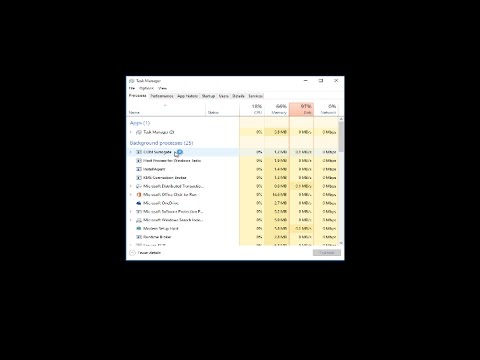
If your Task Manager window looks like the example below, click “More details” at the bottom to see the detailed interface.
The “Process” tab of the Task Manager window shows you apps and background processes currently running on your PC. Scroll down the list of what’s running and find “Windows Explorer.” If you currently have a File Explorer window open, you’ll see it right near the top in the “Apps” section. Otherwise, you’ll find it toward the bottom of the “Background Processes” section. To restart, just select “Windows Explorer” and then click the “Restart” button.
That’s all you should have to do. It may take a few seconds and things like your taskbar and Start menu may disappear momentarily, but when it restarts, things should behave better and you can exit Task Manager.
This tutorial will apply for computers, laptops, desktops,and tablets running the Windows 10, Windows 8/8.1, Windows 7 operating systems.Works for all major computer manufactures (Dell, HP, Acer, Asus, Toshiba, Lenovo, Samsung).
This tutorial should work for all major computer hardware manufactures that include Windows 7, Windows 8/8.1 and Windows 10 in their products (Dell, HP, Acer, Asus, Toshiba, Lenovo, Samsung, and so forth).
If your Taskbar, System Tray, or Start menu acts up, you might be tempted to restart your PC. Instead, you can usually just restart Windows Explorer—and Windows makes it pretty easy.
Windows Explorer (Explorer.exe) is a program manager process that provides the graphical interface you use to interact with most of Windows—the Start menu, taskbar, notification area, and File Explorer. Occasionally, any of these pieces that make up the Windows graphical shell can start acting strangely or even hang. Just like you can close and restart an app that’s acting up, you can also close and restart Windows Explorer. Restarting Windows Explorer can also be handy if you’ve just installed a new app or applied a Registry tweak that would normally require you to restart your PC. Restarting Explorer doesn’t always work in those cases, but it’s easy enough to try it first if you want to avoid a full restart.
Task Manager offers the traditional way to restart Windows Explorer. It was overhauled for Windows 8 and 10, so we’ve got instructions for you whether you’re using those or Windows 7.
In Windows 8 or 10, open Task Manager by right-clicking any empty area on your taskbar and then clicking “Task Manager.” You can also hit Start and search for “task manager,” which might be more useful to you if you’re looking at the Start screen instead of the desktop in Windows 8. And if you favor keyboard shortcuts, just press Ctrl+Shift+Esc.
If your Task Manager window looks like the example below, click “More details” at the bottom to see the detailed interface.
The “Process” tab of the Task Manager window shows you apps and background processes currently running on your PC. Scroll down the list of what’s running and find “Windows Explorer.” If you currently have a File Explorer window open, you’ll see it right near the top in the “Apps” section. Otherwise, you’ll find it toward the bottom of the “Background Processes” section. To restart, just select “Windows Explorer” and then click the “Restart” button.
That’s all you should have to do. It may take a few seconds and things like your taskbar and Start menu may disappear momentarily, but when it restarts, things should behave better and you can exit Task Manager.
This tutorial will apply for computers, laptops, desktops,and tablets running the Windows 10, Windows 8/8.1, Windows 7 operating systems.Works for all major computer manufactures (Dell, HP, Acer, Asus, Toshiba, Lenovo, Samsung).
About this tutorial
MDTechVideos published this 3:41 video tutorial on November 6, 2016. It has been watched 539,961 times on YouTube.
- Channel
- MDTechVideos
- Category
- Science & Technology
- Duration
- 3:41
- Published
- November 6, 2016
- Views
- 539,961
- Likes
- 5,263
Share
This tutorial in other languages
- FRComment réparer explorer.exe Crashing Dans Windows 10
- ESCómo corregir explorer.exe estrellarse en Windows 10
- PTComo corrigir explorer.exe Crashing No Windows 10
- ITCome risolvere explorer.exe Crashing In Windows 10
- DEWie man explorer.exe Crashing In Windows 10 Fix
- NLHow To explorer.exe Crashen In Windows 10 Fix
- RUКак исправить ошибки explorer.exe сбоев в операционной системе Windows 10
- PLJak ustalić explorer.exe awarii w systemie Windows 10
- JAexplorer.exeのクラッシュでのWindows 10を修正する方法
- ARكيفية إصلاح EXPLORER.EXE التحطيم في نظام التشغيل Windows 10
- HIexplorer.exe Windows 10 क्रैश में ठीक करने के लिए कैसे
- IDBagaimana Untuk Perbaiki explorer.exe menabrak Dalam Windows 10