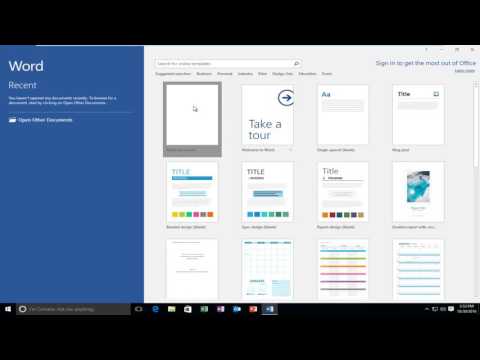
Playback starts YouTube’s embedded player (privacy-enhanced mode).
How To Manually Check For Microsoft Office 2016 Updates
ChannelMDTechVideosDescription from the creator
This tutorial will show you how to manually check for and install updates for Office 2016 on your Windows PC.
From Microsoft Office support:
Open any Office 2016 application, such as Word 2016 or Excel 2016, and create a new document.
Choose File in the top left corner, and then choose Account from the list on the left (or Office Account if you opened Outlook 2016).
Under Product Information, choose Update Options.
Choose Enable Updates if the option is available and then choose Update Options again. If Enable Updates isn't available, automatic updates are enabled and you can go to the next step.
Choose Update Now to manually check for and install Office updates.
Close the "You're up to date!" window after Office is done checking for and installing updates.
IMPORTANT: If Update Options is missing under Product Information, and the About button is the only option available, you either have a volume license install of Office 2016, or your company is using Group Policy to manage Office updates. Try Microsoft Update to get the latest Office 2016 updates or contact your company help desk.
From Microsoft Office support:
Open any Office 2016 application, such as Word 2016 or Excel 2016, and create a new document.
Choose File in the top left corner, and then choose Account from the list on the left (or Office Account if you opened Outlook 2016).
Under Product Information, choose Update Options.
Choose Enable Updates if the option is available and then choose Update Options again. If Enable Updates isn't available, automatic updates are enabled and you can go to the next step.
Choose Update Now to manually check for and install Office updates.
Close the "You're up to date!" window after Office is done checking for and installing updates.
IMPORTANT: If Update Options is missing under Product Information, and the About button is the only option available, you either have a volume license install of Office 2016, or your company is using Group Policy to manage Office updates. Try Microsoft Update to get the latest Office 2016 updates or contact your company help desk.
About this tutorial
MDTechVideos published this 1:55 video tutorial on October 29, 2017. It has been watched 114,477 times on YouTube.
- Channel
- MDTechVideos
- Category
- Science & Technology
- Duration
- 1:55
- Published
- October 29, 2017
- Views
- 114,477
- Likes
- 176
Tags
Share
This tutorial in other languages
- FRComment contrôler manuellement Pour Microsoft Office 2016 Mises à jour
- ESCómo manualmente las actualizaciones de Microsoft Office 2016
- PTComo verificar manualmente para o Microsoft Office 2016 Updates
- ITCome controllare di eseguire manualmente per Microsoft Office 2016 Aggiornamenti
- DEWie man manuell nach Microsoft Office 2016-Updates
- NLHoe handmatig kunt controleren op Microsoft Office 2016 Updates
- RUКак Проверка Чтобы вручную Для Microsoft Office 2016 Обновления
- PLJak ręcznie sprawdzić Microsoft Office 2016 Aktualizacje
- JAどのようにするには手動では、Microsoft Office 2016のアップデートについて確認してください
- ARكيفية يدويا تحقق حصول على Microsoft Office 2016 التحديثات
- HIकैसे माइक्रोसॉफ्ट ऑफिस 2016 अपडेट के लिए करने के लिए मैन्युअल रूप से चेक
- IDCara manual Periksa Untuk Microsoft Office 2016 Update