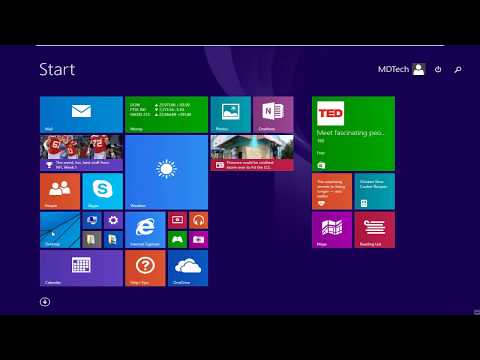
Playback starts YouTube’s embedded player (privacy-enhanced mode).
How to Stop Automatic Updates on Windows 8.1
ChannelMDTechVideosDescription from the creator
How to Stop Automatic Updates on Windows 8.1.
In Windows 8, one has to manually update the Windows apps, but Microsoft has made it easier in Windows 8.1. Windows 8.1 will automatically download and install updates to all your Windows Store Apps.
Automatic updates to Windows Store apps is good in my opinion and can save your time and efforts. But if for some reason you wish to turn off or disable Automatic updates to Windows Store apps, here is how you can do it.
You will be required to log in to your Windows PC with your Microsoft Account. This is a must as some services like this one depend on the Microsoft Account. Once this condition is met, open Windows Store by clicking on its Tile on your Start Screen. Next open the Charms Bar and click on Settings. Now click on App updates.
While updates help you to have the latest functionality and security features in your windows 8 operating system, you might want to stop windows 8 from automatically downloading and installing updates especially if you are using a limited data plan.
This tutorial will apply for computers, laptops, desktops,and tablets running the Windows 10 operating system (Home, Professional, Enterprise, Education) from all supported hardware manufactures, like Dell, HP, Acer, Asus, Toshiba, Lenovo, and Samsung.
In Windows 8, one has to manually update the Windows apps, but Microsoft has made it easier in Windows 8.1. Windows 8.1 will automatically download and install updates to all your Windows Store Apps.
Automatic updates to Windows Store apps is good in my opinion and can save your time and efforts. But if for some reason you wish to turn off or disable Automatic updates to Windows Store apps, here is how you can do it.
You will be required to log in to your Windows PC with your Microsoft Account. This is a must as some services like this one depend on the Microsoft Account. Once this condition is met, open Windows Store by clicking on its Tile on your Start Screen. Next open the Charms Bar and click on Settings. Now click on App updates.
While updates help you to have the latest functionality and security features in your windows 8 operating system, you might want to stop windows 8 from automatically downloading and installing updates especially if you are using a limited data plan.
This tutorial will apply for computers, laptops, desktops,and tablets running the Windows 10 operating system (Home, Professional, Enterprise, Education) from all supported hardware manufactures, like Dell, HP, Acer, Asus, Toshiba, Lenovo, and Samsung.
About this tutorial
MDTechVideos published this 2:02 video tutorial on November 9, 2018. It has been watched 49,716 times on YouTube.
- Channel
- MDTechVideos
- Category
- Science & Technology
- Duration
- 2:02
- Published
- November 9, 2018
- Views
- 49,716
- Likes
- 392
Tags
Share
This tutorial in other languages
- FRComment arrêter les mises à jour automatiques sous Windows 8.1
- ESCómo detener las actualizaciones automáticas en Windows 8.1
- PTComo parar de atualizações automáticas no Windows 8.1
- ITCome smettere di Aggiornamenti automatici in Windows 8.1
- DEHow to Stop Automatische Updates auf Windows 8.1
- NLHoe om te stoppen Automatische updates op Windows 8.1
- RUКак остановить автоматическое обновление Windows, 8.1
- PLJak zatrzymać Aktualizacje automatyczne w systemie Windows 8.1
- JAどのようにWindowsの8.1にストップ自動更新へ
- ARكيفية إيقاف التحديثات التلقائية على نظام التشغيل Windows 8.1
- HIकैसे Windows 8.1 पर रोक स्वचालित अद्यतन करने के लिए
- IDCara Berhenti Pembaruan Otomatis pada Windows 8.1