Playback starts YouTube’s embedded player (privacy-enhanced mode).
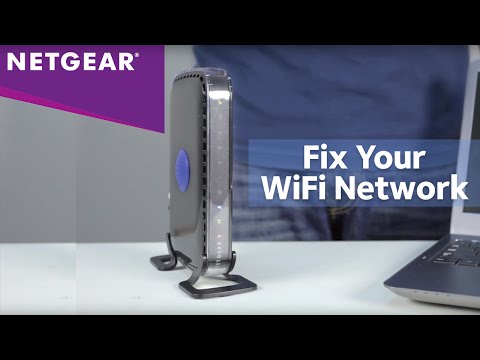
How to Troubleshoot your NETGEAR Wireless Router Network
ChannelNETGEARDescription from the creator
Fix the most common NETGEAR router problems: dropped connections, slow WiFi speeds, forgotten network passwords, and how to perform a factory reset. This guide covers checking physical connections, reading the router LEDs, updating firmware at routerlogin.net, changing your wireless channel, and resetting to factory defaults.
WHAT THIS VIDEO COVERS
Checking your connections
Make sure every cable is firmly connected to both your modem and router. Check the LED on the front of your NETGEAR router to confirm it has an internet connection from your ISP. If no internet LED is showing, reboot your modem or contact your provider.
Slow WiFi or poor range
If you are losing connection in certain areas of your home, the router may not have enough range. A WiFi range extender or powerline adapter can improve whole-home coverage. Moving your device closer to the router is a quick test to confirm range is the issue.
Forgotten network name or password
Connect to the router with an Ethernet cable and go to routerlogin.net in your browser. Log in with admin as both the username and password (default). From the Wireless menu you can view or change your network name and password. Routers with multiple bands let you update each band individually.
Firmware update
At routerlogin.net, go to Advanced, then Administration, then Router Update. Check whether an update is available and follow the on-screen instructions to install. Keeping firmware current fixes many connectivity and performance issues.
Changing your wireless channel
If multiple devices are slowing the network, changing the wireless channel and mode in your router settings may improve performance.
Factory reset
If nothing else works, a factory reset will restore the router to its default settings. With the router powered on, hold the reset button on the back with a paperclip for up to 7 seconds. Once it reboots, use the default network name and password printed on the bottom or back of the router to reconnect. Note: a factory reset erases all custom settings.
LEARN MORE
NETGEAR support: netgear.com/support/
NETGEAR routers: netgear.com/home/wifi/routers/
#NETGEAR #RouterTroubleshooting #WiFiFix #RouterSetup
WHAT THIS VIDEO COVERS
Checking your connections
Make sure every cable is firmly connected to both your modem and router. Check the LED on the front of your NETGEAR router to confirm it has an internet connection from your ISP. If no internet LED is showing, reboot your modem or contact your provider.
Slow WiFi or poor range
If you are losing connection in certain areas of your home, the router may not have enough range. A WiFi range extender or powerline adapter can improve whole-home coverage. Moving your device closer to the router is a quick test to confirm range is the issue.
Forgotten network name or password
Connect to the router with an Ethernet cable and go to routerlogin.net in your browser. Log in with admin as both the username and password (default). From the Wireless menu you can view or change your network name and password. Routers with multiple bands let you update each band individually.
Firmware update
At routerlogin.net, go to Advanced, then Administration, then Router Update. Check whether an update is available and follow the on-screen instructions to install. Keeping firmware current fixes many connectivity and performance issues.
Changing your wireless channel
If multiple devices are slowing the network, changing the wireless channel and mode in your router settings may improve performance.
Factory reset
If nothing else works, a factory reset will restore the router to its default settings. With the router powered on, hold the reset button on the back with a paperclip for up to 7 seconds. Once it reboots, use the default network name and password printed on the bottom or back of the router to reconnect. Note: a factory reset erases all custom settings.
LEARN MORE
NETGEAR support: netgear.com/support/
NETGEAR routers: netgear.com/home/wifi/routers/
#NETGEAR #RouterTroubleshooting #WiFiFix #RouterSetup
About this tutorial
NETGEAR published this 3:39 video tutorial on October 30, 2016. It has been watched 1,544,238 times on YouTube.
- Channel
- NETGEAR
- Category
- Science & Technology
- Duration
- 3:39
- Published
- October 30, 2016
- Views
- 1,544,238
- Likes
- 2,388
Tags
Share
This tutorial in other languages
- FRComment faire pour dépanner votre réseau routeur sans fil NETGEAR
- ESCómo solucionar problemas de su red NETGEAR Router inalámbrico
- PTComo solucionar o seu NETGEAR Wireless Router de Rede
- ITCome risolvere il router di rete wireless NETGEAR
- DEWie Beheben von NETGEAR Wireless Router Netzwerk
- NLHoe kunt u uw NETGEAR Wireless Router Network Problemen
- RUКак Устранение неполадок NETGEAR Wireless Network Router
- PLJak rozwiązywać swoje NETGEAR Wireless Router Network
- JAあなたのNETGEARワイヤレスルータネットワークのトラブルシューティング方法
- ARكيفية استكشاف شبكة لاسلكي NETGEAR الخاص بك
- HIअपने NETGEAR वायरलेस रूटर नेटवर्क समस्याओं का निवारण कैसे
- IDBagaimana memecahkan masalah Anda NETGEAR Wireless Router Jaringan