Playback starts YouTube’s embedded player (privacy-enhanced mode).
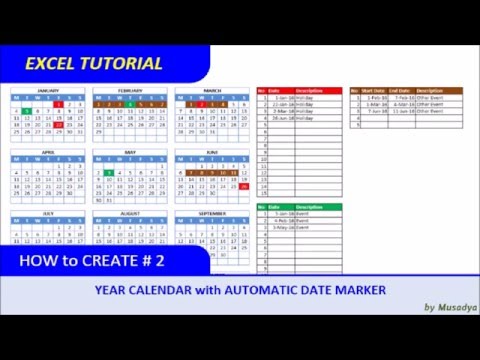
How to Create Excel Calendar for Specific Year with Automatic Date Marker
ChannelExceltemplate.NETDescription from the creator
This video will show you how to create excel calendar for specific year with automatic date marker that you can modify every year. It uses year 2016 as its year reference.
You can find written tutorial in exceltemplate.net/tutorial/how-to-create-year-a…
Basically, this excel tutorial will show you how to create it from a blank worksheet. It will be divided into several group steps :
1. Create month of January table
2. Duplicate and modify January table to remaining months, February to December
3. Create single date event tables, remember to group date column and give a name to it
4. Select all 12 month calendar tables and create conditional formatting that will change date colors if the dates are the same with dates in that date column
5. Create period date event tables, remember to give a name to each date cells
6. Select all 12 month calendar tables and create conditional formatting that will change date colors if the dates are within the date period
7. Personalize the calendar
8. Prepare for printing
9. Finished.
You can design other calendars and apply this method to your calendar. You can visit our website to see other models that are built based on this method.
You can find written tutorial in exceltemplate.net/tutorial/how-to-create-year-a…
Basically, this excel tutorial will show you how to create it from a blank worksheet. It will be divided into several group steps :
1. Create month of January table
2. Duplicate and modify January table to remaining months, February to December
3. Create single date event tables, remember to group date column and give a name to it
4. Select all 12 month calendar tables and create conditional formatting that will change date colors if the dates are the same with dates in that date column
5. Create period date event tables, remember to give a name to each date cells
6. Select all 12 month calendar tables and create conditional formatting that will change date colors if the dates are within the date period
7. Personalize the calendar
8. Prepare for printing
9. Finished.
You can design other calendars and apply this method to your calendar. You can visit our website to see other models that are built based on this method.
About this tutorial
Exceltemplate.NET published this 11:03 video tutorial on October 27, 2016. It has been watched 292,685 times on YouTube.
- Channel
- Exceltemplate.NET
- Category
- Sports
- Duration
- 11:03
- Published
- October 27, 2016
- Views
- 292,685
- Likes
- 1,050
Tags
Share
This tutorial in other languages
- FRComment créer Excel Calendrier pour l'année spécifique avec automatique Date de marqueur
- ESCómo crear Excel Calendario para el año específico con fecha Marcador automático
- PTComo criar Calendário Excel para Year Specific com Automatic Data Marcador
- ITCome creare Excel Calendario per l'anno specifico con Automatic Data Marker
- DESo erstellen Sie Excel Kalender für Specific Jahr mit Automatik Datum Marker
- NLHoe kan ik Excel Calendar voor specifieke jaar met Automatic Data Marker Maak
- RUКак создать Excel календарь на конкретный год с автоматической Датой Маркером
- PLJak utworzyć kalendarz Excel dla danego roku z Automatic Data Marker
- JA自動日付マーカーで特定の年のためのExcelのカレンダーを作成する方法
- ARكيفية إنشاء إكسل التقويم للسنة محددة مع تحديد تلقائي للتاريخ ماركر
- HIस्वचालित दिनांक मार्कर के साथ विशिष्ट वर्ष के लिए एक्सेल कैलेंडर बनाएं कैसे
- IDCara Membuat Excel Kalender Tahun Spesifik dengan Automatic Tanggal Marker