Playback starts YouTube’s embedded player (privacy-enhanced mode).
How to Change Admin Password in Windows 7
ChannelHOWTECHDescription from the creator
Follow the step by step guide below and learn how to change the admin password in windows 7.
Don't forget to check out our site howtech.tv/ for more free how-to videos!
youtube.com/ithowtovids - our feed
facebook.com/howtechtv - join us on facebook
plus.google.com/103440382717658277879 - our group in Google+
In this tutorial, we will show you how to change the admin password. Leaving the computer without a password could spell disaster for you especially if you have sensitive data. People who don't make setting up passwords are most prone to data theft.
Fortunately, strong admin passwords can be set on your desktop in a few simple steps.
Follow the step by step guide below and learn how to change admin password.
Step 1 -- Computer Management Option
To change the admin password in windows 7, first of all, open up the start menu, right click on "Computer" and click on the "Manage" option. This will open up the Computer Management window.
Step 2 -- Opening via run command
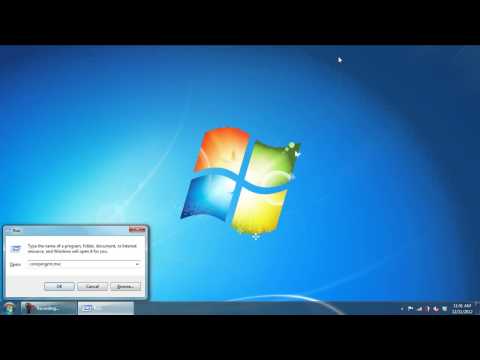
Or if you are an expert user, you can access it faster by opening up the run command and typing in "compmgmt.msc" and hitting enter
Step 3 -- The administrator profile
Once the "Computer Management" window opens up, under the many System Tools options on your left windows pane, you will find the "Local Users and Groups" option towards the left side of the window. Over there, move over to "Users" where three options would be presented to you in your right window pane. Click on "Administrator" option listed on the top right
Step 4 -- Setting the password
On the pane towards the right side of the screen, you can view the list of all the users in your PC. Right click on "Administrator" and click on "Set Password". With this option you can change admin password.
Step 5 -- Proceeding with the process
Upon clicking it a warning sign would appear. On the warning menu click on the "proceed button"
Step 6 -- Setting up the password
Finally a window labeled "Set Password as Administrator" would appear where you will type in your new pass word .You will also have to retype your new password to confirm it. It's always a better practice to keep your password more than 8 characters with a mix of alphabets and numbers to they cannot be easily guessed by other people.
And that's basically how you change admin password in windows 7.
Don't forget to check out our site howtech.tv/ for more free how-to videos!
youtube.com/ithowtovids - our feed
facebook.com/howtechtv - join us on facebook
plus.google.com/103440382717658277879 - our group in Google+
In this tutorial, we will show you how to change the admin password. Leaving the computer without a password could spell disaster for you especially if you have sensitive data. People who don't make setting up passwords are most prone to data theft.
Fortunately, strong admin passwords can be set on your desktop in a few simple steps.
Follow the step by step guide below and learn how to change admin password.
Step 1 -- Computer Management Option
To change the admin password in windows 7, first of all, open up the start menu, right click on "Computer" and click on the "Manage" option. This will open up the Computer Management window.
Step 2 -- Opening via run command
Or if you are an expert user, you can access it faster by opening up the run command and typing in "compmgmt.msc" and hitting enter
Step 3 -- The administrator profile
Once the "Computer Management" window opens up, under the many System Tools options on your left windows pane, you will find the "Local Users and Groups" option towards the left side of the window. Over there, move over to "Users" where three options would be presented to you in your right window pane. Click on "Administrator" option listed on the top right
Step 4 -- Setting the password
On the pane towards the right side of the screen, you can view the list of all the users in your PC. Right click on "Administrator" and click on "Set Password". With this option you can change admin password.
Step 5 -- Proceeding with the process
Upon clicking it a warning sign would appear. On the warning menu click on the "proceed button"
Step 6 -- Setting up the password
Finally a window labeled "Set Password as Administrator" would appear where you will type in your new pass word .You will also have to retype your new password to confirm it. It's always a better practice to keep your password more than 8 characters with a mix of alphabets and numbers to they cannot be easily guessed by other people.
And that's basically how you change admin password in windows 7.
About this tutorial
HOWTECH published this 0:57 video tutorial on October 31, 2013. It has been watched 546,984 times on YouTube.
- Channel
- HOWTECH
- Category
- Howto & Style
- Duration
- 0:57
- Published
- October 31, 2013
- Views
- 546,984
- Likes
- 1,702
Share
This tutorial in other languages
- FRComment faire pour changer Admin Password dans Windows 7
- ESCómo cambiar la contraseña del administrador en Windows 7
- PTComo Alterar senha de administrador no Windows 7
- ITCome cambiare password amministratore in Windows 7
- DEWie Ändern von Admin-Kennwort in Windows 7
- NLHoe kan Change Admin Password in Windows 7
- RUКак сменить пароль администратора в Windows 7
- PLJak zmienić hasło administratora w systemie Windows 7
- JAどのようにWindows 7の変更管理者パスワードへ
- ARكيفية تغيير كلمة المرور المسؤول في ويندوز 7
- HIकैसे करने के लिए विंडोज 7 में व्यवस्थापक पासवर्ड बदलें
- IDCara Ganti Password Admin di Windows 7