Playback starts YouTube’s embedded player (privacy-enhanced mode).
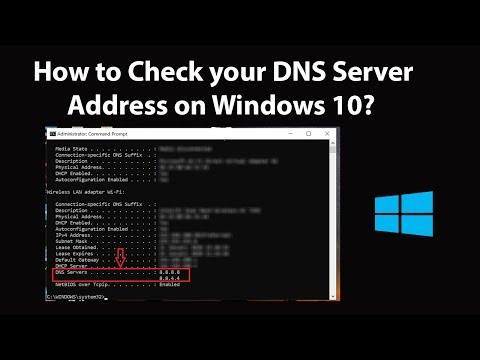
How to Check your DNS Server Address on Windows 10?
ChannelTechMeSpotDescription from the creator
How to Check your DNS Server Address on Windows 10?
Step 1: click on the 'Search box,' and then type 'cmd.'
Step 2: Right click on 'Command Prompt,' and then click on 'Run as Administrator.'
Step 3: Type 'ipconfig /all' without quotes in command prompt, and then hit enter key on the keyboard.
Step 4: Go to your Active connection, and at the bottom, there is a section of 'DNS Servers,' there you can find yours.
It's done.
Thanks for watching, please like and subscribe
=======================================
YouTube Subscribe: goo.gl/4lCCN8
Twitter: twitter.com/techmespot
Website: techmespot.com
#howto #CheckDnsServer #Windows10
Step 1: click on the 'Search box,' and then type 'cmd.'
Step 2: Right click on 'Command Prompt,' and then click on 'Run as Administrator.'
Step 3: Type 'ipconfig /all' without quotes in command prompt, and then hit enter key on the keyboard.
Step 4: Go to your Active connection, and at the bottom, there is a section of 'DNS Servers,' there you can find yours.
It's done.
Thanks for watching, please like and subscribe
=======================================
YouTube Subscribe: goo.gl/4lCCN8
Twitter: twitter.com/techmespot
Website: techmespot.com
#howto #CheckDnsServer #Windows10
About this tutorial
TechMeSpot published this 1:51 video tutorial on March 1, 2020. It has been watched 95,344 times on YouTube.
- Channel
- TechMeSpot
- Category
- Howto & Style
- Duration
- 1:51
- Published
- March 1, 2020
- Views
- 95,344
- Likes
- 534
Tags
Share
This tutorial in other languages
- FRComment vérifier votre serveur DNS Adresse sous Windows 10?
- ESCómo comprobar su dirección del servidor DNS en Windows 10?
- PTComo verificar o seu endereço do servidor DNS no Windows 10?
- ITCome controllare il vostro indirizzo server DNS su Windows 10?
- DEWie Sie Ihre DNS-Server-Adresse auf Windows 10 überprüfen?
- NLZo controleert uw DNS Server-adres in Windows 10?
- RUКак проверить свой адрес DNS-сервера на Windows 10?
- PLJak sprawdzić swój adres serwera DNS w systemie Windows 10?
- JAWindowsの10にあなたのDNSサーバーアドレスを確認する方法?
- ARكيفية التحقق الخاص بك عنوان خادم DNS على نظام التشغيل Windows 10؟
- HIकैसे Windows 10 पर अपने DNS सर्वर पता चेक करने के लिए?
- IDBagaimana Periksa Anda DNS Server Alamat pada Windows 10?