Playback starts YouTube’s embedded player (privacy-enhanced mode).
How to Configure Speed Dial in Opera
ChannelHOWTECHDescription from the creator
Speed dials can be added in Opera so as to set different home screens which allow you to easily open these various webpages added.
Don't forget to check out our site howtech.tv/ for more free how-to videos!
youtube.com/ithowtovids - our feed
facebook.com/howtechtv - join us on facebook
plus.google.com/103440382717658277879 - our group in Google+
The speed dial option in Opera allows you to add a sort of screenshot on your opening page. These screenshots act as different homepages which you can easily go to. Opening a web page through a speed dial is faster than opening it through bookmarks. You can easily add a speed dial and even configure a speed dial by making use of different options of Opera.
Follow this tutorial to learn how to configure the settings of a speed dial in Opera.
Step 1 -- Select website
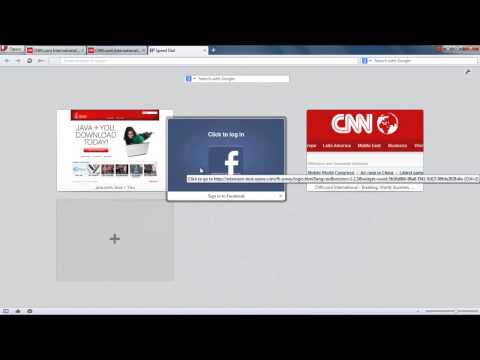
To add a website to speed dial in Opera, simply click on the Plus sign in a new tab window and select the website which you want to add to speed dial. Once selected, click on "OK" and it will be added to your speed dial.
Similarly, you can add multiple websites to speed dial in opera as well.
Step 2 -- Arrange speed dials
You can move around and arrange the speed dials in any way you like by simply dragging them around and placing one in front of the other.
Step 3 -- Open the settings
You can also adjust the settings over here by clicking on the settings button which is located on the top right corner of the page.
With that done you can see the options, which by default are all set to Automatic.
Step 4 -- Adjust zoom settings
If you want to set your own zoom settings, open the dropdown menu next to "Zoom Level' and choose the "Manual" option. With that done, move the slide bar and the speed dials will zoom in or zoom out accordingly. If you add a speed dial in addition to these, these settings can be applied to them too.
Step 5 -- Set a background picture
If you want to set the background picture over here, click on the drop down menu next to the "custom background" section and select the location where it is to be placed. With that done, click on the "Choose" button and select an image that you want to set as your background.
Step 6 -- Hide the speed dial button
If you tick on the checkbox titled "hide speed dial button", the plus icon will be disappear from the tab window and you won't be able to add websites to speed dial in opera.
Thus this way you can configure a speed dial according to your preference.
Don't forget to check out our site howtech.tv/ for more free how-to videos!
youtube.com/ithowtovids - our feed
facebook.com/howtechtv - join us on facebook
plus.google.com/103440382717658277879 - our group in Google+
The speed dial option in Opera allows you to add a sort of screenshot on your opening page. These screenshots act as different homepages which you can easily go to. Opening a web page through a speed dial is faster than opening it through bookmarks. You can easily add a speed dial and even configure a speed dial by making use of different options of Opera.
Follow this tutorial to learn how to configure the settings of a speed dial in Opera.
Step 1 -- Select website
To add a website to speed dial in Opera, simply click on the Plus sign in a new tab window and select the website which you want to add to speed dial. Once selected, click on "OK" and it will be added to your speed dial.
Similarly, you can add multiple websites to speed dial in opera as well.
Step 2 -- Arrange speed dials
You can move around and arrange the speed dials in any way you like by simply dragging them around and placing one in front of the other.
Step 3 -- Open the settings
You can also adjust the settings over here by clicking on the settings button which is located on the top right corner of the page.
With that done you can see the options, which by default are all set to Automatic.
Step 4 -- Adjust zoom settings
If you want to set your own zoom settings, open the dropdown menu next to "Zoom Level' and choose the "Manual" option. With that done, move the slide bar and the speed dials will zoom in or zoom out accordingly. If you add a speed dial in addition to these, these settings can be applied to them too.
Step 5 -- Set a background picture
If you want to set the background picture over here, click on the drop down menu next to the "custom background" section and select the location where it is to be placed. With that done, click on the "Choose" button and select an image that you want to set as your background.
Step 6 -- Hide the speed dial button
If you tick on the checkbox titled "hide speed dial button", the plus icon will be disappear from the tab window and you won't be able to add websites to speed dial in opera.
Thus this way you can configure a speed dial according to your preference.
About this tutorial
HOWTECH published this 1:09 video tutorial on November 3, 2013. It has been watched 28,701 times on YouTube.
- Channel
- HOWTECH
- Category
- Howto & Style
- Duration
- 1:09
- Published
- November 3, 2013
- Views
- 28,701
- Likes
- 29
Share
This tutorial in other languages
- FRComment composer un numéro Configurer la vitesse dans Opera
- ESCómo marcar Configurar velocidad en Opera
- PTComo Dial Configurar velocidade no Opera
- ITCome configurare Speed Dial di Opera
- DESo konfigurieren Sie Kurzwahl in Opera
- NLHoe te configureren Speed Dial in Opera
- RUКак настроить Speed Dial в Opera
- PLJak skonfigurować Speed Dial w Operze
- JAどのようにオペラで構成するスピードダイヤルへ
- ARكيفية تكوين سرعة الاتصال الهاتفي في الأوبرا
- HIकैसे ओपेरा में विन्यस्त स्पीड डायल करने के लिए
- IDCara Konfigurasi Speed Dial di Opera