Playback starts YouTube’s embedded player (privacy-enhanced mode).
How to Create a Recovery Partition in Windows 7
ChannelHOWTECHDescription from the creator
In case the primary drive crashes always have a recovery partition. Learn how to create a recovery partition by following this step by step guide.
Don't forget to check out our site howtech.tv/ for more free how-to videos!
youtube.com/ithowtovids - our feed
facebook.com/howtechtv - join us on facebook
plus.google.com/103440382717658277879 - our group in Google+
A Windows recovery partition is a copy of your Windows 7 operating system on a section of your hard drive. You need extra hard drive space or a new drive installed on your computer and a copy of the Windows operating system. It's recommended that you use a separate hard drive in case your primary drive crashes. You can use recovery partitions in an effort to recover hard drive data without formatting. In this tutorial, we will show you how to make recovery partition.
Step # 1-Click on Manage option
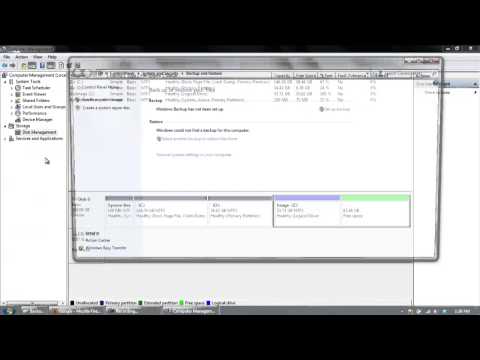
In order to create recovery partition in windows 7, right click on "computer" and then select the "manage" option from the drop down menu. When the "computer management" box opens, click on "disk management".
Step # 2 -- Click on New simple volume
The space which has the black bar on top is unallocated. Now right click on the unallocated space and select the "new simple volume" option.
Step # 3 -- Select the volume size
When the wizard opens, click on the "next" button.
To create recovery partition in windows 7, first select the volume size; try to keep the volume size 5 gigabytes bigger than your operating system space. Click next and assign the drive letter before you click on the next button again.
Step # 4 -- Change the volume label
Change the volume label to "image" and then click next. Click finish to exit the wizard. Your partition has been successfully created.
Step # 5 --Click on Create a system image option
Go to the start menu and type "backup and restore". Open it and click on the "create a system image" option located on the left hand side of the window.
Step # 6 -- Go through the Backup settings
It will automatically detect your image partition. A warning message will be given telling you that the drive selected is on the same physical disk. Click next to proceed further. The "c" drive in which the operating system is will be selected automatically.
You can select other drives as well. Click on the next button and then click on the "start backup" button.
Step # 7 -- Click on the Start backup button
Once the files have been backed up, a notification box will appear. If you want to create a disk, click on the "yes" button; otherwise click on the "no" button.
To check your backup, go back to "disk management" and right click on the image partition and select the "open" option. Here, you will have your windows image backup folder. So this is how you make recovery partition in windows 7.
Don't forget to check out our site howtech.tv/ for more free how-to videos!
youtube.com/ithowtovids - our feed
facebook.com/howtechtv - join us on facebook
plus.google.com/103440382717658277879 - our group in Google+
A Windows recovery partition is a copy of your Windows 7 operating system on a section of your hard drive. You need extra hard drive space or a new drive installed on your computer and a copy of the Windows operating system. It's recommended that you use a separate hard drive in case your primary drive crashes. You can use recovery partitions in an effort to recover hard drive data without formatting. In this tutorial, we will show you how to make recovery partition.
Step # 1-Click on Manage option
In order to create recovery partition in windows 7, right click on "computer" and then select the "manage" option from the drop down menu. When the "computer management" box opens, click on "disk management".
Step # 2 -- Click on New simple volume
The space which has the black bar on top is unallocated. Now right click on the unallocated space and select the "new simple volume" option.
Step # 3 -- Select the volume size
When the wizard opens, click on the "next" button.
To create recovery partition in windows 7, first select the volume size; try to keep the volume size 5 gigabytes bigger than your operating system space. Click next and assign the drive letter before you click on the next button again.
Step # 4 -- Change the volume label
Change the volume label to "image" and then click next. Click finish to exit the wizard. Your partition has been successfully created.
Step # 5 --Click on Create a system image option
Go to the start menu and type "backup and restore". Open it and click on the "create a system image" option located on the left hand side of the window.
Step # 6 -- Go through the Backup settings
It will automatically detect your image partition. A warning message will be given telling you that the drive selected is on the same physical disk. Click next to proceed further. The "c" drive in which the operating system is will be selected automatically.
You can select other drives as well. Click on the next button and then click on the "start backup" button.
Step # 7 -- Click on the Start backup button
Once the files have been backed up, a notification box will appear. If you want to create a disk, click on the "yes" button; otherwise click on the "no" button.
To check your backup, go back to "disk management" and right click on the image partition and select the "open" option. Here, you will have your windows image backup folder. So this is how you make recovery partition in windows 7.
About this tutorial
HOWTECH published this 1:30 video tutorial on November 2, 2013. It has been watched 42,959 times on YouTube.
- Channel
- HOWTECH
- Category
- Howto & Style
- Duration
- 1:30
- Published
- November 2, 2013
- Views
- 42,959
- Likes
- 107
Share
This tutorial in other languages
- FRComment faire pour créer une partition de récupération dans Windows 7
- ESCómo crear una partición de recuperación en Windows 7
- PTComo criar uma partição de recuperação no Windows 7
- ITCome creare una partizione di ripristino in Windows 7
- DEWie eine Recovery-Partition in Windows erstellen 7
- NLHoe maak je een herstelpartitie in Windows aanmaken 7
- RUКак создать раздел восстановления в ОС Windows 7
- PLJak utworzyć partycję odzyskiwania w systemie Windows 7
- JAWindowsでリカバリパーティションを作成する方法7
- ARكيفية إنشاء قسم الإنعاش في ويندوز 7
- HIकैसे Windows में एक वसूली विभाजन बनाने के लिए 7
- IDCara Membuat Partisi Recovery di Windows 7