The creator does not allow this video to be played on other websites. You can watch it directly on YouTube.
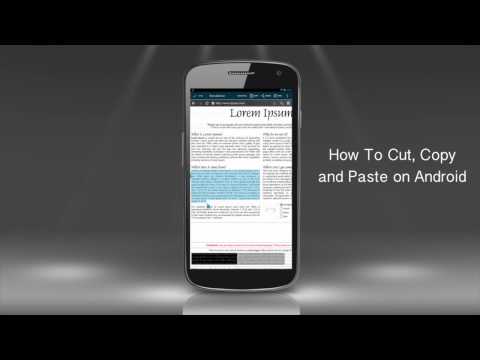
How to Cut, Copy and Paste Text on Android Phone
ChanneliPhone, iPad and Android Tutorials from HowTechDescription from the creator
Read iSecrets.
New magazine about gadgets and mobile technology.
app.appsflyer.com/id946420218?pid=YouTube&c…
Text manipulations on Android phone are pretty easy. Let's say, we need to copy a fragment of a text and send it to our colleagues -- all with the help of our little phone.
Don't forget to check out our site howtech.tv/ for more free how-to videos!
youtube.com/ithowtovids - our feed
facebook.com/howtechtv - join us on facebook
plus.google.com/103440382717658277879 - our group in Google+
Step 1. We start by accessing the fragment of our text online -- tap the „Browser" app and search for the right fragment of text.
Step 2. When the text is on screen, find the paragraph that you want to copy and long-press the screen.
Step 3. You'll see the text highlighted by blue marking, the beginning and the end of the text marked by two blue rectangles. Drag the rectangles left or right if you want to select more or less text.
Step 4. Note that while we did all text manipulations, the text-editing menu appeared on top of Android screen. The menu allows us to do various manipulations with selected text. Right now we need to copy it, so we tap the little text icon on the right of "Select all". At the bottom of the screen you should see "Text copied to clipboard" message which indicates you that everything was done correctly.
Step 5. Now let's go back to our home screen and start to write a message to our friend. We type our message in the text field and long-press the screen, which activates "Paste" option. Tap this option to paste the copied text into your message.
Step 6. If it appears that the text fragment is too long, you can long press to highlight the part of it and tap the "Cut" button from the text-editing menu on top of the screen.
You can now send your message!
Step 7. Let's now send the same text fragment by email. We access out online mailbox and star writing a new mail. We long-press the text field and paste the same text fragment. Here you go! The email is ready and sent.
Result: You've just learned how to cut, copy and paste text on Android phone.
New magazine about gadgets and mobile technology.
app.appsflyer.com/id946420218?pid=YouTube&c…
Text manipulations on Android phone are pretty easy. Let's say, we need to copy a fragment of a text and send it to our colleagues -- all with the help of our little phone.
Don't forget to check out our site howtech.tv/ for more free how-to videos!
youtube.com/ithowtovids - our feed
facebook.com/howtechtv - join us on facebook
plus.google.com/103440382717658277879 - our group in Google+
Step 1. We start by accessing the fragment of our text online -- tap the „Browser" app and search for the right fragment of text.
Step 2. When the text is on screen, find the paragraph that you want to copy and long-press the screen.
Step 3. You'll see the text highlighted by blue marking, the beginning and the end of the text marked by two blue rectangles. Drag the rectangles left or right if you want to select more or less text.
Step 4. Note that while we did all text manipulations, the text-editing menu appeared on top of Android screen. The menu allows us to do various manipulations with selected text. Right now we need to copy it, so we tap the little text icon on the right of "Select all". At the bottom of the screen you should see "Text copied to clipboard" message which indicates you that everything was done correctly.
Step 5. Now let's go back to our home screen and start to write a message to our friend. We type our message in the text field and long-press the screen, which activates "Paste" option. Tap this option to paste the copied text into your message.
Step 6. If it appears that the text fragment is too long, you can long press to highlight the part of it and tap the "Cut" button from the text-editing menu on top of the screen.
You can now send your message!
Step 7. Let's now send the same text fragment by email. We access out online mailbox and star writing a new mail. We long-press the text field and paste the same text fragment. Here you go! The email is ready and sent.
Result: You've just learned how to cut, copy and paste text on Android phone.
About this tutorial
iPhone, iPad and Android Tutorials from HowTech published this 2:26 video tutorial on November 10, 2014. It has been watched 307,834 times on YouTube.
- Category
- Howto & Style
- Duration
- 2:26
- Published
- November 10, 2014
- Views
- 307,834
- Likes
- 962
Tags
Share
This tutorial in other languages
- FRComment couper, copier et coller le texte sur téléphone Android
- ESCómo cortar, copiar y pegar texto en el teléfono Android
- PTComo cortar, copiar e colar texto no telefone Android
- ITCome tagliare, copiare e incollare testo su Android Phone
- DEWie zum Ausschneiden, Kopieren und Einfügen von Text auf Android Phone
- NLHoe te knippen, kopiëren en plakken Tekst op Android Phone
- RUКак вырезать, копировать и вставлять текст на телефон Android
- PLJak wyciąć, skopiować i wkleić tekst na Android
- JAAndroid携帯上のテキストを貼り付ける方法切り取り、コピーすると、
- ARكيفية قص ونسخ ولصق النص على الهاتف الروبوت
- HIकैसे कट, कॉपी करने के लिए और एंड्रॉयड फोन पर टेक्स्ट को पेस्ट
- IDCara Cut, Copy dan Paste Teks di Ponsel Android