Playback starts YouTube’s embedded player (privacy-enhanced mode).
How to Delete Folder from Command Prompt in Windows 7
ChannelHOWTECHDescription from the creator
Follow the step by step guide below and learn how to delete folder from command prompt.
Don't forget to check out our site howtech.tv/ for more free how-to videos!
youtube.com/ithowtovids - our feed
facebook.com/howtechtv - join us on facebook
plus.google.com/103440382717658277879 - our group in Google+
In this tutorial you will learn how to permanently delete folders using basic commands. This can be helpful in such cases when you are not able to delete a folder or directory normally.
In this tutorial, we will show you how to delete a folder from command prompt. It must be noted that if you delete a directory using this method, the directory will be permanently deleted and not sent to the recycling bin. From the folder itself to all the contents that it contains, everything will be permanently deleted. It is always recommended to keep a backup first.
Step 1 -- Opening up the run command
To get started on how to delete folder from command prompt, first of all, press the "windows + R" key to open up the Run command. With that done, type in "cmd" and hit enter to open up the command prompt.
Step 2 -- Opening up the directory
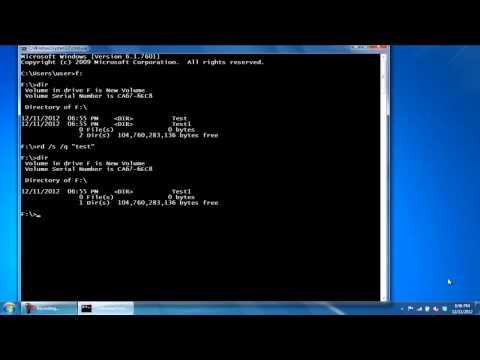
Once the "Command prompt" window opens up, access the partition in which the folder is present. For example, here we will type in "f:" and press "enter". Once done, use the "dir" command to view all the directories in that partition.
Here you can see that we have two directories, Test and Test1. Let's delete both of them using different methods for each.
Step 3 -- Using the rd command
In command line, delete folder commands can be used in different ways. First of all, type in rd /s /q followed by the name of the directory in quotes, which in this case is test.
Step 4 -- Using the alternate way
Now let's type in "dir" and hit enter. There, the first directory, named test, has been removed.
You can also delete a folder without accessing the partition it is located in. For that, let's go back to the c drive first.
Now let's type in
rd /s /q, inverted commas, f:\,followed by the name of the directory which in this case is test1. And that is how the command line delete folder function works.
Step 5 -- Folders deleted
With that done, let's use the "dir" command to see if the directory was deleted or not.
And there you have it. Both of the directories have been permanently deleted.
Don't forget to check out our site howtech.tv/ for more free how-to videos!
youtube.com/ithowtovids - our feed
facebook.com/howtechtv - join us on facebook
plus.google.com/103440382717658277879 - our group in Google+
In this tutorial you will learn how to permanently delete folders using basic commands. This can be helpful in such cases when you are not able to delete a folder or directory normally.
In this tutorial, we will show you how to delete a folder from command prompt. It must be noted that if you delete a directory using this method, the directory will be permanently deleted and not sent to the recycling bin. From the folder itself to all the contents that it contains, everything will be permanently deleted. It is always recommended to keep a backup first.
Step 1 -- Opening up the run command
To get started on how to delete folder from command prompt, first of all, press the "windows + R" key to open up the Run command. With that done, type in "cmd" and hit enter to open up the command prompt.
Step 2 -- Opening up the directory
Once the "Command prompt" window opens up, access the partition in which the folder is present. For example, here we will type in "f:" and press "enter". Once done, use the "dir" command to view all the directories in that partition.
Here you can see that we have two directories, Test and Test1. Let's delete both of them using different methods for each.
Step 3 -- Using the rd command
In command line, delete folder commands can be used in different ways. First of all, type in rd /s /q followed by the name of the directory in quotes, which in this case is test.
Step 4 -- Using the alternate way
Now let's type in "dir" and hit enter. There, the first directory, named test, has been removed.
You can also delete a folder without accessing the partition it is located in. For that, let's go back to the c drive first.
Now let's type in
rd /s /q, inverted commas, f:\,followed by the name of the directory which in this case is test1. And that is how the command line delete folder function works.
Step 5 -- Folders deleted
With that done, let's use the "dir" command to see if the directory was deleted or not.
And there you have it. Both of the directories have been permanently deleted.
About this tutorial
HOWTECH published this 1:21 video tutorial on November 2, 2013. It has been watched 162,858 times on YouTube.
- Channel
- HOWTECH
- Category
- Howto & Style
- Duration
- 1:21
- Published
- November 2, 2013
- Views
- 162,858
- Likes
- 363
Share
This tutorial in other languages
- FRComment Supprimer le dossier de Invite de commande dans Windows 7
- ESCómo eliminar carpeta de símbolo del sistema en Windows 7
- PTComo excluir pasta a partir da Command Prompt em Windows 7
- ITCome eliminare la cartella dal prompt dei comandi in Windows 7
- DEWie Folder von Eingabeaufforderung in Windows löschen 7
- NLHoe te verwijderen map in Command Prompt in Windows 7
- RUКак удалить папку из командной строки в ОС Windows 7
- PLJak usunąć folder z wiersza polecenia w systemie Windows 7
- JAWindowsのコマンドプロンプトからフォルダを削除する方法7
- ARكيفية حذف مجلد من موجه الأوامر في ويندوز 7
- HIकमान से फ़ोल्डर हटाएँ कैसे Windows में शीघ्र 7
- IDCara Hapus Folder dari Command Prompt di Windows 7