Playback starts YouTube’s embedded player (privacy-enhanced mode).
How to Delete Messages on Skype iPad and iPhone
ChanneliPhone, iPad and Android Tutorials from HowTechDescription from the creator
itunes.apple.com/ru/app/howtech/id652132258?mt=8 - 4000 FREE TUTORIALS on your iPhone!
play.google.com/store/apps/details?id=tv.howtech - 4000 FREE TUTORIALS on your Android phone!
In this video tutorial we will show you how to delete message on Skype.
Don't forget to check out our site howtech.tv/ for more free how-to videos!
youtube.com/ithowtovids - our feed
facebook.com/howtechtv - join us on facebook
plus.google.com/1034403827176... - our group in Google+
In this tutorial you are going to learn how to delete messages on Skype iPad. It is not currently possible to delete an individual message so this tutorial will show you how to erase the conversation history with one person.
Step # 1 -- Locating the Message History
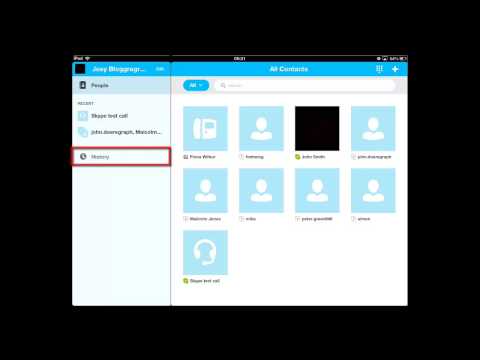
From the home screen touch the "Skype" application. You will see a page that displays all of your contacts. In the menu on the left touch the "History" option.
Step # 2 -- Deleting the Message History
You will see a list of all your recent conversations, this includes messages as well as calls. Find the chat that you want to delete and swipe your finger across it from left to right. A red "Delete" button will appear on the right and you need to touch this. When you do the conversation will disappear from this list and this is how to delete messages on Skype iPad.
play.google.com/store/apps/details?id=tv.howtech - 4000 FREE TUTORIALS on your Android phone!
In this video tutorial we will show you how to delete message on Skype.
Don't forget to check out our site howtech.tv/ for more free how-to videos!
youtube.com/ithowtovids - our feed
facebook.com/howtechtv - join us on facebook
plus.google.com/1034403827176... - our group in Google+
In this tutorial you are going to learn how to delete messages on Skype iPad. It is not currently possible to delete an individual message so this tutorial will show you how to erase the conversation history with one person.
Step # 1 -- Locating the Message History
From the home screen touch the "Skype" application. You will see a page that displays all of your contacts. In the menu on the left touch the "History" option.
Step # 2 -- Deleting the Message History
You will see a list of all your recent conversations, this includes messages as well as calls. Find the chat that you want to delete and swipe your finger across it from left to right. A red "Delete" button will appear on the right and you need to touch this. When you do the conversation will disappear from this list and this is how to delete messages on Skype iPad.
About this tutorial
iPhone, iPad and Android Tutorials from HowTech published this 0:47 video tutorial on November 2, 2013. It has been watched 121,082 times on YouTube.
- Category
- Howto & Style
- Duration
- 0:47
- Published
- November 2, 2013
- Views
- 121,082
- Likes
- 110
Share
This tutorial in other languages
- FRComment supprimer les messages sur Skype iPad et iPhone
- ESCómo eliminar mensajes a través de Skype IPAD y el iPhone
- PTComo excluir mensagens no iPad Skype e iPhone
- ITCome eliminare i messaggi su Skype iPad e iPhone
- DEWie Nachrichten auf Skype iPad und iPhone löschen
- NLHoe te verwijderen Berichten over Skype iPad en iPhone
- RUКак удалить сообщения на Skype IPad и iPhone
- PLJak usunąć wiadomości na Skype iPad i iPhone
- JAスカイプiPadとiPhone上のメッセージを削除する方法
- ARكيفية حذف الرسائل على سكايب باد وفون
- HIपर स्काइप iPad और iPhone संदेशों को हटाने के लिए कैसे
- IDCara Hapus Pesan di Skype iPad dan iPhone