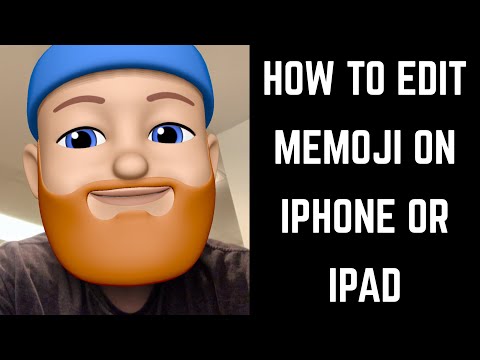
Playback starts YouTube’s embedded player (privacy-enhanced mode).
How to Edit Memoji on iPhone or iPad
ChannelMax DaltonDescription from the creator
This video shows you how to edit a Memoji on your Apple iPhone or iPad.
See more videos by Max here: youtube.com/c/MaxDalton
Video Transcript:
Released with iOS 12 in late 2018, Memoji are cartoonish models of a human face created within Apple's Animoji feature. Memoji can then be laid over either your face, or someone else's face, in a photo or video in the Messages and FaceTime apps. When the Memoji is applied, it will mimic your facial expressions. If you decide you want to change the appearance of any of your Memoji at any point, you can easily do so through the Messages app.
Now let's walk through how to edit a Memoji on your Apple iPhone or iPad.
Step 1. Tap to launch the "Messages" app on your iPhone or iPad.
Step 2. Tap the "New Message" icon in the upper right corner of the screen. The New Message window opens. Notice the row of icons that appears directly above the keyboard on bottom part of the screen.
Step 3. Tap the "Animoji" icon in the row of icons above the keyboard. The Animoji icon looks like a monkey. A scroll-able row containing all of your available Memoji and Animoji appears directly beneath the row of icons. Your created Memoji will be displayed first.
Step 4. Scroll to display the Memoji you want to edit, and then tap the three ellipses that appear in the lower left corner of the screen. A menu appears.
Step 5. Tap "Edit" in the menu. You'll return to the screen you used to initially create your Memoji, where you'll be able to edit all aspects associated with your Memoji, including skin, hairstyle, head shape, eyes, nose and lips, headwear, and more. In this example, I'll change the hat on my Memoji.
Step 6. Tap "Done" in the upper right corner of the screen when you're done editing your Memoji. You'll return to the New Message screen with Animoji still selected on the lower half, where you can see your edits applied to your Memoji.
See more videos by Max here: youtube.com/c/MaxDalton
Video Transcript:
Released with iOS 12 in late 2018, Memoji are cartoonish models of a human face created within Apple's Animoji feature. Memoji can then be laid over either your face, or someone else's face, in a photo or video in the Messages and FaceTime apps. When the Memoji is applied, it will mimic your facial expressions. If you decide you want to change the appearance of any of your Memoji at any point, you can easily do so through the Messages app.
Now let's walk through how to edit a Memoji on your Apple iPhone or iPad.
Step 1. Tap to launch the "Messages" app on your iPhone or iPad.
Step 2. Tap the "New Message" icon in the upper right corner of the screen. The New Message window opens. Notice the row of icons that appears directly above the keyboard on bottom part of the screen.
Step 3. Tap the "Animoji" icon in the row of icons above the keyboard. The Animoji icon looks like a monkey. A scroll-able row containing all of your available Memoji and Animoji appears directly beneath the row of icons. Your created Memoji will be displayed first.
Step 4. Scroll to display the Memoji you want to edit, and then tap the three ellipses that appear in the lower left corner of the screen. A menu appears.
Step 5. Tap "Edit" in the menu. You'll return to the screen you used to initially create your Memoji, where you'll be able to edit all aspects associated with your Memoji, including skin, hairstyle, head shape, eyes, nose and lips, headwear, and more. In this example, I'll change the hat on my Memoji.
Step 6. Tap "Done" in the upper right corner of the screen when you're done editing your Memoji. You'll return to the New Message screen with Animoji still selected on the lower half, where you can see your edits applied to your Memoji.
About this tutorial
Max Dalton published this 2:37 video tutorial on October 29, 2018. It has been watched 326,502 times on YouTube.
- Channel
- Max Dalton
- Category
- Howto & Style
- Duration
- 2:37
- Published
- October 29, 2018
- Views
- 326,502
- Likes
- 2,124
Tags
Share
This tutorial in other languages
- FRComment faire pour modifier Memoji sur iPhone ou iPad
- ESCómo Editar Memoji en el iPhone o iPad
- PTComo Editar Memoji no iPhone ou iPad
- ITCome modificare Memoji su iPhone o iPad
- DEWie zu bearbeiten Memoji auf dem iPhone oder iPad
- NLHoe te bewerken Memoji op de iPhone of iPad
- RUКак редактировать Memoji на iPhone или IPad
- PLJak edytować Memoji na iPhone lub iPad
- JAどのようにiPhoneやiPad上で編集Memojiへ
- ARكيفية تحرير Memoji على اي فون أو آي باد
- HIकैसे iPhone या iPad पर Memoji संपादित करने के लिए
- IDCara Mengedit Memoji pada iPhone atau iPad