Playback starts YouTube’s embedded player (privacy-enhanced mode).
How to enable Tabbed Browsing in Internet Explorer
ChannelHOWTECHDescription from the creator
Learn what tabbed browsing is and how to enable it. Furthermore, how to disable it from the local group policy editor if need be
Don't forget to check out our site howtech.tv/ for more free how-to videos!
youtube.com/ithowtovids - our feed
facebook.com/howtechtv - join us on facebook
plus.google.com/103440382717658277879 - our group in Google+
What is tabbed browsing? It is a feature available in Internet Explorer which allows you to open multiple webs in a single browser window. In this manner, you can open several websites in one single browser window. You can switch between these different tabs and use multiple websites at one time. Thus in order to make full use of Internet Explorer nowadays, one needs to know what is tabbed browsing.
In this tutorial, we will show you how to enable tabbed browsing in internet explorer. Furthermore, we will teach you to work with the turn off tabbed browsing feature in local group policy editor.
Step 1 -- Go to Internet Options
If the "New Tab" option is disabled by default in Internet Explorer, you can enable the feature by clicking on the "Tools" tab and selecting the "Internet Properties" option from the drop down menu that appears.
Step 2 -- Open the General settings
Once the Internet options window appears on your screen, go to the tabs section in the general tab and click on the settings button.
Step 3 -- Enable Tabbed Browsing
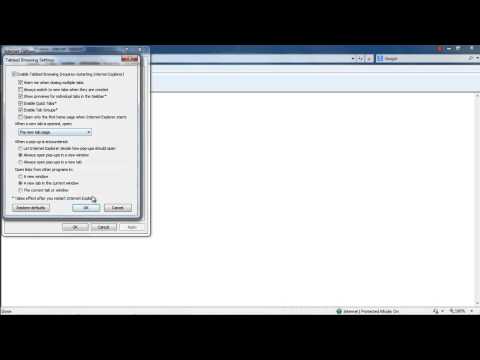
Once done, the Tabbed Browsing Settings window opens up. Over here, tick on the check box titled "Enable Tabbed Browsing". Once you're done, click on the "Ok" button at the bottom to proceed further. You will need to restart Internet explorer to enable tabbed browsing.
Step 4 -- Open a new tab
Now when you open up the browser, move to the files menu on top and you will be able to see that the new tab option has been enabled. Once you click on it, a new tab opens up in the browser.
Step 5 -- Open Local Group Policy Editor
You can also change the settings of the browser from the Local Group Policy Editor.
In order to do that, press the "win + r" key to open up the run command. In the run command, type in "gpedit.msc" and hit the "enter" key to open up the Local Group Policy Editor.
Step 6 -- Turn off Tabbed Browsing option
Over there, move to the "Administrative Template" directory within the user configuration section and move over to "Windows Components". With that done, click on "Internet Properties" and in the pane towards the right side of the window, locate and double click on "Turn off tabbed browsing".
Step 7 -- Enable turn off tabbed browsing feature
When the turned off tabbed browsing settings window opens up, you will see 3 options; "Not configured", "Enabled" and "Disabled". Over there, if you click on the "Enabled" option, tabbed browsing will be disabled in internet explorer.
Don't forget to check out our site howtech.tv/ for more free how-to videos!
youtube.com/ithowtovids - our feed
facebook.com/howtechtv - join us on facebook
plus.google.com/103440382717658277879 - our group in Google+
What is tabbed browsing? It is a feature available in Internet Explorer which allows you to open multiple webs in a single browser window. In this manner, you can open several websites in one single browser window. You can switch between these different tabs and use multiple websites at one time. Thus in order to make full use of Internet Explorer nowadays, one needs to know what is tabbed browsing.
In this tutorial, we will show you how to enable tabbed browsing in internet explorer. Furthermore, we will teach you to work with the turn off tabbed browsing feature in local group policy editor.
Step 1 -- Go to Internet Options
If the "New Tab" option is disabled by default in Internet Explorer, you can enable the feature by clicking on the "Tools" tab and selecting the "Internet Properties" option from the drop down menu that appears.
Step 2 -- Open the General settings
Once the Internet options window appears on your screen, go to the tabs section in the general tab and click on the settings button.
Step 3 -- Enable Tabbed Browsing
Once done, the Tabbed Browsing Settings window opens up. Over here, tick on the check box titled "Enable Tabbed Browsing". Once you're done, click on the "Ok" button at the bottom to proceed further. You will need to restart Internet explorer to enable tabbed browsing.
Step 4 -- Open a new tab
Now when you open up the browser, move to the files menu on top and you will be able to see that the new tab option has been enabled. Once you click on it, a new tab opens up in the browser.
Step 5 -- Open Local Group Policy Editor
You can also change the settings of the browser from the Local Group Policy Editor.
In order to do that, press the "win + r" key to open up the run command. In the run command, type in "gpedit.msc" and hit the "enter" key to open up the Local Group Policy Editor.
Step 6 -- Turn off Tabbed Browsing option
Over there, move to the "Administrative Template" directory within the user configuration section and move over to "Windows Components". With that done, click on "Internet Properties" and in the pane towards the right side of the window, locate and double click on "Turn off tabbed browsing".
Step 7 -- Enable turn off tabbed browsing feature
When the turned off tabbed browsing settings window opens up, you will see 3 options; "Not configured", "Enabled" and "Disabled". Over there, if you click on the "Enabled" option, tabbed browsing will be disabled in internet explorer.
About this tutorial
HOWTECH published this 1:32 video tutorial on November 8, 2013. It has been watched 27,776 times on YouTube.
- Channel
- HOWTECH
- Category
- Howto & Style
- Duration
- 1:32
- Published
- November 8, 2013
- Views
- 27,776
- Likes
- 25
Share
This tutorial in other languages
- FRComment activer la navigation par onglets dans Internet Explorer
- ES¿Cómo permitir la navegación con pestañas en Internet Explorer
- PTComo habilitar a navegação com separadores no Internet Explorer
- ITCome abilitare Navigazione a schede in Internet Explorer
- DEWie Tabbed Browsing im Internet Explorer aktivieren
- NLHoe te browsen met tabbladen in Internet Explorer in te schakelen
- RUКак включить вкладки в Internet Explorer
- PLJak włączyć przeglądanie w kartach w programie Internet Explorer
- JAInternet Explorerのタブブラウズを有効にする方法
- ARكيفية تمكين التصفح المبوب في Internet Explorer
- HIइंटरनेट एक्सप्लोरर में टैब्ड ब्राउज़िंग सक्षम कैसे करें
- IDCara mengaktifkan Tabbed Browsing di Internet Explorer