Playback starts YouTube’s embedded player (privacy-enhanced mode).
How to force quit an application on a mac
Channelhowtwos101Description from the creator
Check out my facebook at: facebook.com/pages/All-How-2s/198429346974010
or my twitter: twitter.com/AllHow2s
Or my website where I have a lot of other great tutorials (such as how to take a screenshot, or how to get the start button back on Windows 8): www.allhow2s.com
This tutorial will show you how to force quit applications on a Mac. (This works on all versions of the Apple OSX operating system, including Mountain Lion and Mavericks).
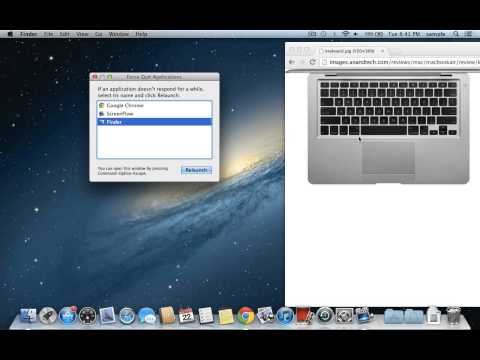
To force quit an application that isn't responding, or just won't close, just bring up the force close menu.
To do this, just hit alt+command+escape (hold them down in that order). This will bring up the force quit menu.
From here, you can just click on the application that you want to quit, and then hit the force quit button at the bottom.
It may give you a message saying that you will lose any unsaved data, so if there is anything that you haven't saved that you really don't want to lose, try to find a way to save it before you hit ok to force quit it, because you will lose any unsaved data.
You will notice that if you select finder in the force quit menu, it will have a relaunch option instead if force quit. You can use this to restart finder if it stops responding.
or my twitter: twitter.com/AllHow2s
Or my website where I have a lot of other great tutorials (such as how to take a screenshot, or how to get the start button back on Windows 8): www.allhow2s.com
This tutorial will show you how to force quit applications on a Mac. (This works on all versions of the Apple OSX operating system, including Mountain Lion and Mavericks).
To force quit an application that isn't responding, or just won't close, just bring up the force close menu.
To do this, just hit alt+command+escape (hold them down in that order). This will bring up the force quit menu.
From here, you can just click on the application that you want to quit, and then hit the force quit button at the bottom.
It may give you a message saying that you will lose any unsaved data, so if there is anything that you haven't saved that you really don't want to lose, try to find a way to save it before you hit ok to force quit it, because you will lose any unsaved data.
You will notice that if you select finder in the force quit menu, it will have a relaunch option instead if force quit. You can use this to restart finder if it stops responding.
About this tutorial
howtwos101 published this 0:58 video tutorial on November 3, 2013. It has been watched 142,957 times on YouTube.
- Channel
- howtwos101
- Category
- Howto & Style
- Duration
- 0:58
- Published
- November 3, 2013
- Views
- 142,957
- Likes
- 1,492
Tags
Share
This tutorial in other languages
- FRComment forcer la fermeture d'une application sur un Mac
- ESCómo forzar la salida de una aplicación en un Mac
- PTComo forçar o encerramento de um aplicativo em um mac
- ITCome forza di uscire da un'applicazione su un Mac
- DEWie erfolgt die Kraft verlassen, eine Anwendung auf einem Mac
- NLHoe maak je kracht een toepassing op een mac te stoppen
- RUКак заставить бросить приложение на макинтош
- PLJak życie zamknąć aplikację na komputerze Mac
- JA力にMac上でアプリケーションを終了する方法
- ARكيفية فرض إنهاء تطبيق على ماك
- HIकैसे बल पर एक मैक एक आवेदन छोड़ने
- IDCara kekuatan berhenti aplikasi di mac