Playback starts YouTube’s embedded player (privacy-enhanced mode).
How to Make Brush in Photoshop CS5
ChannelPhotoshop Design and Photo editing Tutorials from HowTechDescription from the creator
This tutorial will show you how to create your own brush in Photoshop.
Don't forget to check out our site howtech.tv/ for more free how-to videos!
youtube.com/ithowtovids - our feed
facebook.com/howtechtv - join us on facebook
plus.google.com/103440382717658277879 - our group in Google+
In this tutorial you are going to learn how to make brush in Photoshop which can be great if none of the custom brushes that come with the program work for you.
Step # 1 -- Creating a New Document
First, create a new document. Click "File" then "New" and in the window create a document with a width and height of 200 pixels. Ensure that "Background Contents" is set to white. Click "OK".
Step # 2 -- Creating the Brush
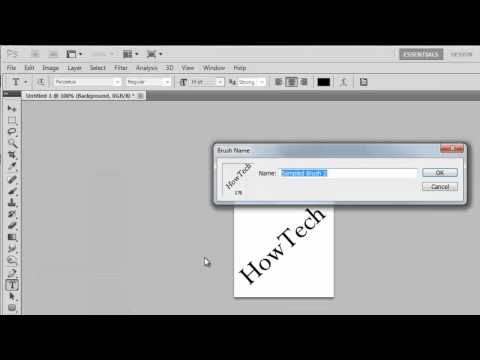
You will have a small white square where you can create your brush. You can essentially make whatever you want but it must be black on the white background. Here we are just entering some simple text, but you could just as easily draw something freehand. Once you have created your desired brush template click "Edit" then "Define Brush Preset". In the window give your brush a name and click "OK".
Step # 3 -- Using the Brush
To test out the brush, create a new document and use the default Photoshop size for the canvas. In the toolbar on the left select the brush and at the top click on the brush selection icon. Scroll right down to the bottom of all the brushes and you should be able to see yours. Click on it and use it to paint something on the canvas and that is how to make brush in Photoshop.
Don't forget to check out our site howtech.tv/ for more free how-to videos!
youtube.com/ithowtovids - our feed
facebook.com/howtechtv - join us on facebook
plus.google.com/103440382717658277879 - our group in Google+
In this tutorial you are going to learn how to make brush in Photoshop which can be great if none of the custom brushes that come with the program work for you.
Step # 1 -- Creating a New Document
First, create a new document. Click "File" then "New" and in the window create a document with a width and height of 200 pixels. Ensure that "Background Contents" is set to white. Click "OK".
Step # 2 -- Creating the Brush
You will have a small white square where you can create your brush. You can essentially make whatever you want but it must be black on the white background. Here we are just entering some simple text, but you could just as easily draw something freehand. Once you have created your desired brush template click "Edit" then "Define Brush Preset". In the window give your brush a name and click "OK".
Step # 3 -- Using the Brush
To test out the brush, create a new document and use the default Photoshop size for the canvas. In the toolbar on the left select the brush and at the top click on the brush selection icon. Scroll right down to the bottom of all the brushes and you should be able to see yours. Click on it and use it to paint something on the canvas and that is how to make brush in Photoshop.
About this tutorial
Photoshop Design and Photo editing Tutorials from HowTech published this 1:13 video tutorial on November 10, 2013. It has been watched 10,227 times on YouTube.
- Category
- Howto & Style
- Duration
- 1:13
- Published
- November 10, 2013
- Views
- 10,227
- Likes
- 52
Share
This tutorial in other languages
- FRComment faire pinceau dans Photoshop CS5
- ESCómo hacer cepillo en Photoshop CS5
- PTComo fazer escova no Photoshop CS5
- ITCome fare pennello in Photoshop CS5
- DEWie man Pinsel in Photoshop CS5
- NLHoe maak Brush in Photoshop CS5
- RUКак сделать кисть в Photoshop CS5
- PLJak zrobić pędzel w Photoshop CS5
- JAPhotoshopのCS5でブラシを作る方法
- ARكيفية جعل الفرشاة في فوتوشوب CS5
- HIकैसे में फ़ोटोशॉप CS5 ब्रश बनाने के लिए
- IDCara Membuat Brush di Photoshop CS5