Playback starts YouTube’s embedded player (privacy-enhanced mode).
How to save an MP3 file recording using Audacity
Channelhowtwos101Description from the creator
This video will show you how to save Audacity files as MP3. By default, Audacity can't do this, because MP3 is not an open file type. It is free to download the file so it can convert to MP3, it is just not allowed to be distributed with Audacity.
Basically, you just need to install the LAME executable, that can be found here: lame.buanzo.org/#lamewindl
As is noted on the page, some antivirus programs may flag the executable as a false positive. The program is perfectly safe, as you can see me install the same file in the video.
Once you have installed the the LAME MP3 encoder, to save as an MP3, you just need to go to the file menu in the top left of Audacity, hit export, then select MP3 from the file type dropdown menu on the save location window. After that, just give it a file name and hit ok.
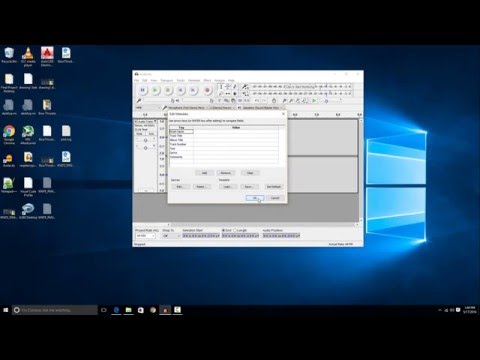
Next, it will ask you to provide information about the file (Author, copyright, name, etc) this is all optional and is for tracking and so it shows up correctly in programs like iTunes, so feel free to fill in what you want, but it is not required. After this just hit ok one more time, and the file will be created as an MP3 wherever you selected.
Check out my facebook at: facebook.com/pages/All-How-2s/198429346974010
or my twitter: twitter.com/AllHow2s
Or my website where I have a lot of other great tutorials (such as how to take a screenshot, or how to get the start button back on Windows 8): allhow2s.com
Basically, you just need to install the LAME executable, that can be found here: lame.buanzo.org/#lamewindl
As is noted on the page, some antivirus programs may flag the executable as a false positive. The program is perfectly safe, as you can see me install the same file in the video.
Once you have installed the the LAME MP3 encoder, to save as an MP3, you just need to go to the file menu in the top left of Audacity, hit export, then select MP3 from the file type dropdown menu on the save location window. After that, just give it a file name and hit ok.
Next, it will ask you to provide information about the file (Author, copyright, name, etc) this is all optional and is for tracking and so it shows up correctly in programs like iTunes, so feel free to fill in what you want, but it is not required. After this just hit ok one more time, and the file will be created as an MP3 wherever you selected.
Check out my facebook at: facebook.com/pages/All-How-2s/198429346974010
or my twitter: twitter.com/AllHow2s
Or my website where I have a lot of other great tutorials (such as how to take a screenshot, or how to get the start button back on Windows 8): allhow2s.com
About this tutorial
howtwos101 published this 1:59 video tutorial on October 27, 2016. It has been watched 94,702 times on YouTube.
- Channel
- howtwos101
- Category
- Howto & Style
- Duration
- 1:59
- Published
- October 27, 2016
- Views
- 94,702
- Likes
- 725
Tags
Share
This tutorial in other languages
- FRComment enregistrer un enregistrement de fichiers MP3 avec Audacity
- ESCómo guardar una grabación de archivos MP3 con Audacity
- PTComo salvar uma gravação de arquivo MP3 utilizando Audacity
- ITCome salvare una registrazione di file MP3 utilizzando Audacity
- DEWie eine MP3-Datei Aufnahme mit Audacity speichern
- NLHoe maak je een MP3-bestand opname met Audacity te redden
- RUКак сохранить запись MP3 файлов с помощью Audacity
- PLJak zapisać nagrywanie plików MP3 za pomocą Audacity
- JAAudacityのを使用して記録したMP3ファイルを保存する方法
- ARكيفية حفظ تسجيل ملف MP3 باستخدام جرأة
- HIकैसे धृष्टता का उपयोग कर एक एमपी 3 फ़ाइल रिकॉर्डिंग को बचाने के लिए
- IDCara menyimpan file rekaman MP3 menggunakan Audacity