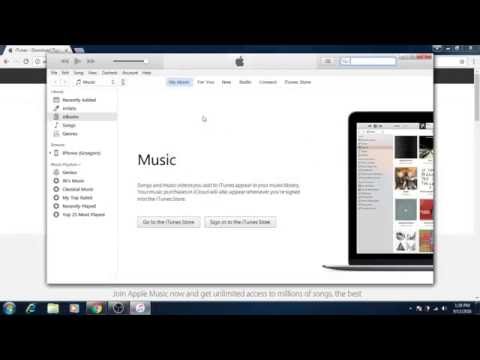
Playback starts YouTube’s embedded player (privacy-enhanced mode).
How to add music to iPhone?
ChannelPolish iPhone skillsDescription from the creator
This is a step by step guide:
1. Star by going to apple.com to download iTunes. Go to the bottom of the page to and click iTunes. You can uncheck two elements (marketing). And click download.
2. Now wait to finish downloading.
3. Now click on the downloaded file. Click run. Click next. Click instal. Wait for the installation to finish.
4. Click finish and agree to the terms and conditions. Now wait for iTunes to lunch. Now you can chose to make iTunes default program for audio files. You probably don’t want this. Next step is optional and it’s for the choosing audio files association. In next step you agree to share details of your library with apple.
5. Now iTunes is installed. Now it’s the time to connect your iPhone using your lightning cable. Connect your iPhone now. You will have to wait if you are doing it for the first time. It could take a while. You can check if the process is going well.
6. Windows should now install all the drivers for iPhone.
7. iPhone will apear in iTunes.
8. Now you will be asked if you want to download iCloud for Windows. You can do it later.
9. Now drag file or folder with music on the left side bar. It should create a new playlist.
10. Go to iPhone in the iTunes and chose music section. Check Sync Music. All existing music in iTunes on the iPhone will be removed from iPhone – If you had connected your iPhone to different computer before. Chose Remove and sync.
11. It’s better to sync only selected playlists. Select second option and playlist that you just created. Now apply changes.
12. This step will be available if you connected your iPhone to different computer before. iPhone can be synced with only one iTunes library.
13. Now you have to wait. First iPhone will be backed up and than it will be synced. And that is all.
14. When synchronization is over you can unplug your iPhone.
1. Star by going to apple.com to download iTunes. Go to the bottom of the page to and click iTunes. You can uncheck two elements (marketing). And click download.
2. Now wait to finish downloading.
3. Now click on the downloaded file. Click run. Click next. Click instal. Wait for the installation to finish.
4. Click finish and agree to the terms and conditions. Now wait for iTunes to lunch. Now you can chose to make iTunes default program for audio files. You probably don’t want this. Next step is optional and it’s for the choosing audio files association. In next step you agree to share details of your library with apple.
5. Now iTunes is installed. Now it’s the time to connect your iPhone using your lightning cable. Connect your iPhone now. You will have to wait if you are doing it for the first time. It could take a while. You can check if the process is going well.
6. Windows should now install all the drivers for iPhone.
7. iPhone will apear in iTunes.
8. Now you will be asked if you want to download iCloud for Windows. You can do it later.
9. Now drag file or folder with music on the left side bar. It should create a new playlist.
10. Go to iPhone in the iTunes and chose music section. Check Sync Music. All existing music in iTunes on the iPhone will be removed from iPhone – If you had connected your iPhone to different computer before. Chose Remove and sync.
11. It’s better to sync only selected playlists. Select second option and playlist that you just created. Now apply changes.
12. This step will be available if you connected your iPhone to different computer before. iPhone can be synced with only one iTunes library.
13. Now you have to wait. First iPhone will be backed up and than it will be synced. And that is all.
14. When synchronization is over you can unplug your iPhone.
About this tutorial
Polish iPhone skills published this 5:11 video tutorial on October 31, 2016. It has been watched 804,278 times on YouTube.
- Channel
- Polish iPhone skills
- Category
- Science & Technology
- Duration
- 5:11
- Published
- October 31, 2016
- Views
- 804,278
- Likes
- 1,565
Tags
Share
This tutorial in other languages
- FRComment ajouter de la musique à l'iPhone?
- ESCómo añadir música al iPhone?
- PTComo adicionar música ao iPhone?
- ITCome aggiungere musica al iPhone?
- DEWie Musik zu iPhone hinzufügen?
- NLHoe kan ik muziek naar de iPhone?
- RUКак добавить музыку на iPhone?
- PLJak dodać muzykę do iPhone?
- JAiPhoneに音楽を追加する方法?
- ARكيفية إضافة الموسيقى الى اي فون؟
- HIकैसे iPhone करने के लिए संगीत जोड़ने के लिए?
- IDCara menambahkan musik ke iPhone?