Playback starts YouTube’s embedded player (privacy-enhanced mode).
How to create MS Word document automatically with Dynamic fields
ChannelKrishna SDescription from the creator
krishtalk.com/
Excel text manipulation
krishtalk.com/2018/10/practical-text-manipulati…
Useful Tips on Office Automation
How to create ms word templates
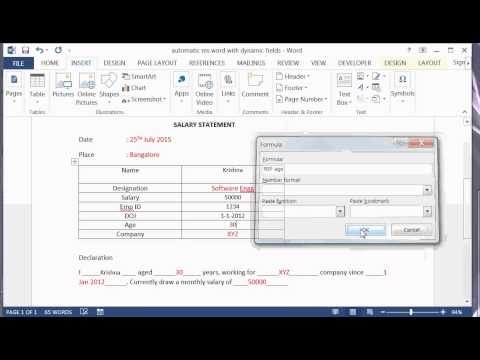
This video shows how to create a template in MS Word using Quick parts, Fields, Bookmarks and VBA macros. Templates are useful for automating word documents. You can store repetitive values somewhere in the bookmark and place them wherever needed.
Download the example here
krishtalk.com/2015/05/how-to-create-template-in…
There are 3 steps to create MS word templates.
Step 1
Create a section of bookmarks, which hold the value you enter. These are hidden.
Step 2
Create field code to populate the values. Use ASK filed to get the values from user and store them in the bookmarks created earlier.
Step 3
Create fields where you want to place the values stored in bookmarks. use the FORMULA field to get the value from bookmark and place them wherever you want
code REF Bookmark name
Finally you can create a macro to update all the values. For this you can create a button and assign the code to it.
code
Private Sub Update_Click()
Fields.Update
End Sub
Subscribe to my channel:
youtube.com/user/krishnayess?sub_confirmation=1
YouTube Channel: youtube.com/krishnayess
My Blog: krishtalk.com/
Google Plus: plus.google.com/+KrishSanj/
Twitter @iTwittt
twitter.com/iTwittt
Excel text manipulation
krishtalk.com/2018/10/practical-text-manipulati…
Useful Tips on Office Automation
How to create ms word templates
This video shows how to create a template in MS Word using Quick parts, Fields, Bookmarks and VBA macros. Templates are useful for automating word documents. You can store repetitive values somewhere in the bookmark and place them wherever needed.
Download the example here
krishtalk.com/2015/05/how-to-create-template-in…
There are 3 steps to create MS word templates.
Step 1
Create a section of bookmarks, which hold the value you enter. These are hidden.
Step 2
Create field code to populate the values. Use ASK filed to get the values from user and store them in the bookmarks created earlier.
Step 3
Create fields where you want to place the values stored in bookmarks. use the FORMULA field to get the value from bookmark and place them wherever you want
code REF Bookmark name
Finally you can create a macro to update all the values. For this you can create a button and assign the code to it.
code
Private Sub Update_Click()
Fields.Update
End Sub
Subscribe to my channel:
youtube.com/user/krishnayess?sub_confirmation=1
YouTube Channel: youtube.com/krishnayess
My Blog: krishtalk.com/
Google Plus: plus.google.com/+KrishSanj/
Twitter @iTwittt
twitter.com/iTwittt
About this tutorial
Krishna S published this 12:05 video tutorial on November 5, 2015. It has been watched 394,041 times on YouTube.
- Channel
- Krishna S
- Category
- Science & Technology
- Duration
- 12:05
- Published
- November 5, 2015
- Views
- 394,041
- Likes
- 933
Tags
Share
This tutorial in other languages
- FRComment créer un document MS Word automatiquement avec des champs dynamiques
- ESCómo crear documento de MS Word automáticamente con campos dinámicos
- PTComo criar documento MS Word automaticamente com campos dinâmicos
- ITCome creare un documento MS Word automaticamente con campi dinamici
- DEWie man MS Word-Dokument automatisch mit dynamischen Feldern erstellen
- NLHoe kan ik MS Word document automatisch met Dynamic velden creëren
- RUКак создать документ MS Word автоматически с динамическими полями
- PLJak utworzyć dokument MS Word automatycznie z polami dynamicznymi
- JAダイナミックなフィールドで自動的にMS Word文書を作成する方法
- ARكيفية إنشاء وثيقة MS Word تلقائيا مع الحقول الحيوي
- HIगतिशील क्षेत्रों के साथ एमएस वर्ड दस्तावेज़ स्वचालित रूप से बनाने के लिए कैसे
- IDCara membuat dokumen MS Word secara otomatis dengan bidang Dinamis