Playback starts YouTube’s embedded player (privacy-enhanced mode).
How to Install an M.2 SSD in a Desktop PC – Kingston Technology
ChannelKingston TechnologyDescription from the creator
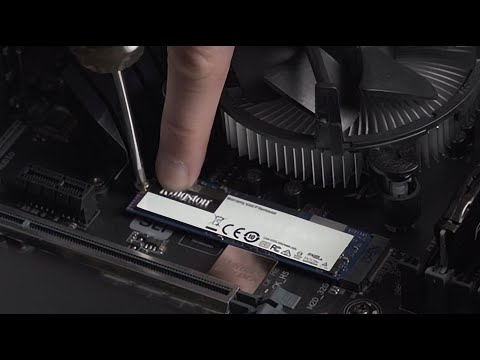
It’s easy to install an M.2 SSD into a desktop PC. We’ll show you how.
Before you make your purchase, be sure to confirm with the system/motherboard manufacturer or the documentation to see if the M.2 socket supports NVMe. Sometimes, it can be called something other than NVMe such as PCIe mode. If it doesn’t, you won’t achieve the full disk speed advantage that NVMe offers and you might consider either upgrading your motherboard/PC or going with a less expensive option like AHCI M.2 or 2.5” SATA SSD. To learn more about this topic please watch this video: youtube.com/watch?v=dMFOt4AC-70
1. Always refer to your computer’s manual before disassembling it or replacing any hardware.
2. As a precaution, prior to handling the SSD, touch an unpainted and grounded metal object or use an anti-static wrist strap to work in a static-safe environment.
3. Safely disconnect the power from the system.
4. Loosen and remove the computer case cover from the desktop.
5. Locate the M.2 socket on the motherboard.
6. If you already had another M.2 SSD installed, loosen the screw and remove the old M.2 SSD. Otherwise, carefully hold the new M.2 SSD along the side edges and insert it into the socket by aligning the keys on the M.2 SSD with the keys in the socket.
7. Once properly connected, gently press the back end of the M.2 SSD towards the motherboard, then insert and tighten the screw to secure the M.2 SSD.
8. Put the computer case panel back onto the desktop.
9. Plug in the power cord and boot up your system.
If you need help cloning your drive, please check our Acronis cloning video here: youtube.com/watch?v=Q64Jm8hSlWs
Before you make your purchase, be sure to confirm with the system/motherboard manufacturer or the documentation to see if the M.2 socket supports NVMe. Sometimes, it can be called something other than NVMe such as PCIe mode. If it doesn’t, you won’t achieve the full disk speed advantage that NVMe offers and you might consider either upgrading your motherboard/PC or going with a less expensive option like AHCI M.2 or 2.5” SATA SSD. To learn more about this topic please watch this video: youtube.com/watch?v=dMFOt4AC-70
1. Always refer to your computer’s manual before disassembling it or replacing any hardware.
2. As a precaution, prior to handling the SSD, touch an unpainted and grounded metal object or use an anti-static wrist strap to work in a static-safe environment.
3. Safely disconnect the power from the system.
4. Loosen and remove the computer case cover from the desktop.
5. Locate the M.2 socket on the motherboard.
6. If you already had another M.2 SSD installed, loosen the screw and remove the old M.2 SSD. Otherwise, carefully hold the new M.2 SSD along the side edges and insert it into the socket by aligning the keys on the M.2 SSD with the keys in the socket.
7. Once properly connected, gently press the back end of the M.2 SSD towards the motherboard, then insert and tighten the screw to secure the M.2 SSD.
8. Put the computer case panel back onto the desktop.
9. Plug in the power cord and boot up your system.
If you need help cloning your drive, please check our Acronis cloning video here: youtube.com/watch?v=Q64Jm8hSlWs
About this tutorial
Kingston Technology published this 1:11 video tutorial on November 7, 2019. It has been watched 318,520 times on YouTube.
- Channel
- Kingston Technology
- Category
- Science & Technology
- Duration
- 1:11
- Published
- November 7, 2019
- Views
- 318,520
- Likes
- 995
Tags
Share
This tutorial in other languages
- FRComment faire pour installer un SSD dans M.2 un PC de bureau - Kingston Technology
- ESCómo instalar un SSD M.2 en un PC de escritorio - Kingston Technology
- PTComo instalar um SSD M.2 em um PC Desktop - Kingston Technology
- ITCome installare un M.2 SSD in un PC Desktop - Kingston Technology
- DEWie ein M.2 SSD in einem Desktop-PC installieren - Kingston Technology
- NLHoe kan ik een M.2 SSD in een desktop pc installeren - Kingston Technology
- RUКак установить м.2 SSD в настольном ПК - Kingston Technology
- PLJak zainstalować M.2 SSD komputera stacjonarnego - Kingston Technology
- JAデスクトップPCでのM.2 SSDをインストールする方法 - キングストンテクノロジー
- ARكيفية تثبيت SSD M.2 في جهاز كمبيوتر سطح المكتب - كنجستون تكنولوجي
- HIकैसे एक डेस्कटॉप पीसी में एक M.2 एसएसडी स्थापित करने के लिए - किंग्स्टन प्रौद्योगिकी
- IDCara Instal M.2 SSD di Desktop PC - Kingston Technology