Playback starts YouTube’s embedded player (privacy-enhanced mode).
How to Boot into Safe Mode On Windows 10 (3 Ways)
ChannelNiyas CIn brief
Boot Windows 10 into Safe Mode using three straightforward methods—ideal for troubleshooting startup issues or resolving slow boot problems. Each approach is quick and requires minimal steps, whether you're dealing with a black screen or general performance hiccups.
Key steps
- Open Run (Win+R), type msconfig, go to Boot tab, check Safe boot, and restart.
- Hold Shift while clicking Restart from the Start menu or login screen.
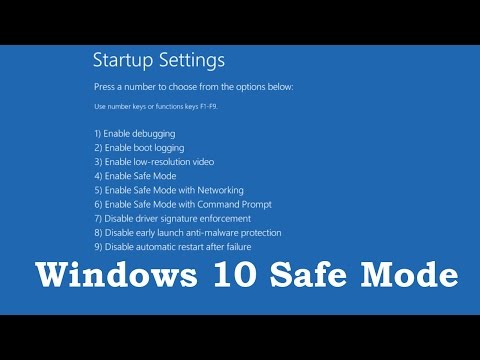
- Hold Shift+F8 during startup, navigate to Startup Settings, restart, then press F4.
Questions & answers
Do I need to disable Safe Mode after troubleshooting?
Yes—uncheck Safe boot in msconfig or restart normally to exit Safe Mode.
Description from the creator
Easy 3 ways to boot into Windows 10 Safe Mode
learn how to start Windows Startup Settings (including safe mode) on Windows 10
Method 1: Using System Configuration tool
1. Press the Win+R key combination and type msconfig in the run.
2. Click the Boot tab. Check the "Safe boot" box and Click ok and your computer will boot into Safe Mode next time it restarts.
Method 2: Shift + Restart Option
Press the Power button from Start menu, or at Windows login screen. Then, press and hold the SHIFT key on your keyboard and click Restart.
Method 3: Shift+F8
Hold the Shift button and mash the F8 key when Windows starts. This will sometimes boot you into the new advanced repair options.
1. Click on the Troubleshoot option
2. Now select Advanced Options.
3. Now choose the Windows Startup Settings option
4. Then hit the Restart button
5. Press the F4 key on your keyboard, to enable Safe Mode
If F8 and Shift+F8 is not working or if Windows 10 doesn’t boot properly, then you can enable the legacy Advanced Boot Options menu that allows you to press F8 upon statup: watch this: youtube.com/watch?v=EvtuANm_Zjs
Tags: Enter Windows 10 Safe Mode, safe boot, How to enter safe boot, Windows 10 booting problem, Windows 10 Startup Settings, windows 10 safe boot options, windows 10 no safe mode, windows 10 booting to black screen, windows 10 booting problem, windows 10 boot failure, fix slow boot-up issues after free upgrade, Windows 10 slow boot
learn how to start Windows Startup Settings (including safe mode) on Windows 10
Method 1: Using System Configuration tool
1. Press the Win+R key combination and type msconfig in the run.
2. Click the Boot tab. Check the "Safe boot" box and Click ok and your computer will boot into Safe Mode next time it restarts.
Method 2: Shift + Restart Option
Press the Power button from Start menu, or at Windows login screen. Then, press and hold the SHIFT key on your keyboard and click Restart.
Method 3: Shift+F8
Hold the Shift button and mash the F8 key when Windows starts. This will sometimes boot you into the new advanced repair options.
1. Click on the Troubleshoot option
2. Now select Advanced Options.
3. Now choose the Windows Startup Settings option
4. Then hit the Restart button
5. Press the F4 key on your keyboard, to enable Safe Mode
If F8 and Shift+F8 is not working or if Windows 10 doesn’t boot properly, then you can enable the legacy Advanced Boot Options menu that allows you to press F8 upon statup: watch this: youtube.com/watch?v=EvtuANm_Zjs
Tags: Enter Windows 10 Safe Mode, safe boot, How to enter safe boot, Windows 10 booting problem, Windows 10 Startup Settings, windows 10 safe boot options, windows 10 no safe mode, windows 10 booting to black screen, windows 10 booting problem, windows 10 boot failure, fix slow boot-up issues after free upgrade, Windows 10 slow boot
About this tutorial
Niyas C published this 4:06 video tutorial on October 31, 2015. It has been watched 4,604,462 times on YouTube.
- Channel
- Niyas C
- Category
- Howto & Style
- Duration
- 4:06
- Published
- October 31, 2015
- Views
- 4,604,462
- Likes
- 17,303
Tags
Share
This tutorial in other languages
- FRComment démarrer en mode sans échec de Windows sur 10 (3 façons)
- ESCómo arrancar en modo seguro en Windows 10 (3 maneras)
- PTComo inicializar em modo de segurança no Windows 10 (3 maneiras)
- ITCome avvio in modalità provvisoria di Windows On 10 (3 modi)
- DESo booten in den abgesicherten Modus unter Windows 10 (3 Wege)
- NLHoe te starten in de veilige modus in Windows 10 (3 manieren)
- RUКак загрузиться в безопасном режиме на Windows 10 (3 Ways)
- PLJak uruchomić w trybie awaryjnym w systemie Windows 10 (3 strony)
- JAどのように起動するようにセーフモードでWindows 10(3つの方法)に
- ARكيفية التمهيد في الوضع الآمن في نظام التشغيل Windows 10 (3 طرق)
- HIकैसे बूट करने के लिए सुरक्षित मोड Windows पर 10 (3 तरीके) में
- IDCara Boot ke Safe Mode Pada Windows 10 (3 Cara)