Playback starts YouTube’s embedded player (privacy-enhanced mode).
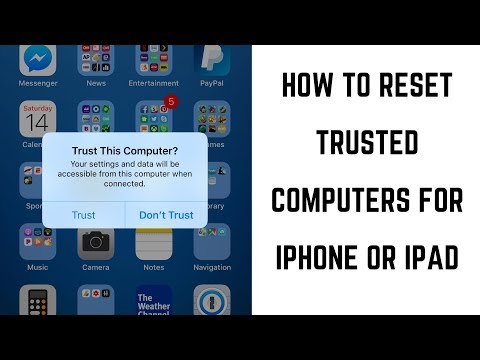
How to Reset Trusted Computers for iPhone or iPad
ChannelMax DaltonDescription from the creator
This video walks you through how to untrust all of the computers associated with your iPhone or iPad.
See more videos by Max here: youtube.com/c/MaxDalton
Video Transcript:
When you connect your iPhone or iPad to a computer for the first time, you receive a prompt on your Apple device asking whether you want to trust that computer. When you choose to trust a computer, you're agreeing to let that computer access information on your iPhone or iPad, such as pictures, videos, contacts, and much more. This means that if someone else gets their hands on your device, they can plug it into a trusted computer and have access to files on your iPhone or iPad. If you're either not comfortable with the number of computers that have a trusted relationship with your iPhone or iPad, or you're worried about someone getting their hands on your device and connecting it to one of these computers, your only option is to untrust all of the computers that have a relationship with your Apple device. You can do this by resetting your location and privacy settings.
And now, let's walk through the steps to reset the location and privacy settings on your iPhone or iPad, and untrust all of the computers you've set up to be trusted by your Apple device.
Step 1. Tap to open the "Settings" app. The Settings screen appears.
Step 2. Select "General" in the list of options on the Settings screen. The General screen is displayed.
Step 3. Scroll down to the bottom of the General screen, and then tap "Reset." The Reset screen appears.
Step 4. Tap "Reset Location & Privacy" in the list of options. The Enter Password screen appears.
Step 5. Enter your password or passcode. A notification flys up from the bottom of the screen, informing you that continuing will reset your location and privacy settings to factory defaults.
Step 6. Tap the red "Reset Settings" button in the notification. The notification will disappear, and you'll return to the Reset screen. The list of any computers trusted by your iPhone or iPad will be erased as part of restoring your location and privacy settings to the factory defaults. You'll now be prompted to establish a trust with any computers you connect your iPhone or iPad to.
Finally, because you cleared your customized location and privacy settings, you'll need to update that information accordingly.
See more videos by Max here: youtube.com/c/MaxDalton
Video Transcript:
When you connect your iPhone or iPad to a computer for the first time, you receive a prompt on your Apple device asking whether you want to trust that computer. When you choose to trust a computer, you're agreeing to let that computer access information on your iPhone or iPad, such as pictures, videos, contacts, and much more. This means that if someone else gets their hands on your device, they can plug it into a trusted computer and have access to files on your iPhone or iPad. If you're either not comfortable with the number of computers that have a trusted relationship with your iPhone or iPad, or you're worried about someone getting their hands on your device and connecting it to one of these computers, your only option is to untrust all of the computers that have a relationship with your Apple device. You can do this by resetting your location and privacy settings.
And now, let's walk through the steps to reset the location and privacy settings on your iPhone or iPad, and untrust all of the computers you've set up to be trusted by your Apple device.
Step 1. Tap to open the "Settings" app. The Settings screen appears.
Step 2. Select "General" in the list of options on the Settings screen. The General screen is displayed.
Step 3. Scroll down to the bottom of the General screen, and then tap "Reset." The Reset screen appears.
Step 4. Tap "Reset Location & Privacy" in the list of options. The Enter Password screen appears.
Step 5. Enter your password or passcode. A notification flys up from the bottom of the screen, informing you that continuing will reset your location and privacy settings to factory defaults.
Step 6. Tap the red "Reset Settings" button in the notification. The notification will disappear, and you'll return to the Reset screen. The list of any computers trusted by your iPhone or iPad will be erased as part of restoring your location and privacy settings to the factory defaults. You'll now be prompted to establish a trust with any computers you connect your iPhone or iPad to.
Finally, because you cleared your customized location and privacy settings, you'll need to update that information accordingly.
About this tutorial
Max Dalton published this 2:45 video tutorial on October 27, 2018. It has been watched 247,938 times on YouTube.
- Channel
- Max Dalton
- Category
- Howto & Style
- Duration
- 2:45
- Published
- October 27, 2018
- Views
- 247,938
- Likes
- 1,079
Tags
Share
This tutorial in other languages
- FRComment réinitialiser les ordinateurs de confiance pour iPhone ou iPad
- ESCómo reiniciar los equipos de confianza para iPhone o iPad
- PTComo redefinir computadores confiáveis para iPhone ou iPad
- ITCome reimpostare computer attendibili per iPhone o iPad
- DEWie Zurücksetzen Trusted Computer für iPhone oder iPad
- NLHoe kan ik vertrouwde computers voor de iPhone of iPad Reset
- RUКак сбросить Доверенные компьютеры для iPhone или IPad
- PLJak zresetować Zaufane komputery dla iPhone lub iPad
- JAiPhoneやiPadのための信頼できるコンピュータをリセットする方法
- ARكيفية إعادة ضبط أجهزة الكمبيوتر الموثوق بها لفون أو آي باد
- HIiPhone या iPad के लिए विश्वसनीय कंप्यूटर रीसेट कैसे
- IDCara Reset Komputer Terpercaya untuk iPhone atau iPad