Playback starts YouTube’s embedded player (privacy-enhanced mode).
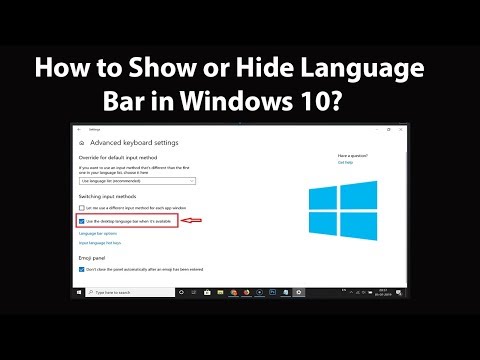
How to Show or Hide Language Bar in Windows 10?
ChannelTechMeSpotDescription from the creator
How to Show or Hide Language Bar in Windows 10?
To Show:
Step 1: Click on the Search box, and then type 'settings,' and then click on 'settings' app to open it.
Step 2: Click on 'Devices,' and then click on 'Typing.'
Step 3: Scroll down at the very bottom, and then click on 'Advanced Keyboard Settings.'
Step 4: Check the Option, 'use the desktop language bar when it's available.'
To Hide:
Step 1: Follow till step 3 from above.
Step 3: UnCheck the Option, 'use the desktop language bar when it's available.'
It's done
Thanks for watching, please like and subscribe
==============================================
YouTube Subscribe: goo.gl/4lCCN8
Patreon: patreon.com/TechMeSpot
Facebook: facebook.com/techmespot
Twitter: twitter.com/techmespot
Website: techmespot.com
#howto #LanguageBar #Windows10
To Show:
Step 1: Click on the Search box, and then type 'settings,' and then click on 'settings' app to open it.
Step 2: Click on 'Devices,' and then click on 'Typing.'
Step 3: Scroll down at the very bottom, and then click on 'Advanced Keyboard Settings.'
Step 4: Check the Option, 'use the desktop language bar when it's available.'
To Hide:
Step 1: Follow till step 3 from above.
Step 3: UnCheck the Option, 'use the desktop language bar when it's available.'
It's done
Thanks for watching, please like and subscribe
==============================================
YouTube Subscribe: goo.gl/4lCCN8
Patreon: patreon.com/TechMeSpot
Facebook: facebook.com/techmespot
Twitter: twitter.com/techmespot
Website: techmespot.com
#howto #LanguageBar #Windows10
About this tutorial
TechMeSpot published this 3:22 video tutorial on October 26, 2019. It has been watched 33,419 times on YouTube.
- Channel
- TechMeSpot
- Category
- Howto & Style
- Duration
- 3:22
- Published
- October 26, 2019
- Views
- 33,419
- Likes
- 258
Tags
Share
This tutorial in other languages
- FRComment afficher ou masquer barre de langue dans Windows 10?
- ESCómo mostrar u ocultar Barra de idioma en Windows 10?
- PTComo mostrar ou ocultar barra de idiomas no Windows 10?
- ITCome mostrare o nascondere Barra della lingua in Windows 10?
- DEWie zeigen oder ausblenden Sprachenleiste in Windows 10?
- NLHoe te tonen of verbergen Taal Bar in Windows 10?
- RUКак показать или скрыть Языковая панель в Windows 10?
- PLJak pokazać lub ukryć Język Bar w Windows 10?
- JAWindowsの10に表示または非表示に言語バーするには?
- ARكيفية إظهار أو إخفاء شريط اللغة في ويندوز 10؟
- HIकैसे दिखाएँ या Windows 10 में छिपाएं भाषा पट्टी के लिए?
- IDCara Tampilkan atau Sembunyikan Bahasa Bar pada Windows 10?