Playback starts YouTube’s embedded player (privacy-enhanced mode).
How to Sync Multiple Google Calendars with iPhone and iPad
ChanneliPhone, iPad and Android Tutorials from HowTechDescription from the creator
In this tutorial you will learn how to sync multiple Google Calendars to the iPhone.
Don't forget to check out our site howtech.tv/ for more free how-to videos!
youtube.com/ithowtovids - our feed
facebook.com/howtechtv - join us on facebook
plus.google.com/103440382717658277879 - our group in Google+
This tutorial will show you how to sync multiple Google Calendars to iPhone. This is a very helpful trick that will allow you to merge content from your various calendars into one easy to use calendar on your iPhone.
Step #1 -- Open Safari
Step #2 -- Go to www.google.com/calendar/iphoneselect
In the URL of Safari type, www.google.com/calendar/iphoneselect
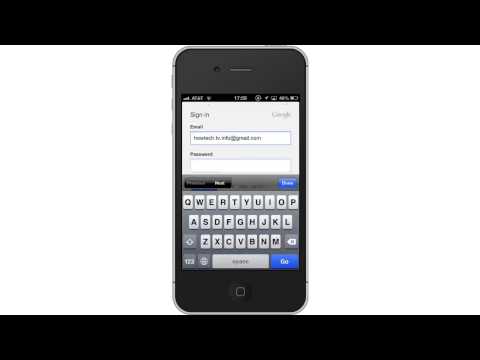
Step #3 -- Sign in with Google credentials
Sign in with your account credentials. It will then pull up all of the calendars you have associated with your account.
Step #4 -- Sync Calendars
Select the calendars you want to sync to your iPhone by tapping the box next to the name. A check mark will then appear letting you know you've selected it.
Step #5- Tap Save
Tap save and all of your selected calendars will be synced into one on your iPhone. You have now successfully synced multiple Google calendars to the iPhone.
Leave your comments below or contact us by email. This was a Howtech.tv tutorial. Thanks for watching!
Don't forget to check out our site howtech.tv/ for more free how-to videos!
youtube.com/ithowtovids - our feed
facebook.com/howtechtv - join us on facebook
plus.google.com/103440382717658277879 - our group in Google+
This tutorial will show you how to sync multiple Google Calendars to iPhone. This is a very helpful trick that will allow you to merge content from your various calendars into one easy to use calendar on your iPhone.
Step #1 -- Open Safari
Step #2 -- Go to www.google.com/calendar/iphoneselect
In the URL of Safari type, www.google.com/calendar/iphoneselect
Step #3 -- Sign in with Google credentials
Sign in with your account credentials. It will then pull up all of the calendars you have associated with your account.
Step #4 -- Sync Calendars
Select the calendars you want to sync to your iPhone by tapping the box next to the name. A check mark will then appear letting you know you've selected it.
Step #5- Tap Save
Tap save and all of your selected calendars will be synced into one on your iPhone. You have now successfully synced multiple Google calendars to the iPhone.
Leave your comments below or contact us by email. This was a Howtech.tv tutorial. Thanks for watching!
About this tutorial
iPhone, iPad and Android Tutorials from HowTech published this 1:01 video tutorial on November 1, 2013. It has been watched 3,656 times on YouTube.
- Category
- Howto & Style
- Duration
- 1:01
- Published
- November 1, 2013
- Views
- 3,656
- Likes
- 9
Tags
Share
This tutorial in other languages
- FRComment synchroniser plusieurs calendriers Google avec l'iPhone et l'iPad
- ESCómo sincronizar varios calendarios de Google con el iPhone y el iPad
- PTComo sincronizar vários calendários do Google com o iPhone e iPad
- ITCome sincronizzare più calendari di Google con iPhone e iPad
- DEWie man Sync Mehr Google-Kalender mit iPhone und iPad
- NLHoe te Sync meerdere Google-agenda's met de iPhone en iPad
- RUКак Синхронизация нескольких календарей Google с iPhone и IPad
- PLJak synchronizować wiele kalendarzy Google z iPhone i iPad
- JAどのようにiPhoneとiPadと同期する複数のGoogleカレンダーへ
- ARكيفية مزامنة متعددة تقويم جوجل مع اي فون وتطلب الشركة
- HIकैसे iPhone और iPad के साथ सिंक एकाधिक Google कैलेंडर में
- IDCara Sync Beberapa Google Kalender dengan iPhone dan iPad