Playback starts YouTube’s embedded player (privacy-enhanced mode).
How to Defrag Windows 8: How To Defrag Your Hard Drive Easily
ChannelMDTechVideosDescription from the creator
How to Defrag Windows 8: How To Defrag Your Hard Drive Easily.
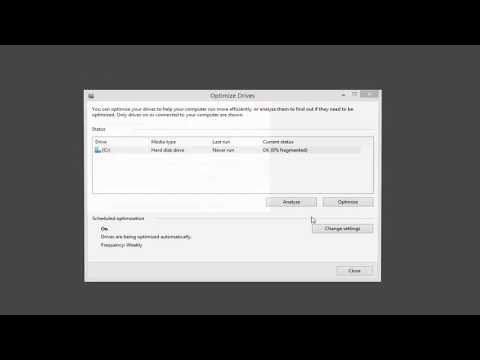
The Disk Defragmenter feature has been renamed as "Optimize Drives" under Windows
Files stored on a hard drive become fragmented over time, meaning that parts of the files are stored in separate areas of the drive instead of right next to each other. When this happens, it can take longer for the OS to open the file. A defrag can fix this.
While there are lots of free, third-party defragmenters, the Windows disk defragmenter can be used right now without having to download anything since it's built in to the operating system.
The Windows defrag tool runs automatically once a week, in Windows 10, Windows 8, and Windows 7. If you want to defrag on your own time, you can open the program anytime you want and run a manual defrag. You can get to it by searching through Windows or by browsing through Administrative Tools via Control Panel.
Note: Defragging isn't necessary on solid state hard drives since there aren't any spinning parts. Since the hard drive doesn't need to spin to find all the file's pieces, there isn't a lag between the time it takes to find the file and the time it takes to open it.
This tutorial will apply for computers, laptops, desktops,and tablets running the Windows 10, Windows 8/8.1, Windows 7 operating systems. Works for all major computer manufactures (Dell, HP, Acer, Asus, Toshiba, Lenovo, Samsung).
The Disk Defragmenter feature has been renamed as "Optimize Drives" under Windows
Files stored on a hard drive become fragmented over time, meaning that parts of the files are stored in separate areas of the drive instead of right next to each other. When this happens, it can take longer for the OS to open the file. A defrag can fix this.
While there are lots of free, third-party defragmenters, the Windows disk defragmenter can be used right now without having to download anything since it's built in to the operating system.
The Windows defrag tool runs automatically once a week, in Windows 10, Windows 8, and Windows 7. If you want to defrag on your own time, you can open the program anytime you want and run a manual defrag. You can get to it by searching through Windows or by browsing through Administrative Tools via Control Panel.
Note: Defragging isn't necessary on solid state hard drives since there aren't any spinning parts. Since the hard drive doesn't need to spin to find all the file's pieces, there isn't a lag between the time it takes to find the file and the time it takes to open it.
This tutorial will apply for computers, laptops, desktops,and tablets running the Windows 10, Windows 8/8.1, Windows 7 operating systems. Works for all major computer manufactures (Dell, HP, Acer, Asus, Toshiba, Lenovo, Samsung).
About this tutorial
MDTechVideos published this 1:43 video tutorial on November 2, 2018. It has been watched 2,423 times on YouTube.
- Channel
- MDTechVideos
- Category
- Science & Technology
- Duration
- 1:43
- Published
- November 2, 2018
- Views
- 2,423
- Likes
- 32
Tags
Share
This tutorial in other languages
- FRComment Defrag Windows 8: Comment faire pour défragmenter votre disque dur facilement
- ESCómo Defrag de Windows 8: ¿Cómo desfragmentar el disco duro fácilmente
- PTComo Defrag Windows 8: Como desfragmentar o disco rígido Facilmente
- ITCome Defrag di Windows 8: Come deframmentare il disco rigido facilmente
- DEWie man Defrag Windows 8: Wie Defrag der Festplatte leicht
- NLHoe kan Defrag Windows 8: How To Defrag uw harde schijf gemakkelijk
- RUКак Defrag Windows, 8: Как Defrag Ваш жесткий диск легко
- PLJak Defrag systemu Windows 8: Jak Defrag dysku twardym Łatwo
- JAどのようにデフラグのWindows 8へ:どのようにするにはデフラグハードドライブを簡単に
- ARكيفية إلغاء تجزئة ويندوز 8: كيفية إلغاء تجزئة القرص الصلب لديك بسهولة
- HIकैसे Defrag Windows 8: कैसे Defrag आपका हार्ड ड्राइव आसानी
- IDCara Defrag Windows 8: Cara Defrag Hard Drive Anda dengan mudah