Playback starts YouTube’s embedded player (privacy-enhanced mode).
How to Transfer Contacts from Your Computer to Your iPhone
ChannelHowcastDescription from the creator
Full Playlist: youtube.com/playlist?list=PLLALQuK1NDrjyb0PNDLs…
-
-
Watch more How to Use an iPhone videos: howcast.com/videos/359879-How-to-Transfer-Conta…
Sync your computer contacts to your iPhone and never be caught without e-mail addresses, snail mail addresses, or phone numbers again.
Step 1: Connect phone to computer
Connect your iPhone to your computer with the USB 2.0 port. Use the USB cable provided with your phone.
Step 2: Select iPhone
Click the iPhone icon under the side menu heading Devices.
Tip
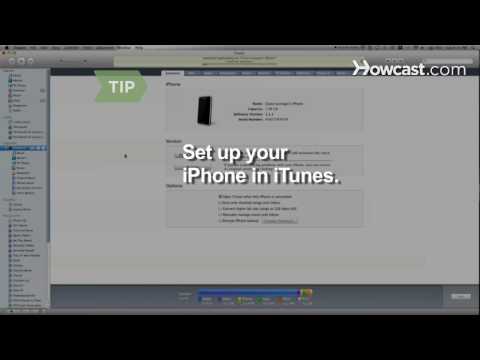
You will need to setup your iPhone in iTunes if you have not already done so.
Step 3: Select contacts
Choose Info and select the program you want iTunes to pull your contacts from.
Tip
If you have a PC, you can only sync contacts from one application at a time. Mac users can select multiple applications to sync contacts from.
Step 4: Click Sync
Click Sync and then Apply at the bottom right of the pop-up menu. Wait until iTunes shows iPhone Sync is Complete.
Step 5: Disconnect phone
Disconnect your iPhone by clicking Eject on the sidebar menu and voila! All your contacts are now just a tap away.
Did You Know?
The first cell phone, the Motorola DynaTAC 8000X, was prototyped in 1973 but was not sold until 1983, weighing in at a whopping 2 pounds.
-
-
Watch more How to Use an iPhone videos: howcast.com/videos/359879-How-to-Transfer-Conta…
Sync your computer contacts to your iPhone and never be caught without e-mail addresses, snail mail addresses, or phone numbers again.
Step 1: Connect phone to computer
Connect your iPhone to your computer with the USB 2.0 port. Use the USB cable provided with your phone.
Step 2: Select iPhone
Click the iPhone icon under the side menu heading Devices.
Tip
You will need to setup your iPhone in iTunes if you have not already done so.
Step 3: Select contacts
Choose Info and select the program you want iTunes to pull your contacts from.
Tip
If you have a PC, you can only sync contacts from one application at a time. Mac users can select multiple applications to sync contacts from.
Step 4: Click Sync
Click Sync and then Apply at the bottom right of the pop-up menu. Wait until iTunes shows iPhone Sync is Complete.
Step 5: Disconnect phone
Disconnect your iPhone by clicking Eject on the sidebar menu and voila! All your contacts are now just a tap away.
Did You Know?
The first cell phone, the Motorola DynaTAC 8000X, was prototyped in 1973 but was not sold until 1983, weighing in at a whopping 2 pounds.
About this tutorial
Howcast published this 1:25 video tutorial on November 8, 2010. It has been watched 532,501 times on YouTube.
- Channel
- Howcast
- Category
- Science & Technology
- Duration
- 1:25
- Published
- November 8, 2010
- Views
- 532,501
- Likes
- 257
Tags
Share
This tutorial in other languages
- FRComment transférer les contacts de votre ordinateur à votre iPhone
- ESCómo transferir contactos desde su ordenador a su iPhone
- PTComo transferir contactos do seu computador para o iPhone
- ITCome trasferire i contatti dal computer al tuo iPhone
- DEWie Kontakte von Ihrem Computer auf Ihr iPhone übertragen
- NLHoe maak je contacten over te brengen van uw computer naar je iPhone
- RUКак перенести контакты с компьютера на iPhone
- PLJak przenieść kontakty z komputera do iPhone
- JAあなたのiPhoneへのコンピュータから連絡先を転送する方法
- ARكيفية نقل جهات الاتصال من جهاز الكمبيوتر الخاص بك لفون الخاص بك
- HIकैसे आपका iPhone करने के लिए अपने कंप्यूटर से संपर्क करने के लिए स्थानांतरण
- IDCara Transfer Kontak dari Komputer Anda ke iPhone Anda