Playback starts YouTube’s embedded player (privacy-enhanced mode).
How to Make a Banner in Word
ChannelExcel, Word and PowerPoint Tutorials from HowtechDescription from the creator
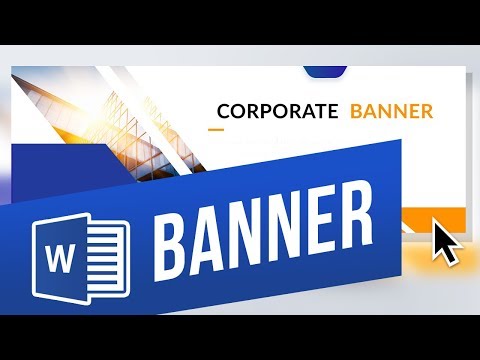
➡️ Creating a header banner.
There are several types of banners.
The first is a header-type banner at the top of a page, the second is a large, party-style banner consisting of multiple pages, and the third is changing the background of a page.
1. There are many types of header banners, but a good start is to use a Rectangle.
Go to the Insert tab, click on Shapes and choose the Rectangle shape.
2. For more creative freedom, right-click the newly-created shape and select Edit Points.
3. By Editing the Points you can create the shapes shown below. This was made with two rectangles.
➡️ Large party-style banner.
1. A good font-size for a party banner is around 650.
2. Type all the letters of the banner, then press Ctrl+A to select everything and Center the text to the middle of each page.
3. It’s not quite centered vertically so go to the Layout tab and open the Margins drop-down and click Custom Margin.
4. Change the Top and Bottom boxes both to 0 and click OK.
➡️ Changing the background of a page.
1. Go to the Design tab and click Page Color. You can either choose a color here or go to Fill Effects for more options such as images.
2. In the Fill Effects dialogue box you can choose from gradients, textures, patterns, and even your own images to create a banner page.
❓💬 What sort of banners do you create? Please let us know in comments.
#HowTech #MicrosoftWord
--------------------------------------------------------------------------------------------------------------
✅ All our announcements are available here t.me/howtechtv
✅ Commercial questions [email protected]
✅ Instagram instagram.com/howtechprojects
✅ Twitter twitter.com/howtechprojects
There are several types of banners.
The first is a header-type banner at the top of a page, the second is a large, party-style banner consisting of multiple pages, and the third is changing the background of a page.
1. There are many types of header banners, but a good start is to use a Rectangle.
Go to the Insert tab, click on Shapes and choose the Rectangle shape.
2. For more creative freedom, right-click the newly-created shape and select Edit Points.
3. By Editing the Points you can create the shapes shown below. This was made with two rectangles.
➡️ Large party-style banner.
1. A good font-size for a party banner is around 650.
2. Type all the letters of the banner, then press Ctrl+A to select everything and Center the text to the middle of each page.
3. It’s not quite centered vertically so go to the Layout tab and open the Margins drop-down and click Custom Margin.
4. Change the Top and Bottom boxes both to 0 and click OK.
➡️ Changing the background of a page.
1. Go to the Design tab and click Page Color. You can either choose a color here or go to Fill Effects for more options such as images.
2. In the Fill Effects dialogue box you can choose from gradients, textures, patterns, and even your own images to create a banner page.
❓💬 What sort of banners do you create? Please let us know in comments.
#HowTech #MicrosoftWord
--------------------------------------------------------------------------------------------------------------
✅ All our announcements are available here t.me/howtechtv
✅ Commercial questions [email protected]
✅ Instagram instagram.com/howtechprojects
✅ Twitter twitter.com/howtechprojects
About this tutorial
Excel, Word and PowerPoint Tutorials from Howtech published this 4:19 video tutorial on November 2, 2019. It has been watched 166,462 times on YouTube.
- Category
- Howto & Style
- Duration
- 4:19
- Published
- November 2, 2019
- Views
- 166,462
- Likes
- 902
Tags
Share
This tutorial in other languages
- FRComment faire une bannière dans Word
- ESCómo hacer un Banner en Word
- PTComo fazer um banner no Word
- ITCome fare un banner in Word
- DEWie man ein Banner in Word Make
- NLHoe maak je een banner in Word maken
- RUКак сделать баннер в Слове
- PLJak zrobić banner w programie Word
- JAWordでバナーを作る方法
- ARكيف اصنع لافتة في Word
- HIकैसे वर्ड में एक बैनर बनाने के लिए
- IDCara Membuat Banner di Word