Playback starts YouTube’s embedded player (privacy-enhanced mode).
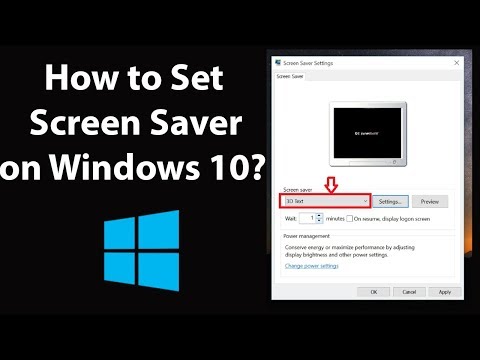
How to Set Screen Saver on Windows 10?
ChannelTechMeSpotDescription from the creator
How to Set Screen Saver on Windows 10?
Step 1: Right click on the desktop, and then click on 'Personalize'.
Step 2: Click on 'Lock Screen', and then scroll down.
Step 3: Click on 'Screen saver settings'.
Step 4: Under Screen saver, select your screen saver that you like. If you want to change some settings, click on settings button.
Step 5: After you done, click on 'Apply' button, and then 'ok' button.
It's done
Thanks for watching, please like and subscribe
==============================================
YouTube Subscribe: goo.gl/4lCCN8
Patreon: patreon.com/TechMeSpot
Facebook: facebook.com/techmespot
Twitter: twitter.com/techmespot
Website: techmespot.com
#howto #SetScreenSaverOnWindows10 #Windows10Tips
Step 1: Right click on the desktop, and then click on 'Personalize'.
Step 2: Click on 'Lock Screen', and then scroll down.
Step 3: Click on 'Screen saver settings'.
Step 4: Under Screen saver, select your screen saver that you like. If you want to change some settings, click on settings button.
Step 5: After you done, click on 'Apply' button, and then 'ok' button.
It's done
Thanks for watching, please like and subscribe
==============================================
YouTube Subscribe: goo.gl/4lCCN8
Patreon: patreon.com/TechMeSpot
Facebook: facebook.com/techmespot
Twitter: twitter.com/techmespot
Website: techmespot.com
#howto #SetScreenSaverOnWindows10 #Windows10Tips
About this tutorial
TechMeSpot published this 6:44 video tutorial on October 31, 2019. It has been watched 114,201 times on YouTube.
- Channel
- TechMeSpot
- Category
- Howto & Style
- Duration
- 6:44
- Published
- October 31, 2019
- Views
- 114,201
- Likes
- 1,072
Tags
Share
This tutorial in other languages
- FRComment configurer l'économiseur d'écran sous Windows 10?
- ESCómo Configurar el protector de pantalla en Windows 10?
- PTComo Set proteção de tela no Windows 10?
- ITCome impostare screen saver su Windows 10?
- DESo stellen Sie Bildschirmschoner auf Windows 10?
- NLHoe stel Screen Saver op Windows 10?
- RUКак Установить экранную заставку Windows 10?
- PLJak ustawić wygaszacz ekranu w systemie Windows 10?
- JAどのようにWindowsの10に設定スクリーンセーバーに?
- ARكيفية تعيين شاشة التوقف على ويندوز 10؟
- HIकैसे Windows 10 पर सेट स्क्रीन सेवर के लिए?
- IDCara Set Screen Saver pada Windows 10?