Playback starts YouTube’s embedded player (privacy-enhanced mode).
How to use iperf to test local network LAN speed in Windows 10
Channelhowtwos101Description from the creator
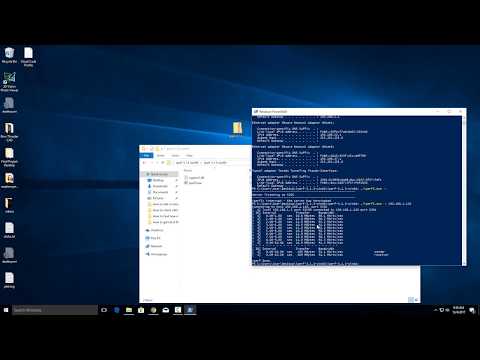
This video will show you how to use iperf to test your local network (LAN) speed in Windows 10. You will need 2 computers on the same network, and the IP Address of one of them.
First, go to iperf.fr/iperf-download.php and download the newest version of iperf for you operating system.
The file that will download is a zip file, so you will need to right click on it and choose extract all. This will create a folder in the same directory with the name iperf-3.1.3-win64 (or the same name as whichever version you downloaded).
Go into this folder, and find the iperf application. You will need to hold shift and right click in the folder, and there will be an option for either Open Command Windows here or Open Powershell here. Click on that and a window will open.
On the first computer, you will need to find the IP address, and then run iperf as a server.
To find the IP address, type ipconfig and then hit enter. In the text that pops up, look for the line under your network adapter that says IPV4 address, the IP should look something like 192.168.1.120.
Next, if you are in powershell (the blue window) type ./iperf3.exe -s and hit enter. If you have the command prompt open, DON'T put in the ./ so just type iperf3.exe -s and hit enter.
Next, go the other computer, download and extract iperf, and then shift+right click and open the Powershell/command prompt.
If the window is powershell (blue window) type ./iperf3.exe -c 192.168.1.120 where 192.168.1.120 is replaced by the IP address of the computer you are running the iperf server on. Again if you are running command prompt instead, just don't include the ./
This will run several speed tests and give the average of them. If you have good gigabit equipment and wiring, the result should be around 950Mbs. If you only have 100Mbs, then you will probably see 90-95Mbs, and if you are on WIFI, then you it all depends on signal strength and type (Wireless G, N, AC, etc)
Check out my facebook at: facebook.com/pages/All-How-2s/198429346974010
or my twitter: twitter.com/AllHow2s
Or my website where I have a lot of other great tutorials (such as how to take a screenshot, or how to get the start button back on Windows 8): allhow2s.com
First, go to iperf.fr/iperf-download.php and download the newest version of iperf for you operating system.
The file that will download is a zip file, so you will need to right click on it and choose extract all. This will create a folder in the same directory with the name iperf-3.1.3-win64 (or the same name as whichever version you downloaded).
Go into this folder, and find the iperf application. You will need to hold shift and right click in the folder, and there will be an option for either Open Command Windows here or Open Powershell here. Click on that and a window will open.
On the first computer, you will need to find the IP address, and then run iperf as a server.
To find the IP address, type ipconfig and then hit enter. In the text that pops up, look for the line under your network adapter that says IPV4 address, the IP should look something like 192.168.1.120.
Next, if you are in powershell (the blue window) type ./iperf3.exe -s and hit enter. If you have the command prompt open, DON'T put in the ./ so just type iperf3.exe -s and hit enter.
Next, go the other computer, download and extract iperf, and then shift+right click and open the Powershell/command prompt.
If the window is powershell (blue window) type ./iperf3.exe -c 192.168.1.120 where 192.168.1.120 is replaced by the IP address of the computer you are running the iperf server on. Again if you are running command prompt instead, just don't include the ./
This will run several speed tests and give the average of them. If you have good gigabit equipment and wiring, the result should be around 950Mbs. If you only have 100Mbs, then you will probably see 90-95Mbs, and if you are on WIFI, then you it all depends on signal strength and type (Wireless G, N, AC, etc)
Check out my facebook at: facebook.com/pages/All-How-2s/198429346974010
or my twitter: twitter.com/AllHow2s
Or my website where I have a lot of other great tutorials (such as how to take a screenshot, or how to get the start button back on Windows 8): allhow2s.com
About this tutorial
howtwos101 published this 5:20 video tutorial on November 8, 2018. It has been watched 253,288 times on YouTube.
- Channel
- howtwos101
- Category
- Howto & Style
- Duration
- 5:20
- Published
- November 8, 2018
- Views
- 253,288
- Likes
- 1,522
Tags
Share
This tutorial in other languages
- FRComment iperf utiliser pour tester le réseau local LAN vitesse dans Windows 10
- ESCómo utilizar iperf para probar la velocidad de LAN red local en Windows 10
- PTComo usar iperf para testar velocidade da rede LAN local no Windows 10
- ITCome utilizzare iperf per testare la velocità locale LAN di rete in Windows 10
- DEWie verwenden iperf 10 lokales Netzwerk LAN-Geschwindigkeit in Windows zu testen
- NLHoe te iperf gebruiken om lokale netwerk LAN snelheid te testen in Windows 10
- RUКак использовать Iperf, чтобы проверить скорость локальной сети LAN в Windows 10
- PLJak korzystać iperf przetestować sieć lokalną prędkość LAN w systemie Windows 10
- JAWindowsの10でローカルネットワークLANの速度をテストするためにiperfのを使用する方法
- ARكيفية استخدام iperf لاختبار سرعة الشبكة LAN المحلية في نظام التشغيل Windows 10
- HIकैसे iperf उपयोग करने के लिए Windows 10 में स्थानीय नेटवर्क लैन गति का परीक्षण करने के लिए
- IDCara menggunakan iperf untuk menguji kecepatan jaringan LAN lokal di Windows 10