Playback starts YouTube’s embedded player (privacy-enhanced mode).
How To Change Your Username / Computer Name In Windows 10
ChannelMDTechVideosDescription from the creator
This tutorial will show you how to change the computer name of your Windows 10 computer.
This tutorial should work for all major computer hardware manufactures that include Windows 7, Windows 8/8.1 and Windows 10 in their products (Dell, HP, Acer, Asus, Toshiba, Lenovo, Samsung, and so forth).
There are plenty of reasons to change your computer's name -- especially if you bought it directly from a manufacturer and it's named something generic like "windows-user-pc" or "TUF000445811EE". If you want to connect computers through a homegroup, or just be able to recognize which computers are on your network, changing your computer's name to something more descriptive is definitely helpful.
Or maybe you just want to name your computer something cool -- add a personal touch. I name all my computers after figures from Greek mythology. I also name my cars.
Before Windows 10, changing your computer's name was complicated. Well, not so much complicated as hidden inside the Control Panel in the System Properties windows. While you can still change your computer's name in System Properties (we'll show you how), Windows 10 has made it much simpler by putting it in the new Settings menu.
Here's the easy way to change your computer's name:
1. Open Settings and go to System - About.
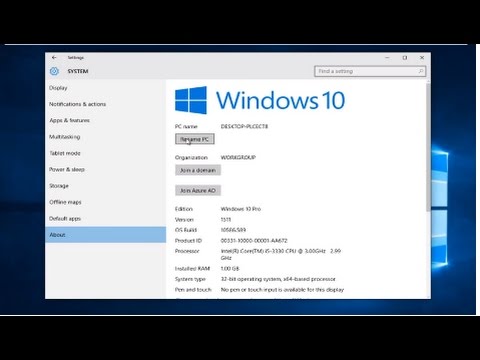
2. In the About menu, you should see the name of your computer next to PC name and a button that says Rename PC. Click this button.
3. Type the new name for your computer. You can use letters, numbers and hyphens -- no spaces. Then click Next.
4. A window will pop up asking if you want to restart your computer now or later. If you want to change to the new name immediately, click Restart now to restart your computer. If you don't want to restart your computer right this second, click Restart later. Your computer's name will be updated the next time you restart it.
How to change your computer name windows 10
This tutorial will apply for computers, laptops, desktops, and tablets running the Windows 10 operating system (Home, Professional, Enterprise, Education) from all supported hardware manufactures, like Dell, HP, Acer, Asus, Toshiba, Lenovo, and Samsung.
This tutorial should work for all major computer hardware manufactures that include Windows 7, Windows 8/8.1 and Windows 10 in their products (Dell, HP, Acer, Asus, Toshiba, Lenovo, Samsung, and so forth).
There are plenty of reasons to change your computer's name -- especially if you bought it directly from a manufacturer and it's named something generic like "windows-user-pc" or "TUF000445811EE". If you want to connect computers through a homegroup, or just be able to recognize which computers are on your network, changing your computer's name to something more descriptive is definitely helpful.
Or maybe you just want to name your computer something cool -- add a personal touch. I name all my computers after figures from Greek mythology. I also name my cars.
Before Windows 10, changing your computer's name was complicated. Well, not so much complicated as hidden inside the Control Panel in the System Properties windows. While you can still change your computer's name in System Properties (we'll show you how), Windows 10 has made it much simpler by putting it in the new Settings menu.
Here's the easy way to change your computer's name:
1. Open Settings and go to System - About.
2. In the About menu, you should see the name of your computer next to PC name and a button that says Rename PC. Click this button.
3. Type the new name for your computer. You can use letters, numbers and hyphens -- no spaces. Then click Next.
4. A window will pop up asking if you want to restart your computer now or later. If you want to change to the new name immediately, click Restart now to restart your computer. If you don't want to restart your computer right this second, click Restart later. Your computer's name will be updated the next time you restart it.
How to change your computer name windows 10
This tutorial will apply for computers, laptops, desktops, and tablets running the Windows 10 operating system (Home, Professional, Enterprise, Education) from all supported hardware manufactures, like Dell, HP, Acer, Asus, Toshiba, Lenovo, and Samsung.
About this tutorial
MDTechVideos published this 1:47 video tutorial on October 26, 2016. It has been watched 1,062,729 times on YouTube.
- Channel
- MDTechVideos
- Category
- Science & Technology
- Duration
- 1:47
- Published
- October 26, 2016
- Views
- 1,062,729
- Likes
- 5,102
Tags
Share
This tutorial in other languages
- FRComment faire pour changer votre nom d'utilisateur / Nom de l'ordinateur Sous Windows 10
- ESCómo cambiar su nombre de usuario / nombre de equipo en Windows 10
- PTComo mudar seu nome de usuário / nome do computador no Windows 10
- ITCome modificare il nome utente / nome del computer in Windows 10
- DEWie Sie Ihren Benutzername / Computername in Windows 10 ändern
- NLHet wijzigen van uw gebruikersnaam en / Computer Name In Windows 10
- RUКак изменить ваше имя / имя компьютера В Windows 10
- PLJak zmienić nazwę użytkownika / Nazwa komputera w systemie Windows 10
- JAお使いのユーザー名/コンピュータ名でのWindows 10を変更する方法
- ARكيفية تغيير اسم المستخدم / اسم الكمبيوتر في نظام التشغيل Windows 10
- HIकैसे बदलने के लिए अपना उपयोगकर्ता नाम / कंप्यूटर नाम में Windows 10
- IDCara Mengubah Anda Username / Nama Komputer Pada Windows 10