Playback starts YouTube’s embedded player (privacy-enhanced mode).
How to Eject a CD from a Mac
ChannelHowcastDescription from the creator
Full Playlist: youtube.com/playlist?list=PLLALQuK1NDrheOFip252…
-
-
Watch more How to Understand Computers videos: howcast.com/videos/292610-How-to-Eject-a-CD-fro…
Unlike a PC, there is no Eject button on the CD drive of a Mac. Use one of these options to quickly and easily get your disc out.
Step 1: Press the Eject button
Press the Media Eject button on the keyboard, located in the top row of keys. This button has no text but features an icon that looks like an up arrow with a single line underneath.
Tip
If the CD does not eject, place the computer in sleep mode, then press the Media Eject key again.
Step 2: Use another shortcut
Choose File from the top menu on the desktop. Then select Eject.
Tip
To use the shortcut keys, press Command and E simultaneously.
Step 3: Drag to trash
Highlight the CD or DVD icon from the desktop and drag it to the Trash file. It won't delete anything on the disc, but it will eject it.
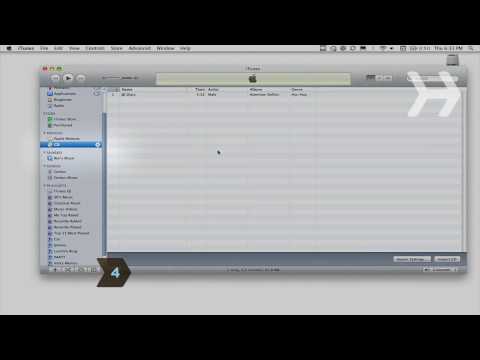
Step 4: Eject from iTunes
Eject your CD directly from iTunes either by using the eject icon next to the disc name or clicking Controls on the top, horizontal menu bar, and then clicking Eject Disc.
Step 5: Restart
If all else fails, choose Restart from the Apple menu. Immediately after the system startup sound, press and hold the mouse button until the computer is finished starting up. This will eject your CD.
Did You Know?
Did you know? Apple sold 2.2 million Macs in the second quarter of 2009, with laptops accounting for 63 percent of the total.
-
-
Watch more How to Understand Computers videos: howcast.com/videos/292610-How-to-Eject-a-CD-fro…
Unlike a PC, there is no Eject button on the CD drive of a Mac. Use one of these options to quickly and easily get your disc out.
Step 1: Press the Eject button
Press the Media Eject button on the keyboard, located in the top row of keys. This button has no text but features an icon that looks like an up arrow with a single line underneath.
Tip
If the CD does not eject, place the computer in sleep mode, then press the Media Eject key again.
Step 2: Use another shortcut
Choose File from the top menu on the desktop. Then select Eject.
Tip
To use the shortcut keys, press Command and E simultaneously.
Step 3: Drag to trash
Highlight the CD or DVD icon from the desktop and drag it to the Trash file. It won't delete anything on the disc, but it will eject it.
Step 4: Eject from iTunes
Eject your CD directly from iTunes either by using the eject icon next to the disc name or clicking Controls on the top, horizontal menu bar, and then clicking Eject Disc.
Step 5: Restart
If all else fails, choose Restart from the Apple menu. Immediately after the system startup sound, press and hold the mouse button until the computer is finished starting up. This will eject your CD.
Did You Know?
Did you know? Apple sold 2.2 million Macs in the second quarter of 2009, with laptops accounting for 63 percent of the total.
About this tutorial
Howcast published this 1:34 video tutorial on November 7, 2010. It has been watched 279,438 times on YouTube.
- Channel
- Howcast
- Category
- Science & Technology
- Duration
- 1:34
- Published
- November 7, 2010
- Views
- 279,438
- Likes
- 461
Tags
Share
This tutorial in other languages
- FRComment un CD Ejecter à partir d'un Mac
- ESCómo extraer un CD desde un Mac
- PTComo ejetar um CD a partir de um Mac
- ITCome espellere un CD da un Mac
- DEWie man eine CD von einem Mac auswerfen
- NLHoe kan ik een cd van een Mac uitwerpen
- RUКак извлечь компакт-диск из Mac
- PLJak wysunąć płyty CD z komputera Mac
- JAMacからCDを取り出す方法
- ARكيفية إخراج قرص من ماك
- HIसे एक मैक एक सीडी निकालें कैसे
- IDCara Keluarkan CD dari Mac