Playback starts YouTube’s embedded player (privacy-enhanced mode).
How to screen capture video on your iPhone
ChannelTouch Technology ReviewDescription from the creator
Have you ever wanted to take a screen recording on your iPhone. Well now since the introduction of iOS 11 you can.
Most of you are probably already aware of how to take a screen shot of anything that appears on your screen, this has been built into the iPhone since the very early days. All you have to do is press on the home button and power button simultaneously.
But what if you want to capture some video. A facebook video, youtube or any moving image on your screen.
All you need to do is go to your settings/control centre. Customise Controls.
Scroll down to More Controls and Tap on the plus icon next to Screen Recording and you’ll see it is moved to the included section at the top.
That’s it your pretty much done. Tap on the home button to return to main screen now go and load up some video. I’ll play a clip from youtube for this demonstration.
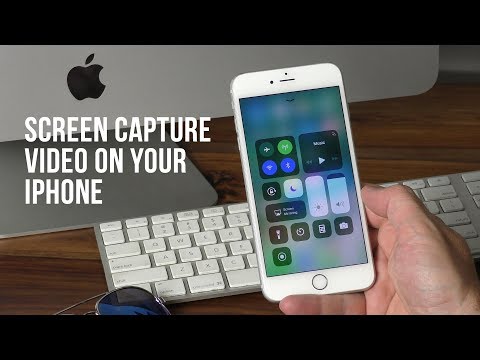
Now as the video is playing swipe up from the bottom of the screen to reveal the control Centre and now you’ll notice a new icon appear that wasn’t there before, a record button. Go ahead and tap on it. You’ll get a three second countdown and then your iPhone will start recording your video. When you want to stop it, simply swipe the control panel up again, tap on the record button to stop the recording and your video clip will be saved automatically to your photos library.
Please note: In more recent versions of iOS you swipe down from the top right corner of the screen to reveal the control center.
Most of you are probably already aware of how to take a screen shot of anything that appears on your screen, this has been built into the iPhone since the very early days. All you have to do is press on the home button and power button simultaneously.
But what if you want to capture some video. A facebook video, youtube or any moving image on your screen.
All you need to do is go to your settings/control centre. Customise Controls.
Scroll down to More Controls and Tap on the plus icon next to Screen Recording and you’ll see it is moved to the included section at the top.
That’s it your pretty much done. Tap on the home button to return to main screen now go and load up some video. I’ll play a clip from youtube for this demonstration.
Now as the video is playing swipe up from the bottom of the screen to reveal the control Centre and now you’ll notice a new icon appear that wasn’t there before, a record button. Go ahead and tap on it. You’ll get a three second countdown and then your iPhone will start recording your video. When you want to stop it, simply swipe the control panel up again, tap on the record button to stop the recording and your video clip will be saved automatically to your photos library.
Please note: In more recent versions of iOS you swipe down from the top right corner of the screen to reveal the control center.
About this tutorial
Touch Technology Review published this 1:32 video tutorial on November 14, 2018. It has been watched 683,067 times on YouTube.
- Channel
- Touch Technology Review
- Category
- Science & Technology
- Duration
- 1:32
- Published
- November 14, 2018
- Views
- 683,067
- Likes
- 4,071
Tags
Share
This tutorial in other languages
- FRComment vidéo de capture d'écran sur votre iPhone
- ESComo a video captura de pantalla en el iPhone
- PTComo vídeo de captura de tela do seu iPhone
- ITCome il video cattura dello schermo sul vostro iPhone
- DEWie zu Screen-Capture-Video auf Ihrem iPhone
- NLHoe te screen capture video op je iPhone
- RUКак экран захвата видео на вашем iPhone
- PLJak ekranu przechwytywania wideo na iPhonie
- JAどのようにあなたのiPhoneの画面キャプチャビデオへ
- ARكيفية شاشة الفيديو القبض على اي فون الخاص بك
- HIकैसे अपने iPhone पर स्क्रीन कैप्चर करने के लिए वीडियो
- IDCara screen capture video pada iPhone Anda