Playback starts YouTube’s embedded player (privacy-enhanced mode).
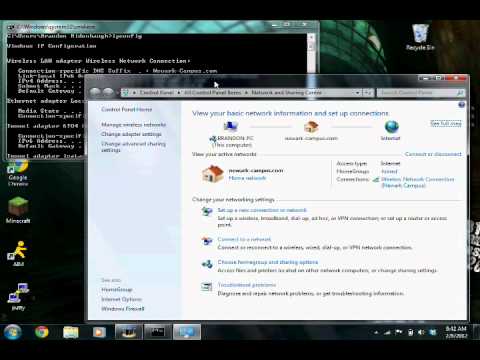
How to setup a static IP address and change DNS server
Channeltinkertoes43055Description from the creator
This tutorial is for windows 7. However the steps are similar for vista and XP
The DNS server i use is Google's public DNS server
Written instructions.
1. Click on the start menu
2. In the search bar type cmd and hit enter
3. Type in the command line "ipconfig"
4. Scroll up to your connection; it should list the DNS suffix, ipv6 address, ipv4 address, subnet mask, and Gateway.
5. Either leave up the page or write down the IPv4 address, subnet mask, and Default Gateway
6. Click on the start menu again
7. In the search programs and files bar type "Network"
8. Click on "Network and sharing center"
9. On far left click the "change adapter settings"
10. Next right click on your internet connection
11. Choose properties
12. Double click on "internet protocol version 4(TCP/IPv4)
13. Tick the "use following IP address"
14. In the ip line type the IPv4 from command prompt
15. Same with the subnet and default gateway lines
16. Next tick the "use the following DNS server and addresses"
17. In the preferred DNS server type "8.8.8.8" and in alternative DNS type "8.8.4.4" this is Google's public DNS servers.
18. Click ok, and ok
19. Close the adapter settings page
20. Complete
The DNS server i use is Google's public DNS server
Written instructions.
1. Click on the start menu
2. In the search bar type cmd and hit enter
3. Type in the command line "ipconfig"
4. Scroll up to your connection; it should list the DNS suffix, ipv6 address, ipv4 address, subnet mask, and Gateway.
5. Either leave up the page or write down the IPv4 address, subnet mask, and Default Gateway
6. Click on the start menu again
7. In the search programs and files bar type "Network"
8. Click on "Network and sharing center"
9. On far left click the "change adapter settings"
10. Next right click on your internet connection
11. Choose properties
12. Double click on "internet protocol version 4(TCP/IPv4)
13. Tick the "use following IP address"
14. In the ip line type the IPv4 from command prompt
15. Same with the subnet and default gateway lines
16. Next tick the "use the following DNS server and addresses"
17. In the preferred DNS server type "8.8.8.8" and in alternative DNS type "8.8.4.4" this is Google's public DNS servers.
18. Click ok, and ok
19. Close the adapter settings page
20. Complete
About this tutorial
tinkertoes43055 published this 3:25 video tutorial on November 2, 2012. It has been watched 405,048 times on YouTube.
- Channel
- tinkertoes43055
- Category
- Science & Technology
- Duration
- 3:25
- Published
- November 2, 2012
- Views
- 405,048
- Likes
- 681
Tags
Share
This tutorial in other languages
- FRComment configurer une adresse IP statique et d'un changement de serveur DNS
- ES¿Cómo configurar una dirección IP estática y el servidor DNS cambio
- PTComo configurar um endereço IP estático e servidor DNS mudança
- ITCome impostare un indirizzo IP statico e server DNS cambiamento
- DEWie eine statische IP-Adresse und Änderung DNS-Server einrichten
- NLHoe je een statisch IP-adres en verandering DNS-server
- RUКак настроить статический IP-адрес и DNS-сервера изменить
- PLJak skonfigurować statyczny adres IP serwera DNS i zmiana
- JAどのようにセットアップする静的IPアドレスと変更DNSサーバ
- ARكيفية إعداد عنوان IP ثابت والخادم DNS التغيير
- HIकैसे सेटअप करने के लिए एक स्थिर IP पता और परिवर्तन DNS सर्वर
- IDCara setup alamat IP statis dan perubahan DNS server