Playback starts YouTube’s embedded player (privacy-enhanced mode).
How to Change, Add, or Remove Startup Programs in Windows 7
ChannelmuhammadlilgDescription from the creator
Welcome back People,
Here is the transcript for the tutorial.
___________________________________________________________
The first option in video was: Startup Folder
Startup folder is located:
C:\Users\(User-Name)\AppData\Roaming\Microsoft\Windows\Start Menu\Programs\Startup
Or you can
1. Open the Start Menu.
2. Click on All Programs, right click on the Startup folder, and click on Open or Explore.
Or you can
Click the start button and search for shell:startup
and press enter.
Then to add programs to the startup folder you simply just drag the shortcut in to the Startup folder and your done.
To remove programs you simply just delete them from the folder.
___________________________________________________________
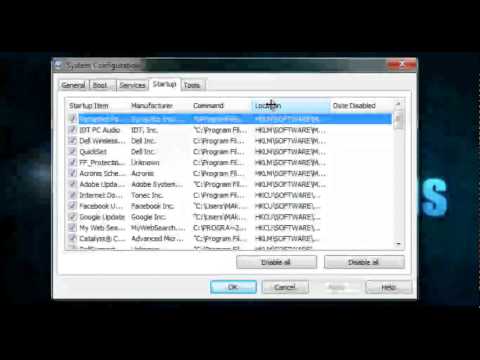
Second Option was: Msconfig
To open Msconfig:
1.Open the Start Menu.
2.In the search line, type msconfig and press Enter.
When it opens, Click on the Startup tab
1. To Disable a Startup Program
A) Select a listed startup program and uncheck it.
B) Repeat to disable anymore listed startup programs.
2. To Enable a Startup Program
A) Select a listed startup program and check it.
B) Repeat to enable anymore listed startup programs.
3. To Disable All Listed Startup Programs
A) Click on the Disable all button.
B) Go to step 9.
4. To Enable All Listed Startup Programs
A) Click on the Enable all button.
Finally when your done, Click on Apply and Ok.
You can then exit without restarting or restart straight away. Your choice.
___________________________________________________________
Third Option was: Manually in Registry Editor (regedit)
To open registry editor,
1. Open the Start Menu.
2. In the search line, type regedit and press Enter
(Windows 7)
For "User" Locations
In regedit, go to:
HKEY_CURRENT_USER\Software\Microsoft\Windows\CurrentVersion\Run
For "All Users" Locations
In regedit, go to:
HKEY_LOCAL_MACHINE\SOFTWARE\Microsoft\Windows\CurrentVersion\Run
In the right pane of Run and/or RunOnce, right click on the startup program you want to remove and click on Delete.
Click on Yes to confirm deletion
And your done :)
I hope you found this tutorial useful.
Dont forget to subscribe, rate and comment.
Muhammad Ali
MAk Productions
Here is the transcript for the tutorial.
___________________________________________________________
The first option in video was: Startup Folder
Startup folder is located:
C:\Users\(User-Name)\AppData\Roaming\Microsoft\Windows\Start Menu\Programs\Startup
Or you can
1. Open the Start Menu.
2. Click on All Programs, right click on the Startup folder, and click on Open or Explore.
Or you can
Click the start button and search for shell:startup
and press enter.
Then to add programs to the startup folder you simply just drag the shortcut in to the Startup folder and your done.
To remove programs you simply just delete them from the folder.
___________________________________________________________
Second Option was: Msconfig
To open Msconfig:
1.Open the Start Menu.
2.In the search line, type msconfig and press Enter.
When it opens, Click on the Startup tab
1. To Disable a Startup Program
A) Select a listed startup program and uncheck it.
B) Repeat to disable anymore listed startup programs.
2. To Enable a Startup Program
A) Select a listed startup program and check it.
B) Repeat to enable anymore listed startup programs.
3. To Disable All Listed Startup Programs
A) Click on the Disable all button.
B) Go to step 9.
4. To Enable All Listed Startup Programs
A) Click on the Enable all button.
Finally when your done, Click on Apply and Ok.
You can then exit without restarting or restart straight away. Your choice.
___________________________________________________________
Third Option was: Manually in Registry Editor (regedit)
To open registry editor,
1. Open the Start Menu.
2. In the search line, type regedit and press Enter
(Windows 7)
For "User" Locations
In regedit, go to:
HKEY_CURRENT_USER\Software\Microsoft\Windows\CurrentVersion\Run
For "All Users" Locations
In regedit, go to:
HKEY_LOCAL_MACHINE\SOFTWARE\Microsoft\Windows\CurrentVersion\Run
In the right pane of Run and/or RunOnce, right click on the startup program you want to remove and click on Delete.
Click on Yes to confirm deletion
And your done :)
I hope you found this tutorial useful.
Dont forget to subscribe, rate and comment.
Muhammad Ali
MAk Productions
About this tutorial
muhammadlilg published this 5:06 video tutorial on November 1, 2012. It has been watched 615,714 times on YouTube.
- Channel
- muhammadlilg
- Category
- Howto & Style
- Duration
- 5:06
- Published
- November 1, 2012
- Views
- 615,714
- Likes
- 2,682
Tags
Share
This tutorial in other languages
- FRComment modifier, ajouter ou supprimer des programmes de démarrage dans Windows 7
- ESCómo cambiar, agregar o quitar programas de inicio en Windows 7
- PTComo alterar, adicionar ou remover programas de inicialização no Windows 7
- ITCome modificare, aggiungere o rimuovere programmi di avvio in Windows 7
- DEWie zu ändern, hinzufügen oder entfernen Autostart-Programme in Windows 7
- NLHoe te veranderen, toevoegen of verwijderen opstartprogramma's in Windows 7
- RUКак изменить, добавить или удалить запуска программ в Windows 7
- PLJak zmieniać, dodawać lub Usuń Programy startowe w Windows 7
- JAどのように変更するには、追加、またはWindows 7でスタートアッププログラムを削除
- ARكيفية تغيير أو إضافة أو إزالة برامج بدء التشغيل في ويندوز 7
- HIकैसे बदलें करने के लिए, जोड़ें, या विंडोज 7 में स्टार्टअप प्रोग्राम निकालें
- IDCara Mengubah, Tambah, atau Hapus Startup Programs di Windows 7