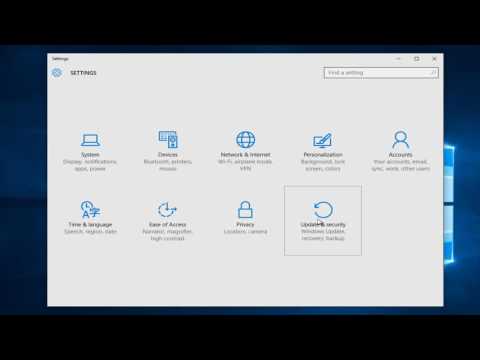
Playback starts YouTube’s embedded player (privacy-enhanced mode).
How To Add Exclusions For Windows Defender In Windows 10
ChannelMDTechVideosDescription from the creator
In this tutorial I will show you guys how to set Windows Defender to start or stop monitoring certain files, processes or file types. If you trust software that Windows Defender has detected, you can stop Windows Defender from alerting you to risks that the software might pose to your privacy or your computer. To stop being alerted, you need to add the software to the Windows Defender allowed list. If you decide that you want to monitor the software again later, you can remove it from the Windows Defender allowed list at any time.
If you trust a file that Windows Defender has detected as malicious, you can stop Windows Defender from alerting you or blocking the program by adding the file to the exclusions list.
Stop Windows Defender From Detecting Certain Files Or Games
This tutorial will apply for computers, laptops, desktops,and tablets running the Windows 10 operating system (Home, Professional, Enterprise, Education) from all supported hardware manufactures, like Dell, HP, Acer, Asus, Toshiba,Lenovo, and Samsung).
If you trust a file that Windows Defender has detected as malicious, you can stop Windows Defender from alerting you or blocking the program by adding the file to the exclusions list.
Stop Windows Defender From Detecting Certain Files Or Games
This tutorial will apply for computers, laptops, desktops,and tablets running the Windows 10 operating system (Home, Professional, Enterprise, Education) from all supported hardware manufactures, like Dell, HP, Acer, Asus, Toshiba,Lenovo, and Samsung).
About this tutorial
MDTechVideos published this 4:28 video tutorial on November 15, 2017. It has been watched 334,480 times on YouTube.
- Channel
- MDTechVideos
- Category
- Science & Technology
- Duration
- 4:28
- Published
- November 15, 2017
- Views
- 334,480
- Likes
- 1,797
Tags
Share
This tutorial in other languages
- FRComment faire pour ajouter des exclusions pour Windows Defender dans Windows 10
- ESCómo agregar exclusiones para Windows Defender en Windows 10
- PTComo adicionar exclusões para o Windows Defender no Windows 10
- ITCome aggiungere le esclusioni per Windows Defender in Windows 10
- DEWie Hinzufügen einer Ausnahme für Windows Defender unter Windows 10
- NLHow To Uitsluitingen toevoegen voor Windows Defender in Windows 10
- RUКак добавить Exclusions Для Защитника Windows В Windows 10
- PLJak dodać wykluczeniami Windows Defender w systemie Windows 10
- JAWindows Defenderの中のWindows 10の場合は除外を追加する方法
- ARكيفية إضافة استثناءات لبرنامج Windows Defender في نظام التشغيل Windows 10
- HIकैसे विंडोज डिफेंडर में Windows 10 के लिए बहिष्करण जोड़ने के
- IDCara Tambah Pengecualian Untuk Windows Defender Pada Windows 10