Playback starts YouTube’s embedded player (privacy-enhanced mode).
How to connect Android to PC
ChannelCompelsonDescription from the creator
Download the software at www.mobiledit.com/downloads
To achieve a successful phone connection, there are a few important steps that must be taken for this or any other tool. This is only required for the first time, then you can enjoy the functionality of all our products. An Android phone can be connected to a PC by USB cable, which transfers data faster or via Wi-Fi which is easier.
How to connect phone via USB cable
Don't connect phone to your PC prior to step 3!
1. Enable USB Debugging, so your phone can be connected to a PC
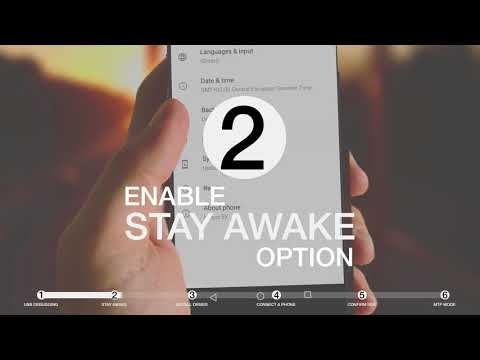
2. Enable Stay Awake option, so the phone doesn't disconnect
3. Install Windows device driver for your phone, download here
4. Now connect your phone to a PC running MOBILedit
5. Confirm RSA Fingerprint on your phone's display
6. Select MTP mode on the phone´s display
Now enjoy our product! You don't need to do anything else, MOBILedit will find your phone automatically.
In case you have connected your phone to the PC prior to step 3 above, wrong driver might have been installed to it by Windows. That would cause MOBILedit not to recognize the phone.
A guide on how to remove the Windows incorrect driver by our Universal android one can be found here: support.mobiledit.com/portal/kb/articles/how-to…
If your phone doesn't connect:
MOBILedit will require the installation of a small app called Connector into your phone. If it does not install automatically we recommend to reconnect the phone and restart MOBILedit or download the Connector app directly from Google Play.
Make sure that the phone is not set in Mass Storage mode.
If you use any other phone tool, such as HTC Manager, Eclipse, Android Studio, you need to stop ADB process in Task manager or uninstall the software, if it doesn't help.
In case you are using Windows 7 OS and your phone is not automatically connected, nor recognized, please follow the article of Manually changing the ADB driver.
To achieve a successful phone connection, there are a few important steps that must be taken for this or any other tool. This is only required for the first time, then you can enjoy the functionality of all our products. An Android phone can be connected to a PC by USB cable, which transfers data faster or via Wi-Fi which is easier.
How to connect phone via USB cable
Don't connect phone to your PC prior to step 3!
1. Enable USB Debugging, so your phone can be connected to a PC
2. Enable Stay Awake option, so the phone doesn't disconnect
3. Install Windows device driver for your phone, download here
4. Now connect your phone to a PC running MOBILedit
5. Confirm RSA Fingerprint on your phone's display
6. Select MTP mode on the phone´s display
Now enjoy our product! You don't need to do anything else, MOBILedit will find your phone automatically.
In case you have connected your phone to the PC prior to step 3 above, wrong driver might have been installed to it by Windows. That would cause MOBILedit not to recognize the phone.
A guide on how to remove the Windows incorrect driver by our Universal android one can be found here: support.mobiledit.com/portal/kb/articles/how-to…
If your phone doesn't connect:
MOBILedit will require the installation of a small app called Connector into your phone. If it does not install automatically we recommend to reconnect the phone and restart MOBILedit or download the Connector app directly from Google Play.
Make sure that the phone is not set in Mass Storage mode.
If you use any other phone tool, such as HTC Manager, Eclipse, Android Studio, you need to stop ADB process in Task manager or uninstall the software, if it doesn't help.
In case you are using Windows 7 OS and your phone is not automatically connected, nor recognized, please follow the article of Manually changing the ADB driver.
About this tutorial
Compelson published this 1:59 video tutorial on November 2, 2018. It has been watched 237,657 times on YouTube.
- Channel
- Compelson
- Category
- Science & Technology
- Duration
- 1:59
- Published
- November 2, 2018
- Views
- 237,657
- Likes
- 828
Tags
Share
This tutorial in other languages
- FRComment connecter Android pour PC
- ESCómo conectar a un PC Android
- PTComo conectar Android para PC
- ITCome collegare al PC Android
- DEWie Android auf den PC anschließen
- NLHoe te Android aansluiten op PC
- RUКак подключить Android к компьютеру
- PLJak podłączyć do komputera PC Android
- JAPCにアンドロイドを接続する方法
- ARكيفية توصيل الروبوت لPC
- HIपीसी के लिए एंड्रॉयड कनेक्ट करने के लिए कैसे
- IDBagaimana menghubungkan Android ke PC